1
User Guide
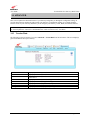
PPPoE
VersaLink Wireless Gateway (Model 7500)
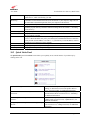
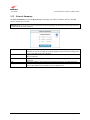
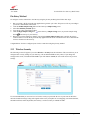
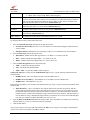
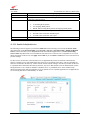
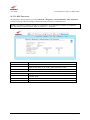
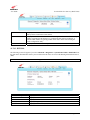
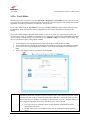
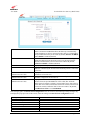
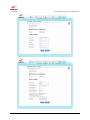
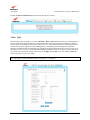
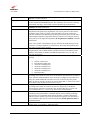
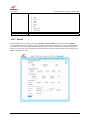
Displays the PPPoE session status:
•
•
•
•
PPP
Session UP: A valid PPPoE session has been detected.
No Session: Currently, there is no active PPPoE session established.
Initiating Session: A PPP session must be connected from the homepage screen.
Connecting: The connection process for a PPPoE session has been initialized. Wait 10-15
seconds and try again. If discovery still cannot complete, there may be a configuration
issue with your ISP’s equipment. Verify your VPI/VCI settings (on the Advanced > WAN
> VCs screen) and contact your provider.
• Authenticating: The authentication process for a PPPoE session has been initialized. Wait
10-15 seconds and try again. If this fails, there may be a configuration issue with your
provider’s equipment. Verify your Username/Password settings (on the Advanced > WAN
> Connection Overview > profile editor > edit screen), and contact your provider.
• Idle: A PPPoE session was halted. WAN Cable must be connected and UP, then a PPP
session must be connected from the Home screen. If the connection still cannot complete,
there may be a configuration issue with your ISP’s equipment. Verify your VPI/VCI
settings (on the Advanced > WAN > VCs screen) and contact your ISP.
• Disconnecting: The disconnection process for a PPPoE session has been initialized. Wait a
few seconds for the PPPoE connection to come down.
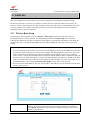
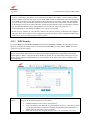
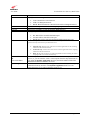
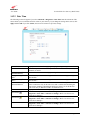
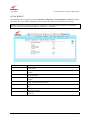
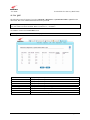
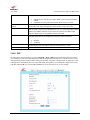
Displays the PPP connection status. Note: A PPPoE session must already be established.
•
•
Self Test
Connection UP: Gateway has established a PPP connection
No Connection: There is no PPP connection. A PPP session must be connected from the
Home screen.
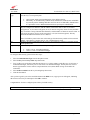
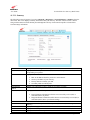
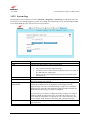
Test Description / Test Results
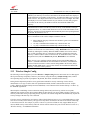
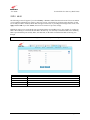
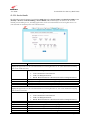
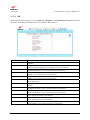
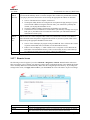
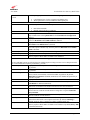
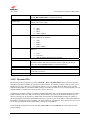
Displays the results of an integrity check of certain internal components of the Gateway.
•
•
PING
ISP’s
Router
Success: The Gateway is operating correctly.
Flash Corrupt: The self test process has detected a problem with internal flash memory.
Restart the Gateway. If the error persists, contact your ISP.
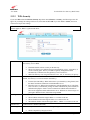
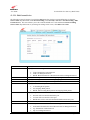
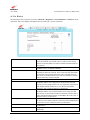
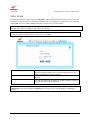
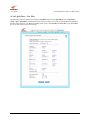
Displays the results of an IP network check (an IP Ping) of the ISP’s router. This test verifies that
the Gateway can exchange IP traffic with an entity on the other side of the DSL line.
•
•
DNS test
Success: Gateway has detected an IP Remote Router connection.
No Response: The IP Remote Router does not answer the IP Ping. This test fails when the
ISP’s router does not give its IP address to the modem during session establishment. Try
pinging another host, using the IP Address – PING test button. If you are able to ping any
host, or even if you are able to find an IP address for a given host name (try
“www.yahoo.com”), then the failure of the “IP Remote Router” test is moot because the
success of the ping demonstrates that you are getting IP traffic across the DSL line. If the
separate ping fails as well, contact your ISP.
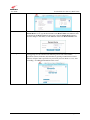
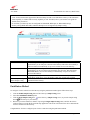
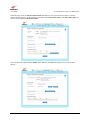
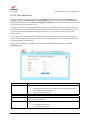
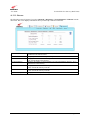
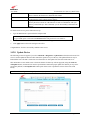
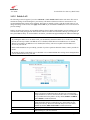
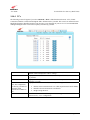
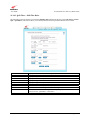
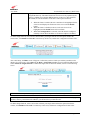
Type the host name in the provided field, and click the DNS test button to resolve the name of a
particular host.
•
•
•
•
•
030-300613 Rev A
Success: Your Gateway has successfully obtained the resolved address. The IP address is
shown below the host name field.
No Response: Your Gateway has failed to obtain the resolved address. Determine the IP
addresses of your DNS servers (from the Home screen, click Edit > Advanced), and then
ping test those addresses. This may provide useful information when you contact your ISP
and speak with Technical Support.
Host not found: The DNS Server was unable to find an address for the given host name.
No data, enter host name: No host name is specified.
Could not test: The test could not be executed due to your Gateway’s settings. Check your
DSL sync or your PPP session. You must have both a DSL sync and a PPP connection
established to execute a ping.
91
August 2009