1
Programming the MX-6000 for a Kaleidescape Movie Server
Installation
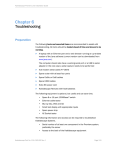
3. Check for updates. If updates are available, an Update Available
window appears. See Figure 2-6.
Figure 2-6
Update Available Window
4. Click the OK button. It is always advisable to update the program.
Download the Kaleidescape Application for the MX-6000
The Kaleidescape application can be downloaded from either the
Kaleidescape website or the URC Toolbox.
0
0
www.kaleidescape.com
www.universalremote.com
Use one of the following procedures to download the application.
Note:
The Kaleidescape application MUST be downloaded to the appropriate
directory location under the CCP software. Default location is at the
following location.
C:\Program Files\Universal Remote Control, Inc\Complete Control
Program\MX-6000\TwoWay
From the Kaleidescape Website
1. Go to Control Systems area on the Kaleidescape website.
www.kaleidescape.com/support/control-systems
2. Click on the URC icon.
3. Click on the URC MX-6000 Application download. Download begins
immediately.
From the URC Website
1. Click on the INSTALLER LOG-IN button to enter the Control Room.
2. Sign in, enter EMAIL address and PASSWORD in the text boxes.
3. Click on the URC TOOLBOX button on the left. The Tool Box screen
appears. See Figure 2-7.
Kaleidescape Part No. 101-0107-00 Rev 2
Page 11