1
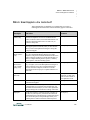
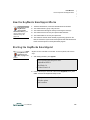
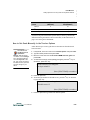
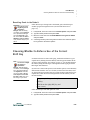
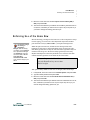
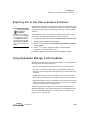
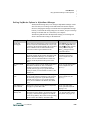
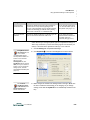
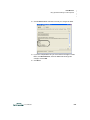
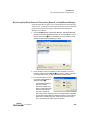
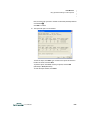
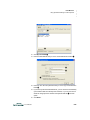
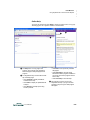
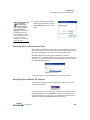
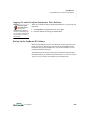
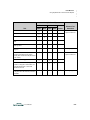
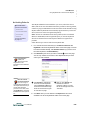
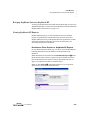
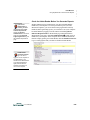
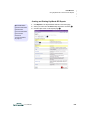
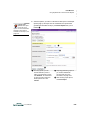
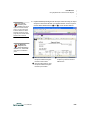
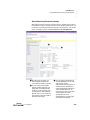
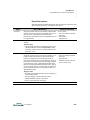
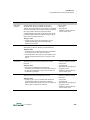
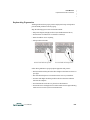
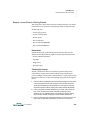
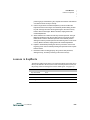
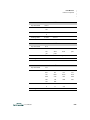
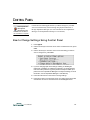
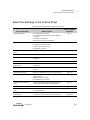
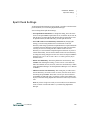
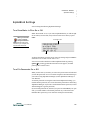
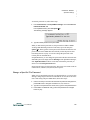
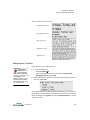
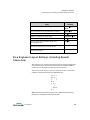
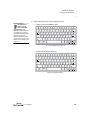
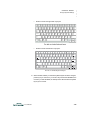
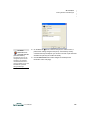
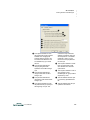
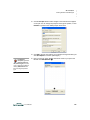
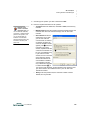
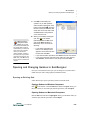
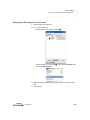
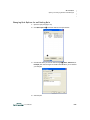
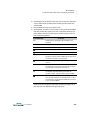
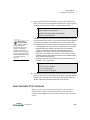
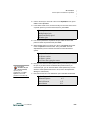
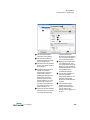
..... CONTROL PANEL Change Keyboard Settings Change Keyboard Settings You can also change these settings in AlphaSmart Manager. When you click the Settings tab and click System on the left, the available settings that you can change on the right will include Sticky Keys, Keyboard Layout and Slow Keys. It also includes Auto Repeat. To choose the keyboard settings in the Control Panel, move the cursor next to Change keyboard settings and press enter. Then, move the cursor next to the option you want to change and press enter. You can change the following: Option Does This Keyboard layouts Sets alternate keyboard layouts (see below) Slow Keys Sets a time delay for holding down a key before the character appears onscreen Sticky Keys Sets whether you must hold keys down for keyboard commands or whether you can press them sequentially Change Keyboard Layout When you choose this setting, NEO gives you a choice of four different keyboard layouts to provide for special needs or preferences: • QWERTY, the standard default layout of most keyboards and typewriters • Dvorak, a scientifically-designed keyboard layout that requires much less finger reaching and stretching for the most commonly used keys, and results in faster and easier typing • Right hand only, a layout that lets people with special needs type faster • Left hand only, a layout that lets people with special needs type faster When you switch keyboard layouts, all dialog boxes and keyboard commands conform to the new layout. The command keys (ctrl, option, , for example) remain in the same location, but letter keys are derived from the new layout. For instance, to access the Speed menu, you still press option-S, but the S key is in a different location. Important: When you send text to your computer from your NEO using a USB cable and send, the computer must use a QWERTY layout. To change the keyboard layout, follow these steps: 1. Do one of the following: User Manual • From the Control Panel, select Change Keyboard Settings, then select Change Keyboard layout. • From within a SmartApplet, press option--L. 7-13