1
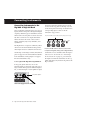
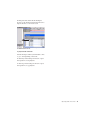
• If you are using an external MIDI device,
click the track’s MIDI Output selector (at
the top of the Instrument track) and assign
the device and channel to receive the MIDI
output (the choices will vary depending on
the device).
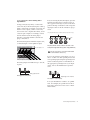
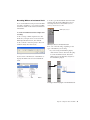
5 If you are using an external MIDI device and
connected its audio output to the Digi 002 or
Digi 002 Rack for monitoring in Pro Tools, click
the Input selector of the Instrument track and
choose the corresponding audio input. (This
step is not necessary if you are using an instrument plug-in.)
MIDI Output selector in an Instrument track
Choosing an audio input for an Instrument track
If your connected MIDI device does not appear, check that you have configured your
computer and its MIDI settings. For more
information, refer to the Digi 002 and
Digi 002 Rack Getting Started Guide.
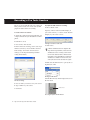
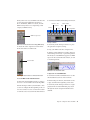
6 In the Mix Window, click the Track Record Enable button to enable the Instrument track for
MIDI recording.
Track Record Enable button
Enabling an Instrument track for MIDI recording
7 Make sure Options > MIDI Thru is selected.
16
Digi 002 and Digi 002 Rack Basics Guide