1
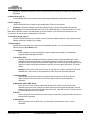
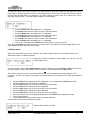
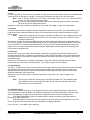
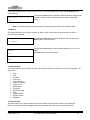
Choose Partition menu:
Use the Up or Down button to find the partition where your master disc is
stored. Press the Enter button to select that Partition. Next, you will see the
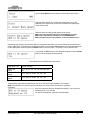
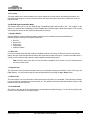
Counter Selection menu:
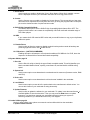
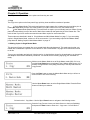
Follow the instructions shown in Setting Counters on page 12 to continue.
Once the counters have been set, press the Enter button to confirm. You
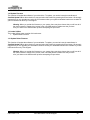
will see the Processing screen:
After a short interval, the robotic loader will pick the top disc from the input spindle and place it into the drive.
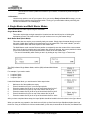
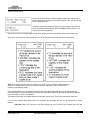
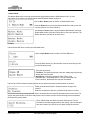
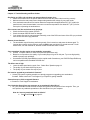
After two or three seconds of processing time, one of the following Copy Progress screens will appear.
or
Note: It is normal to see the progress indicator stay at 0%-10% and 100% for approximately 30
seconds for CD duplication and up to one minute for DVD duplication. That is caused by the
initializing and finalizing stages.
Once the duplication run is completed, the loader will remove the finished disc from the drive and place the
successful copy on the Output Spindle and if there are any bad/NG copies the process will pause and requires
user intervention to remove the bad disc.
The loader will then pick up another blank disc and load it into the drive. This is then repeated for each disc.
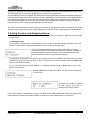
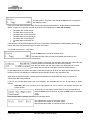
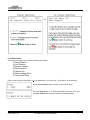
If you run out of blank discs and the job is not complete, the autoloader will give you an opportunity to fill the
spindle:
Important: When you add discs to the input spindle, be sure to remove your finished discs from the
User Guide v.1.0
www.discmakers.com/techsupport
11