1
Restoring Data in Windows Vista, Windows 7, and Windows 8 & 8.1
You can connect your external drive into a Windows Vista, 7, or 8 & 8.1 computer and simply view the
contents of the external drive. You can do this by going into Computer then double left-click on your
external drive; this should open the contents of your external drive. Then all you would do is locate the
necessary files/folder and copy/paste the data from the external drive into your computer’s hard drive.
In Windows Vista, 7, and 8 & 8.1 your data files should be found within the "\Users\Your User
Name\Documents” folder - Inside of your backup device.
Note: You might have to search for your files in other locations within your backup
device if you performed a backup of files that resided in custom created folders.
(We provided you with an example on how to restore a PDF document from a backup that was
performed by BounceBack Ultimate)
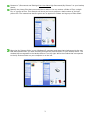
Open My Computer. Verify that your backup device is identified by Windows.
Double left-click on your backup device in order to be able to browse this device.
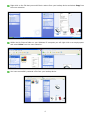
Browse to “\Users\Your User Name\Documents” on your backup device.
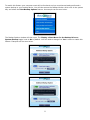
Identify the PDF files that you would like to restore. You can restore a folder of files, a single file, or
a group of files. This example will show you how to perform a basic restore of a single PDF file. The
instructions that are given can be applied on folders and a group of files aswell.
5