1
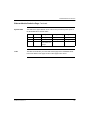
FactoryCast
User’s Guide
For Quantum and Premium
890 USE 152 00
Version 2.0
Data, Illustrations, Alterations
Data and illustrations are not binding. We reserve the right to alter products in line with our policy of continuous product development.
If you have any suggestions for improvements or amendments or have found errors in this publication, please notify us by e-mail at
[email protected].
Training
Schneider Automation Inc. offers suitable further training on the system.
Hotline
See addresses for Technical Support Centers at the end of this publication.
Trademarks
All terms used in this publication to denote Schneider Automation Inc. products are trademarks of Schneider Automation Inc.
All other terms used in this publication to denote products may be registered trademarks and/or trademarks of the corresponding
corporations. Microsoft and MS-DOS are registered trademarks of Microsoft Corporation. Windows is a brand name of Microsoft
Corporation in the USA and other countries. IBM is a registered trademark of International Business Machines Corporation. Intel is a
registered trademark of Intel Corporation.
Copyright
All rights are reserved. No part of this document may be reproduced or transmitted in any form or by any means, electronic or
mechanical, including copying, processing or by online file transfer, without permission in writing from Schneider Automation Inc. You
are not authorized to translate this document into any other language.
© 1999 Schneider Automation Inc. All rights reserved.
FactoryCast User’s Guide
For Quantum and Premium
890 USE 152 00
Version 2.0
June 1999
Document Set
Quantum Ethernet Embedded Web Server Module User Guide
840 USE 115 00
Premium Ethernet User Guide
TLX DSCOM PL7
Preface
Preface
The data and illustrations found in this book are not binding. We
reserve the right to modify our products in line with our policy of
continuous product development. The information in this document is
subject to change without notice and should not be construed as a
commitment by Schneider Electric, Inc.
Schneider Electric, Inc assumes no responsibility for any errors that
may appear in this document. If you have any suggestions for
improvements or amendments or have found errors in this publication,
please notify us through your distributor or local Square D office.
No part of this document may be reproduced in any form or by any
means, electronic or mechanical, including photocopying, without
express written permission of the Publisher, Schneider Electric, Inc.
CAUTION
All pertinent state, regional, and local safety regulations must be observed when installing
and using this product.
For reasons of safety and to assure compliance with documented system data, repairs to
components should be performed only by the manufacturer.
Failure to observe this precaution can result in injury or equipment damage.
MODSOFT® is a registered trademark of Schneider Electric, Inc.
The following are trademarks of Schneider Electric, Inc.:
Modbus
Modbus Plus
Modicon
984
Concept
DIGITAL® and DEC® are registered trademarks of Digital
Equipment Corporation.
IBM® and IBM AT® are registered trademarks of International
Business Machines Corporation.
Microsoft® and MS-DOS® are registered trademarks of Microsoft
Corporation.
©Copyright 1999, Schneider Electric, Inc.
Printed in U.S.A.
890 USE 152 00 Version 2.0
5
Preface
6
890 USE 152 00 Version 2.0
Contents
Chapter 1
Chapter 2
Introduction to FactoryCast ..................................................
11
What Is FactoryCast? .....................................................................................
Components of FactoryCast...........................................................................
FactoryCast ....................................................................................................
FactoryCast Configurator ...............................................................................
FactoryCast Client ..........................................................................................
System Requirements ....................................................................................
Installation ......................................................................................................
12
13
14
15
16
17
18
Web Site Security 21
Internal Security..............................................................................................
External Security ............................................................................................
22
24
Chapter 3
Default Web Site for Quantum...............................................
27
Section 3.1
Introductory Pages .........................................................................................
Overview.........................................................................................................
FactoryCast Home Page ................................................................................
Quantum Welcome Page ...............................................................................
28
28
29
31
Section 3.2
Local Rack Diagnostics ..................................................................................
Configured Local Rack Page..........................................................................
32
32
Section 3.3
Controller Diagnostics ....................................................................................
Controller Status Page ...................................................................................
34
34
Section 3.4
Ethernet Module Diagnostics..........................................................................
Ethernet Module Statistics Page ....................................................................
36
36
Section 3.5
Remote I/O Diagnostics..................................................................................
Remote I/O Diagnostics Overview..................................................................
Remote I/O Status Page.................................................................................
Configured Remote I/O Page .........................................................................
Remote I/O Drop Pages .................................................................................
38
38
39
40
41
870 USE 002 00 V.2
vii
Contents
viii
Remote I/O Drop Module Pages ....................................................................
43
Section 3.6
Distributed I/O Diagnostics.............................................................................
Distributed I/O Diagnostic Overview...............................................................
Distributed I/O Drops Page ............................................................................
Distributed I/O Specific Drop Page.................................................................
Distributed I/O Module Page ..........................................................................
45
45
46
48
50
Chapter 4
Default Web Site for Premium ..............................................
53
Section 4.1
Introductory Pages .........................................................................................
Overview ........................................................................................................
FactoryCast Home Page ................................................................................
Premium Welcome Page................................................................................
54
54
55
57
Section 4.2
Local Rack Diagnostics ..................................................................................
Rack Viewer Page..........................................................................................
58
58
Section 4.3
Controller Diagnostics ....................................................................................
PLC Personality Page ....................................................................................
60
60
Section 4.4
Ethernet Module Diagnostics .........................................................................
Ethernet Module Statistics Page ....................................................................
62
62
Section 4.5
Option Module Diagnostics ............................................................................
Option Module Diagnostics Overview ............................................................
FIP I/O Module Diagnostics Page ..................................................................
Digital I/O Module Diagnostics Page..............................................................
Analog I/O Module Diagnostics Page.............................................................
Standard Module Diagnostics Page ...............................................................
64
64
65
72
74
76
Chapter 5
FactoryCast Configurator ......................................................
79
Section 5.1
Setting Up a FactoryCast Server.................................................................... 80
Setup Overview .............................................................................................. 80
Definitions - FactoryCast Configurator ........................................................... 81
Top Menu ....................................................................................................... 82
Starting the Tool ............................................................................................. 88
Creating a New Configuration ........................................................................ 89
Setting Passwords.......................................................................................... 90
Setting Default Access ................................................................................... 92
Setting File Locations ..................................................................................... 94
Setting the IP Address.................................................................................... 96
Setting the XWay Address ............................................................................. 98
Downloading Settings to the Server ............................................................... 100
Section 5.2
Creating a Namespace................................................................................... 102
Overview ........................................................................................................ 102
Importing Symbols.......................................................................................... 103
870 USE 002 00 V.2
Contents
Setting Symbol Access...................................................................................
Adding Direct Addresses ................................................................................
Direct Address Blocks and Symbol Security ..................................................
Editing and Deleting Direct Addresses ...........................................................
Saving the Namespace ..................................................................................
Resynchronizing Your Namespace with Its Database....................................
108
110
115
117
118
119
Section 5.3
Download........................................................................................................
Download Overview........................................................................................
Download Options ..........................................................................................
How to Download ...........................................................................................
123
123
124
130
Section 5.4
Upload ............................................................................................................ 132
Upload Options............................................................................................... 132
How to Upload ................................................................................................ 135
Section 5.5
Remove .......................................................................................................... 136
Remove Options............................................................................................. 137
How to Remove .............................................................................................. 140
Section 5.6
Web Site Maintenance ...................................................................................
Maintenance Overview ...................................................................................
Checking Embedded Server Status ...............................................................
Backing Up Files.............................................................................................
Restoring the Web Server Module .................................................................
Updating I/O Module Descriptions..................................................................
Chapter 6
Adding Custom Pages to the Site ......................................... 153
Section 6.1
Working with Custom Pages ..........................................................................
Overview.........................................................................................................
Downloading a Custom Home Page ..............................................................
Downloading Other Protected Pages .............................................................
Downloading an Unprotected Web Site..........................................................
Removing Unprotected Web Files..................................................................
154
154
155
157
158
159
Section 3.2
Using FactoryCast’s Java Applets..................................................................
Overview.........................................................................................................
Using the Applets on a Web Page..................................................................
LiveBeanMgrApplet ........................................................................................
LiveLabelApplet Parameters ..........................................................................
LiveLabelApplet Example #1 ..........................................................................
LiveLabelApplet Example #2 ..........................................................................
160
160
161
164
166
169
170
Chapter 7
Editors ..................................................................................... 171
Section 7.1
Data Editor...................................................................................................... 172
The Data Editor Spreadsheet ......................................................................... 173
870 USE 002 00 V.2
141
141
142
145
147
151
ix
Contents
Section 7.2
Chapter 8
Creating a Data Template ..............................................................................
Inserting Variables in a Data Template ..........................................................
Inserting Direct Addresses in a Template ......................................................
Modifying Data Values ...................................................................................
Saving a Data Template.................................................................................
Using an Existing Data Template ...................................................................
178
179
180
181
182
183
Graphic Editor ................................................................................................
Overview ........................................................................................................
Top Window User Functions ..........................................................................
Display Window User Functions.....................................................................
Property Sheet ...............................................................................................
Security ..........................................................................................................
Applet Parameters..........................................................................................
Graphic Objects..............................................................................................
184
185
188
197
200
202
203
205
Alarm Viewer........................................................................... 221
Display............................................................................................................ 222
Operation and Management of Alarms .......................................................... 226
Limitations ...................................................................................................... 227
Appendix A Browser Requirements, Settings and
Security Considerations ........................................................ 229
Browser Version ............................................................................................. 230
Browser Settings ............................................................................................ 231
Browser Security Considerations ................................................................... 235
Appendix B Performance Benchmarks ..................................................... 237
Premium Performance Benchmarks .............................................................. 238
Quantum Performance Benchmarks .............................................................. 241
Configuration Tool Performance Benchmarks ............................................... 242
Index .................................................................................................................. 243
x
870 USE 002 00 V.2
Introduction to FactoryCast
1
At a Glance
Purpose
This chapter describes FactoryCast for Quantum and Premium, including its
functions, components and system requirements.
In This Chapter
This chapter contains the following topics:
890 USE 152 00 Version 2.0
For This Topic...
See Page...
What Is FactoryCast?
12
Components of FactoryCast
13
FactoryCast
14
FactoryCast Configurator
15
FactoryCast Client
16
System Requirements
17
Installation
18
11
Introduction to FactoryCast
What Is FactoryCast?
Overview
FactoryCast is a software package that allows you to customize a Web site on the
Embedded Web Server module. The site can be accessed via a browser to view
and modify data from a Quantum or Premium programmable logic controller (PLC).
Default Web Site
FactoryCast provides all the Web pages and Java applets you need to view runtime data from your controller. You can use the FactoryCast default Web site
simply by configuring the module and accessing it with a browser over the intranet.
Custom Web Site
FactoryCast gives you two ways to customize the default Web site:
Site Maintenance
12
l
Create a Web-enabled database to view and modify the run-time values of
symbols (variables) and direct addresses
l
Add your own Web pages to the site
FactoryCast also provides all the tools you need to maintain your Web site on the
Embedded Server, including ways to download, backup and restore files.
890 USE 152 00 Version 2.0
Introduction to FactoryCast
Components of FactoryCast
Overview
Quantum
Version
Premium Version
The three components of FactoryCast are:
l
FactoryCast Server
l
FactoryCast Configurator
l
FactoryCast Client
For Quantum, the FactoryCast components are integrated as follows:
This Component...
Is Used To...
140 NOE 211 10
140 NOE 251 10 (Fiber Optic)
Store the Web site on its Embedded Server.
140 NOE 771 10
Enhance web server performance and memory
Concept v. 2.1 and higher
Modsoft v. 2.5 and higher
Program the controller.
FactoryCast Configurator
Configure the Web site, download data and
maintain the site on the server.
FactoryCast Client
Display and modify PLC data.
Netscape Communicator 4.06
Internet Explorer 4.0 (w/Service Pack 2)
View the Web site.
For Premium, the FactoryCast components are integrated as follows:
This Component...
Is Used To...
TSX ETY 110 WS v. 2.2, minimum
Store the Web site on its Embedded
Server.
PL7 v. 3.0 and higher
Program the controller.
FactoryCast Configurator
Configure the Web site, download data
and maintain the site on the server.
FactoryCast Client
Display and modify PLC data.
Netscape Communicator 4.06
View the Web site.
Internet Explorer 4.0 (w/Service Pack 2, minimum)
890 USE 152 00 Version 2.0
13
Introduction to FactoryCast
FactoryCast
Overview
FactoryCast consists of HTTP and FTP servers embedded in a Quantum or
Premium Ethernet option module.
How It Works
The servers contain a default set of diagnostic Web pages and Java applets. The
user can add custom Web pages and applets for specific applications.
Versions
Schneider Automation offers three versions of the Embedded Server
14
Part Number
Description
Memory Avail. for
Customization
140 NOE 211 10
Quantum Embedded Server Module with
Ethernet TCP/IP, 10 BaseT Twisted Pair, 1
Channel, and FactoryCast Configurator
Software
Configurable
140 NOE 251 10
Quantum Embedded Server Module with
Ethernet TCP/IP, 10 BaseFL Fiber Optic, 1
Channel, and FactoryCast Configurator
Software
Configurable
140 NOE 771 10
Quantum FactoryCast module with Ethernet
TCP/IP, 100 BaseT twisted pair/100 Base Fx
fiber optic, 1 channel, and FactoryCast
configurator software.
up to 8 Mb
TSX ETY 110 WS v.
2.2, minimum
Premium Embedded Server Module with
Ethernet TCP/IP, 10 BaseT Twisted Pair,
AUI and FactoryCast Configurator Software
Configurable
890 USE 152 00 Version 2.0
Introduction to FactoryCast
FactoryCast Configurator
Overview
You can use the FactoryCast Configurator to configure and maintain your Web site.
You also can use it to create a Web-enabled database of variables (symbols) and
direct addresses, which can be viewed and modified during run-time over the Web.
Configuring a
Site
The configuration tool helps you to:
l
Set security, including passwords and read/write protection
l
Add your company logo to Web pages
l
Add your own Web pages, images and Java applets to a site
l
Download and upload files to the Embedded Server
Creating a
Database
The configuration tool allows you to create a Web-enabled database using symbols
(variables) and direct addresses from your Concept or PL7 database. You can use
this Web-enabled database to view and modify the symbols and direct addresses
while the controller is running.
Maintaining a
Site
The configuration tool allows you to back up files, restore files and, if necessary,
reflash FactoryCast Configurator files to the Embedded Server.
890 USE 152 00 Version 2.0
15
Introduction to FactoryCast
FactoryCast Client
Overview
FactoryCast Run-Time Diagnostics consists of default Web pages, Java applets, a
Data Editor, a Graphics Editor, and an Alarm Viewer.
Default Web
Components
The default Web pages and Java applets allow you to display the status and
configuration of the controller, Embedded Server module, other option modules
and I/O modules.
Data Editor
The Data Editor allows you to view and modify variables (symbols) and direct
addresses which have been included in a namespace on the Embedded Server.
Graphic Editor
The Graphic Editor allows you to create and view data using Java Beans for
visualization. Each graphic object can be linked to a variable or address in the
embedded server.
Alarm Viewer
(Premium Only)
When the PLC Premium application has diagnostic properties activated, the Alarm
Viewer allows you to display potential application faults.
16
890 USE 152 00 Version 2.0
Introduction to FactoryCast
System Requirements
Overview
This section provides minimum system requirements for FactoryCast Configurator
software. If FactoryCast Configurator programs are used simultaneously with other
software packages, a more powerful configuration may be required.
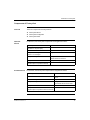
To Use the
Configuration
Tool
Minimum system requirements are:
Processor
Pentium 166 Mhz (Pentium 200 Mhz recommended)
Operating System Windows 95/98 or Windows NT 4.0 (w/Service Pack 3)
To View and
Modify Run-Time
Diagnostics
Ram
32 Mb (64 MB recommended)
Drives
Hard Disk (free space)40 Mb
Floppy Disk
4XCD-ROM
Monitor
SVGA 800x600
Minimum system requirements are:
Processor
Pentium 166 Mhz (Pentium 200 Mhz recommended)
Operating System Any
Ram
32 Mb (64 MB recommended)
Drives
Hard Disk
Monitor
SVGA 800x600
Browsers
Netscape Communicator 4.06 or higher OR
Internet Explorer 4.0 (w/Service Pack 2) or higher
(Must support HTML 3.0 and Java Development Kit (JDK) 1.1.5)
Browsers
890 USE 152 00 Version 2.0
For browser requirements, see Browser Requirements, Settings and Security
Considerations on page 229.
17
Introduction to FactoryCast
Installation
Overview
This section explains the FactoryCast installation procedure. FactoryCast comes
on a compact disc and is self-installing. Once the disc has loaded onto your PC,
follow the installation dialogs.
Downloaded
Files
FactoryCast will download the following files during installation:
Table 1: Quantum Modules
Sys Diag
Data Editor
Graphic Editor
Comm Intf
wwwroot/classes
Sys Diag.jar
wwwroot/conf
Gcnftcop.sys
wwwroot/images
module.gif
miniplc.gif
eight_io.gif
empty.gif
secure/system
ctrlstat.htm
ethernet.htm
plccfg.htm
riostat.htm
wwwroot/classes
RDE.jar
secure/system
rde.htm
wwwroot/classes
GDE.jar
Widgets.jar
secure/system
gde.htm
wwwroot/classes
SAComm.jar
Continued on next page
18
890 USE 152 00 Version 2.0
Introduction to FactoryCast
Installation, continued
Table 2: Premium Modules
Sys Diag
Data Editor
Graphic Editor
Alarm Viewer
Comm Intf
wwwroot/classes
JL.jarSysDiag.jar
wwwroot/conf
business.pbf
modules.pbf
products.pbf
xway.txtranges.pbf
wwwroot/images
anim1.gif
backbtn.gif
secure/system
plccfg.htm
wwwroot/classes
RDE.jar
secure/system
rde.htm
wwwroot/classes
GDE.jar
Widgets.jar
secure/system
gde.htm
wwwroot/classes
RAE.jar
secure/system
rae.htm
wwwroot/images
ack.gif
ackall.gif
dfb.gif
gr7.gif
help.gif
nack.gif
stop.gif
sys.gif
trasall.gif
trash.gif
asi.gif
wwwroot/classes
SAComm.jar
890 USE 152 00 Version 2.0
19
Introduction to FactoryCast
20
890 USE 152 00 Version 2.0
Web Site Security
2
At a Glance
Purpose
Before you set up your Web site, you should give some thought to security. While
data in a default Web site is read-only, data in a custom site can be write-enabled.
You should consider carefully who has access to the site and which data can be
modified.
This chapter discusses security concerns and some security mechanisms available
to FactoryCast users.
In This Chapter
890 USE 152 00 Version 2.0
This chapter contains the following topics:
For This Topic...
See Page...
Internal Security
22
External Security
24
21
Web Site Security
Internal Security
Overview
The Web site you create with the FactoryCast Configurator may be accessed over
an intranet. FactoryCast Configurator provides two mechanisms to ensure that only
authorized users view and modify your data.
Security
Mechanisms
On intranets, FactoryCast Configurator provides security through:
l
Password entry
l
Write restrictions
CAUTION
SECURITY SETTINGS MAY BE CHANGED
Keep strict control of access to the FactoryCast Configurator software. Anyone who has
access to FactoryCast Configurator and to your Embedded Server can override your
security settings and download new settings to the server. This could result in unauthorized
users making unauthorized changes to data values, leading to unpredictable and possibly
dangerous changes in your application.
Failure to observe this precaution can result in injury or equipment damage.
Password Entry
Although you may add unprotected Web pages to the site, the default Web pages
and any other pages you choose to protect can only be viewed by users who
supply the correct user name and password.
Continued on next page
22
890 USE 152 00 Version 2.0
Web Site Security
Internal Security, Continued
Write
Restrictions
In order to write register values or save templates to your Web site with the Data
Editor or Graphic Editor, a user must enter an additional password for write access.
Users who enter the write password can only modify variables, (symbols) and
direct addresses which are set as write-enabled. When you create a Web-enabled
database of variables and direct addresses, you can designate each element as
read-only or write-enabled.
CAUTION
CHANGES TO DATA MAY RESULT IN CHANGES TO YOUR APPLICATION
Be careful about which variables (symbols) and direct addresses you allow to be modified
online, and be cautious about who has permission to modify them. Unauthorized or
incorrect changes to data may change the behavior of your application in ways that may be
undesirable or even dangerous.
Failure to observe this precaution can result in injury or equipment damage.
Security
Overrides
890 USE 152 00 Version 2.0
Because the passwords and read/write settings are downloaded to the Embedded
Server with the FactoryCast Configurator, anyone who has a copy of the
Configuration Tool software and access to your Embedded Server over the
network can modify your security settings by downloading new ones.
23
Web Site Security
External Security
Overview
If your network is configured to allow users to view your site over the Internet, you
have the same security concerns as for an intranet, but you have an extra
mechanism to deal with them: a firewall.
Firewall
Architecture
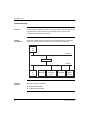
A firewall is a gateway from the Internet to your Embedded Server, as depicted
below. You can use a firewall to restrict or deny access to your Web site.
Browser
on
PC
Internet
Firewall
Intranet
Browser
on
PC
Types of
Firewalls
Concept*
Database
Configuration
Software
on PC
PL7
Database
Embedded
Server
in PLC
There are two types of firewalls:
l
Network-level firewalls
l
Application-level firewalls
Continued on next page
24
890 USE 152 00 Version 2.0
Web Site Security
External Security, Continued
Network-Level
Firewalls
Network-level firewalls are frequently installed between the Internet and a single
point of entry to an internal, protected network.
ApplicationLevel Firewalls
An application-level firewall acts on behalf of an application; for instance, FTP. It
intercepts all traffic destined for that application and decides whether to forward
that traffic to the application. Application-level firewalls reside on individual host
computers.
Considerations
for FactoryCast
Configurator
FactoryCast Configurator uses FTP to access Embedded Server files. If you want
viewers to be able to access your site from the Internet and your Embedded Server
is protected by a firewall, then that firewall must be configured to allow FTP traffic.
The firewall may be configured to allow network connections to a restricted port
range or to allow traffic to and from certain IP addresses. Firewalls configured to
allow incoming data to FTP’s well-known TCP/IP port of 21, and to allow incoming
data to ports higher than 1024, will grant access to protected Embedded Servers.
The FactoryCast client follows the “Firewall Friendly FTP” standard, RFC 1579. It
issues an FTP PASV command to FactoryCast before all attempts to establish an
FTP data connection.
FactoryCast Client uses TCP/IP port 80 for HTTP access to Web pages stored on
an Embedded Server. Schneider Automation’s MBAP protocol is used to access
run-time data on TCP/IP port 502. These ports must also be made available
through the firewall.
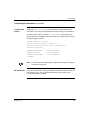
Note: Quantum users who want to add a single FTP password to the server can
create an ASCII file, ftplist.dat. This file should contain the user name
string on the first line and a password string on the second line. For
example:
MyUser
My password
Save this file to your local PC directory under \FactoryCast\Qbf\Software
\wwwroot\ftplist.dat. Next, use the Configurator to “Restore Defaults”
890 USE 152 00 Version 2.0
25
Web Site Security
26
890 USE 152 00 Version 2.0
Default Web Site for Quantum
3
At a Glance
Purpose
When you receive the Server, it already contains a default Web site with diagnostic
pages and the Data Editor.
You may view these pages and view direct addresses in the Data Editor simply by
installing the module and configuring its IP address. To access the site, type the
Domain name or IP address of the module in your browser and enter the default
user name and password of “USER”. However, Schneider Automation
recommends that you complete the setup procedures that begin withFactoryCast
Configurator on page 79.
This section describes the pages in the default Web site.
In This Chapter
This chapter contains the following sections:
For This Topic...
890 USE 152 00 Version 2.0
See Section...
On Page...
Introductory Pages
1
28
Local Rack Diagnostics
2
32
Controller Diagnostics
3
34
Ethernet Module Diagnostics
4
36
Remote I/O Diagnostics
5
38
Distributed I/O Diagnostics
6
45
27
Default Web Site for Quantum
Section 3.1
Introductory Pages
Overview
Purpose
When a user accesses the default Web site for Quantum, he first encounters a
FactoryCast Home Page and then a Quantum Welcome Page. This section
describes those two pages.
In This Section
This section contains the following topics:
28
For This Topic...
See Page...
FactoryCast Home Page
29
Quantum Welcome Page
31
890 USE 152 00 Version 2.0
Default Web Site for Quantum
FactoryCast Home Page
Overview
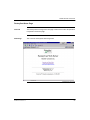
The FactoryCast Home Page is the first page a visitor will encounter. No password
is required to access this page.
Home Page
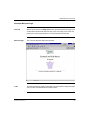
This is how the FactoryCast Home Page looks:
Continued on next page
890 USE 152 00 Version 2.0
29
Default Web Site for Quantum
FactoryCast Home Page, Continued
Links
Data
Customize
30
The home page offers three links:
l
Diagnostics and Online Data Editor links to the default diagnostic Web pages
and the Run Time Data Editor
l
Password Protected Custom Application will link to any Web pages you add to
the site with password security
l
Custom Application will link to any Web pages you add to the site without
password security
The home page reports on your:
l
Operating system
l
Screen resolution
l
Browser type and version
The home page can be customized to meet your specific needs. Simply edit the
HTML and download the page to the embedded server. See Download on page
123.
890 USE 152 00 Version 2.0
Default Web Site for Quantum
Quantum Welcome Page
Overview
When a visitor clicks on the Diagnostics link on the FactoryCast Home Page, they
are directed to the Quantum Welcome Page. They must supply a user name and
password to view this page because it is in the protected area of the site.
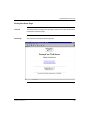
Welcome Page
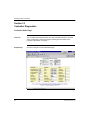
This is how the Quantum Welcome Page looks:
Links
The Quantum Welcome Page provides links to all of the Quantum diagnostic pages
and to the Run-Time Data Editor and Graphic Editor.
890 USE 152 00 Version 2.0
31
Default Web Site for Quantum
Section 3.2
Local Rack Diagnostics
Configured Local Rack Page
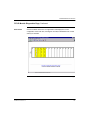
Overview
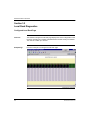
The Quantum Configured Local Rack page displays the current configuration of the
local rack, including the controller, Embedded Server module and any I/O modules.
The rack can contain up to 16 slots.
Sample Page
Here is an example of a Configured Local Rack page:
Continued on next page
32
890 USE 152 00 Version 2.0
Default Web Site for Quantum
Configured Local Rack Page, Continued
Data
Each module is displayed in its configured slot in the rack and the following
information is provided:
l
A label at the top of the module tells what type it is. Question marks indicate
that the module type is unknown or the slot is empty.
l
An LED below the label reports the module status:
m
m
Links
Green indicates that the module is functioning properly
Red indicates that the module is not functioning properly
If you click on any of the modules, you will will get a pull-down menu or go directly
to another Web page with detailed information about that module.
Links at the bottom of the page connect to other pages in the server.
890 USE 152 00 Version 2.0
33
Default Web Site for Quantum
Section 3.3
Controller Diagnostics
Controller Status Page
Overview
The Controller Status Page provides up-to-date information about the controller
and its configuration. Access this page by selecting the CPa module or the
hyperlink at the bottom of the page.
Sample Page
Here is an example of a Controller Status page:
Continued on next page
34
890 USE 152 00 Version 2.0
Default Web Site for Quantum
Controller Status Page, Continued
Dynamic Data
Some of the data provided on this page is dynamic. Dynamic data is constantly
refreshed at a rate determined by the performance of the Embedded Server,
network, and client CPU.
Links
Links at the bottom of the page connect to other major diagnostic pages.
890 USE 152 00 Version 2.0
35
Default Web Site for Quantum
Section 3.4
Ethernet Module Diagnostics
Ethernet Module Statistics Page
Overview
The Ethernet Module Statistics page provides information about the status,
transmit and receive statistics and errors for the Embedded Server module. Access
this page by selecting the NOE module from the local rack or use the hyperlink at
the bottom of the page.
Sample Page
Here is an example of an Ethernet Module Statistics page:
Note: Refer to Modicon Quantum Ethernet TCP/IP Module User Guide 840 USE
107 00 and Modicon Quantum Ethernet TCP/IP Module User Guide 840
USE 115 00 for definitions of terms.
Continued on next page
36
890 USE 152 00 Version 2.0
Default Web Site for Quantum
Ethernet Module Statistics Page, Continued
Dynamic Data
Some of the data provided on this page is dynamic. Dynamic data is constantly
refreshed at a rate determined by the performance of the Embedded Server,
network, and client CPU.
The Zero Counters button allows you to set all data fields to zero. They will
continue to be refreshed after this setting.
Links
890 USE 152 00 Version 2.0
Links at the bottom of the page connect to other major diagnostic pages.
37
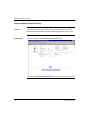
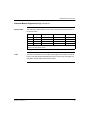
Default Web Site for Quantum
Section 3.5
Remote I/O Diagnostics
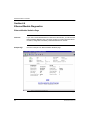
Remote I/O Diagnostics Overview
Purpose
In This Section
38
Several default Web pages provide information about configured remote I/O,
including:
l
Remote I/O Status page
l
Configured Remote I/O page
l
Remote I/O Drop pages
l
Remote I/O Drop Module pages
This section contains the following topics:
For This Topic...
See Page...
Remote I/O Status Page
39
Configured Remote I/O Page
40
Remote I/O Drop Pages
41
Remote I/O Drop Module Pages
43
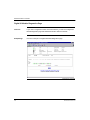
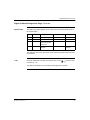
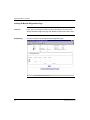
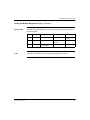
890 USE 152 00 Version 2.0
Default Web Site for Quantum
Remote I/O Status Page
Overview
The Remote I/O Status page gives an overview of the status and health of the
Remote I/O network communications. Access this page by selecting the CRP Drop
down menu item, “Remote I/O Status”.
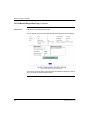
Sample Page
Here is an example of a Remote I/O Status page:
Dynamic Data
Some of the data provided on this page is dynamic. Dynamic data is constantly
refreshed at a rate determined by the performance of the Embedded Server,
network, and client CPU.
Links
Links at the bottom of the page connect to other major diagnostic pages.
890 USE 152 00 Version 2.0
39
Default Web Site for Quantum
Configured Remote I/O Page
Overview
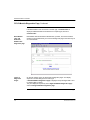
The Configured Remote I/O page displays information about the Remote I/O Head
Processor and the number of remote I/O drops. This page can be accessed by
selecting the CRP (RIO Head) module in the Configured Local Rack Page
described previously
Sample Page
Here is an example of a Configured Remote I/O page:
Data
The top half of the screen provides the current status (dynamic) and other data
about the Remote I/O Head Processor.
The bottom half of the screen displays an icon for each Remote I/O Drop and the
drop number. Moving the cursor across the icons will display a text message in the
Browser status window indicating whether the drop is 800 series or Quantum I/O.
Links
Click on a drop adapter icon to get detailed information about each drop.
The “<” back button returns you to the previous page.
40
890 USE 152 00 Version 2.0
Default Web Site for Quantum
Remote I/O Drop Pages
Overview
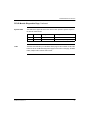
When you click on the icon for a Remote I/O Drop Adapter on the Configured
Remote I/O page, you reach a Remote I/O Drop page with detailed information
about that drop.
Sample Page
Here is an example of a Remote I/O Drop page:
Continued on next page
890 USE 152 00 Version 2.0
41
Default Web Site for Quantum
Remote I/O Drop Pages, Continued
Data
The top part of the page reports the current status of the drop adapter and the
number of modules in the drop.
The bottom part of the page provides an icon for each module in the drop. A label
at the top of the module identifies the module type. Question marks indicate that
the module type is unknown or the slot is empty. A colored LED reports module
status:
Links
l
Green indicates that the module is functioning properly
l
Red indicates that the module is not functioning properly
Click on a module icon to get detailed information about that module.
The “<” back button returns you to the previous page.
42
890 USE 152 00 Version 2.0
Default Web Site for Quantum
Remote I/O Drop Module Pages
Overview
When you click on a specific module on a Remote I/O Drop page, you reach a
Remote I/O Module page with information about that module.
Sample Page
Here is an example of a Remote I/O Discrete Module page:
Continued on next page
890 USE 152 00 Version 2.0
43
Default Web Site for Quantum
Remote I/O Drop Module Pages, Continued
Data
The top part of the screen provides information about the current status of the I/O
module, its location, module type and input or output offset.
The LED panel in the lower part of the screen displays the status of the discrete I/O
points:
Links
44
l
Green indicates the point is active
l
Off indicates the point is not active
l
It displays analog register values in integer format.
A “<“ back button at the bottom of the screen allows you to return to the previous
page.
890 USE 152 00 Version 2.0
Default Web Site for Quantum
Section 3.6
Distributed I/O Diagnostics
Distributed I/O Diagnostic Overview
Purpose
Several Web pages provide information about configured distributed I/O, including:
l
Distributed I/O Drops page
l
Distributed I/O Specific Drop page
l
Distributed I/O Module pages
Distributed I/O pages can be accessed by selecting either the CPU or a NOM from
the Configured Local Rack page assuming that Distributed I/O is configured in the
controller.
In This Section
This section contains the following topics:
For This Topic...
890 USE 152 00 Version 2.0
See Page...
Distributed I/O Drops Page
46
Distributed I/O Specific Drop Page
48
Distributed I/O Module Page
50
45
Default Web Site for Quantum
Distributed I/O Drops Page
Overview
When you select a module on the Configured Local Rack page configured for
distributed I/O, you reach a page with detailed information about the distributed I/O
networked drops controlled by that module.
Sample Page
Here is an example of a Distributed I/O drops page connected to the CPU:
Continued on next page
46
890 USE 152 00 Version 2.0
Default Web Site for Quantum
Distributed I/O Drops Page, Continued
Data
The top half of the screen provides the current status (dynamic) and other data
about the controller or NOM module running the distributed I/O network.
The bottom half of the screen displays an icon for each distributed I/O drop.
Links
Click on a drop icon to get detailed information about each drop.
Links at the bottom of the page connect to other diagnostic pages.
The “<” back button returns to the previous page.
890 USE 152 00 Version 2.0
47
Default Web Site for Quantum
Distributed I/O Specific Drop Page
Overview
When you click on a drop icon on the Distributed I/O Network page, you reach a
Distributed I/O Drop page with information about that drop.
Sample Page
Here is an example of a Distributed I/O Drop page:
Continued on next page
48
890 USE 152 00 Version 2.0
Default Web Site for Quantum
Distributed I/O Specific Drop Page, Continued
Data
The top part of the page reports the current status of the drop and the number of
modules in the drop.
The bottom part of the page provides an icon for each module in the drop. A label
at the top of the module identifies the module type.
Links
l
Green indicates that the module is functioning properly
l
Red indicates that the module is not functioning properly
Click on a module icon to get detailed information about that module.
Links at the bottom of the page connect to other diagnostic pages.
890 USE 152 00 Version 2.0
49
Default Web Site for Quantum
Distributed I/O Module Page
Overview
When you click on a module icon on a Distributed I/O Drop page, you reach a
Distributed I/O Module page with information about that module.
Sample Page
Here is an example of a Distributed I/O Module page:
Continued on next page
50
890 USE 152 00 Version 2.0
Default Web Site for Quantum
Distributed I/O Module Page, Continued
Data
The top part of the screen provides information about the current status of the I/O
module, its location, module type and input or output offset.
The LED panel in the lower part of the screen displays the status of the discrete I/O
points:
Links
890 USE 152 00 Version 2.0
l
Green indicates the point is active
l
Off indicates the point is not active
l
It displays analog register values in integer format.
The “<” back button returns you to the previous page.
51
Default Web Site for Quantum
52
890 USE 152 00 Version 2.0
Default Web Site for Premium
4
At a Glance
Purpose
When you receive the Server, it already contains a default Web site with diagnostic
pages and the Data Editor. To use the default Web site, you only have to complete
the setup procedures, beginning with FactoryCast Configurator on page 79.
This section describes the pages in the default Web site.
In This Chapter
This chapter contains the following sections:
For This Topic...
890 USE 152 00 Version 2.0
See Section...
On Page...
Introductory Pages
1
54
Local Rack Diagnostics
2
58
Controller Diagnostics
3
60
Ethernet Module Diagnostics
4
62
Option Module Diagnostics
5
64
53
Default Web Site for Premium
Section 4.1
Introductory Pages
Overview
Purpose
When a user accesses the default Web site for Premium, he encounters first a
FactoryCast Home Page and then a Premium Welcome Page. This section
describes those two pages.
In This Section
This section contains the following topics:
54
For This Topic...
See Page...
FactoryCast Home Page
55
Premium Welcome Page
57
890 USE 152 00 Version 2.0
Default Web Site for Premium
FactoryCast Home Page
Overview
The FactoryCast Home Page is the first page a visitor will encounter. No password
is required to access this page.
Home Page
This is how the FactoryCast Home Page looks:
Continued on next page
890 USE 152 00 Version 2.0
55
Default Web Site for Premium
FactoryCast Home Page, Continued
Links
Data
56
The home page offers three links:
l
Diagnostics and Online Data Editor links to the default diagnostic Web pages
and the Data Editor
l
Password Protected Custom Application will link to any Web pages you add to
the site with password security
l
Custom Application will link to any Web pages you add to the site without
password security
The home page reports on your:
l
Operating system
l
Screen resolution
l
Browser type and version
890 USE 152 00 Version 2.0
Default Web Site for Premium
Premium Welcome Page
Overview
When a visitor clicks on the Diagnostics link on the FactoryCast Home Page, he is
directed to the Premium Welcome Page. He must supply a user name and
password to view this page.
Welcome Page
This is how the Premium Welcome Page looks:
Links
The Premium Welcome Page provides links to the Rack Viewer, the Data Editor,
the Graphic Editor and the Alarm Viewer. The Rack Viewer is a diagnostic page
with links to all the other Premium diagnostic pages.
890 USE 152 00 Version 2.0
57
Default Web Site for Premium
Section 4.2
Local Rack Diagnostics
Rack Viewer Page
Overview
The Rack Viewer Page displays the current configuration of the local rack,
including the controller, Embedded Server module and any I/O modules.
Sample Page
Here is an example of a Rack Viewer page:
Data
For each module displayed in the rack, the following information is provided:
l
A vertical label displays the module type and part number
l
The box in the upper lefthand corner of the module displays the slot number
and module health:
m
m
A yellow box indicates that the module is functioning properly
A red box indicates that the module is not functioning properly
Continued on next page
58
890 USE 152 00 Version 2.0
Default Web Site for Premium
Rack Viewer Page, Continued
Links
Click on a module icon to obtain detailed information about that module.
The CPU module icon (slot 1) contains two links. The top link leads to the FIP I/O
Module Diagnostics page. The lower link leads to the PLC Personality page.
A line leading down from the Rack#0 icon (to the left of the rack) is a link to the next
rack. When you place your mouse over this link, it turns into a red arrow. Each rack
in the configuration may be viewed in turn. Upward links will take you back toward
Rack#0.
890 USE 152 00 Version 2.0
59
Default Web Site for Premium
Section 4.3
Controller Diagnostics
PLC Personality Page
Overview
The PLC Personality page provides up-to-date information about the controller and
its configuration.
Sample Page
Here is an example of a PLC Personality page:
Continued on next page
60
890 USE 152 00 Version 2.0
Default Web Site for Premium
PLC Personality Page, Continued
Dynamic Data
Links
890 USE 152 00 Version 2.0
The LEDs in the upper lefthand corner of the screen provide a dynamic report on
the controller status:
LED
Color If On
Meaning If On
Meaning If Blinking Meaning If Off
RUN
Green
Application running
Stopped
PLC error
ERR
Red
PLC error
Not configured
No error
I/O
Red
I/O event
---
No error
COM
Yellow
Communication error
---
No error
The back arrow will take you to the Rack Viewer page for this controller. Links at
the bottom of the PLC Personality page connect to the home page and the Data
Editor, Alarm Viewer or Graphic Editor.
61
Default Web Site for Premium
Section 4.4
Ethernet Module Diagnostics
Ethernet Module Statistics Page
Overview
If you click on the Embedded Server module in the Rack Viewer, you will reach the
Ethernet Module Statistics page. This page provides up-to-date information about
the status, configuration and activity of the Embedded Server module.
Sample Page
Here is an example of an Ethernet Module Statistics page:
Continued on next page
62
890 USE 152 00 Version 2.0
Default Web Site for Premium
Ethernet Module Statistics Page, Continued
Dynamic Data
Links
890 USE 152 00 Version 2.0
The LEDs in the upper lefthand corner of the screen provide a dynamic report on
the Embedded Server module status:
LED
Color If On
Meaning If On
Meaning If Blinking Meaning If Off
RUN
Green
Running normally
---
Power off
ERR
Red
Module fault
Not configured
Running normally
ADR
Red
Network address
fault or station out
of range
---
No error
The back arrow will take you to the Rack Viewer page for the Embedded Server.
Links at the bottom of the page connect to other pages in the server.
63
Default Web Site for Premium
Section 4.5
Option Module Diagnostics
Option Module Diagnostics Overview
Purpose
In This Section
Several default Web pages provide information about configured option modules,
including:
l
FIP I/O Module Diagnostics page
l
Digital I/O Module Diagnostics page
l
Analog I/O Module Diagnostics page
l
Standard Module Diagnostics page
This section contains the following topics:
For This Topic...
64
See Page...
FIP I/O Module Diagnostics Page
65
Digital I/O Module Diagnostics Page
72
Analog I/O Module Diagnostics Page
74
Standard Module Diagnostics Page
76
890 USE 152 00 Version 2.0
Default Web Site for Premium
FIP I/O Module Diagnostics Page
Overview
If you click on the FIP I/O link on the controller icon in the Rack Viewer page, you
will reach the FIP I/O Module Diagnostics page.
FIP I/O
Diagnostics
FIP I/O Diagnostic pages in FactoryCast Client for Premium are accessible in Rack
Viewer Applet or page form.
Continued on next page
890 USE 152 00 Version 2.0
65
Default Web Site for Premium
FIP I/O Module Diagnostics Page, Continued
Rack Viewer
Navigation
The following illustration represents the navigation page tree of the Rack Viewer
Applet.
WEB Utility
for Premium
page
Rack View
page
FIP I/O
Activity page
Ethernet
Module
Statistics
Page
PLC
Personality
Page
Digital I/O
Module
Diagnostics
page
Analog I/O
Module
Diagnostics
page
Standard
Module
Diagnostics
page
FIPIO Bus exploration
FIP I/O Bus
page
Digital I/O
Module
Diagnostics
page *
Analog I/O
Module
Diagnostics
page **
Standard
Module
Diagnostics
page
RACK VIEWER APPLET
* Only for Digital TBX-7modules
** Only for Analog TBX-7 modules
Continued on next page
66
890 USE 152 00 Version 2.0
Default Web Site for Premium
FIP I/O Module Diagnostics Page, Continued
Rack Viewer
Click on the Rack Viewer link. The applet starts and displays the current
configuration of the local rack, including the controller, Embedded Server module
and any I/O modules.
Continued on next page
890 USE 152 00 Version 2.0
67
Default Web Site for Premium
FIP I/O Module Diagnostics Page, Continued
FIP bus link
If Premium has a CPU with FIP bus link:
Click on the FIP I/O link and the first level diagnostic page of FIP I/O is displayed:
In the center part of this page, meters about FIP I/O activity are displayed. There is
also a list of FIP I/O devices that are faulted.
Continued on next page
68
890 USE 152 00 Version 2.0
Default Web Site for Premium
FIP I/O Module Diagnostics Page, Continued
FIP I/O Bus page
In FactoryCast Client, there is a button at the bottom of the FIP I/O activity page,
named Bus FIP I/O exploration.
If you click on this button, the FIP I/O Bus page is displayed:
Note: The button FIP I/O Bus exploration is enabled only if a FIPIO bus is
configured in the PLC application. Otherwise, the button is disabled
(grayed).
At the top of the page, the number of FIP I/O devices configured on FIP I/O Bus is
displayed. A scroll window displays all configured devices on FIP I/O Bus.
A small circle indicates the device connection point. If a FIP I/O Device is in fault,
the background color of its logical address indicator is red. A FIP I/O device module
in fault is also displayed when the box containing the module number has a red
background color.
Note: A FIP I/O device displayed in fault by FIP I/O Bus page is also displayed
in fault by FIP I/O devices in the fault list of FIP I/O activity page.
Continued on next page
890 USE 152 00 Version 2.0
69
Default Web Site for Premium
FIP I/O Module Diagnostics Page, Continued
If the Base Module of FIP I/O device is modular type, a Communicator is
displayed. If Base Module of FIP I/O Device is compact type, there is no
Communicator.
Base Module
links and
Extension
Module links
Diagnostic page
Base Module links and Extension Module links, if present, are mouse sensitive:
Clicking on the module allows you to access its diagnostic page in the same way as
an in-rack module:
Types of
Diagnostic
Pages
On FIP I/O modules, there are three kinds of diagnostic pages. The display
depends on Product Range and of Trade Type.
A Standard Module Diagnostics page is displayed except for Digital TBX-7 and
for Analog TBX-7 modules.
They are displayed respectively as the Digital I/O Module Diagnostics page
and the Analog I/O Module Diagnostics page.
Continued on next page
70
890 USE 152 00 Version 2.0
Default Web Site for Premium
FIP I/O Module Diagnostics Page, Continued
Dynamic Data
Links
890 USE 152 00 Version 2.0
The LEDs in the upper left hand corner of the screen provide a dynamic report on
the FIP I/O module status:
LED
Color If On
Meaning If On
Meaning If Off
RUN
Green
Link active
Link inactive
I/O
Red
Remote device in fault
Remote device operating normally
The back arrow will take you to the Rack Viewer page for the controller. Links at the
bottom of the FIP I/O Module Diagnostics page connect to the home page, the Data
Editor, Graphic Editor and the Alarm Viewer.
71
Default Web Site for Premium
Digital I/O Module Diagnostics Page
Overview
If you click on a digital I/O module in the Rack Viewer, you will reach a Digital I/O
Module Diagnostics page with detailed information about that module.
Sample Page
Here is an example of a Digital I/O Module Diagnostics page:
Continued on next page
72
890 USE 152 00 Version 2.0
Default Web Site for Premium
Digital I/O Module Diagnostics Page, Continued
Dynamic Data
The LEDs in the upper lefthand corner of the screen provide a dynamic report on
the module status:
LED
Color If On
Meaning If On
Meaning If Blinking Meaning If Off
RUN
Green
Running normally
---
Communication fault No error
Faulty module
ERR
Red
Module failure
I/O
Red
Overloaded short circuit Terminal block fault
or server/preactuator
voltage fault
No error
+32
Green
Channels 32 ... 63
displayed
Channels 0 ... 31
displayed
---
The LED panel in the lower part of the screen provides a dynamic status report for
each channel.
Links
If this I/O module has more than 32 channels, click on the
channels 32 ... 63.
button to view
The back arrow will take you to the Rack Viewer page for this module.
890 USE 152 00 Version 2.0
73
Default Web Site for Premium
Analog I/O Module Diagnostics Page
Overview
If you click on an analog I/O module icon in the Rack Viewer, you will reach an
Analog I/O Module Diagnostics page with detailed information about that module.
Sample Page
Here is an example of an Analog I/O Module Diagnostics page:
Continued on next page
74
890 USE 152 00 Version 2.0
Default Web Site for Premium
Analog I/O Module Diagnostics Page, Continued
Dynamic Data
Links
890 USE 152 00 Version 2.0
The LEDs in the upper lefthand corner of the screen provide a dynamic report on
the module status:
LED
Color If On
Meaning If On
Meaning If Blinking Meaning If Off
RUN
Green
Running normally
---
ERR
Red
Module failure
Communication fault No error
with PLC
I/O
Red
Range overshoot or
sensor link fault
Terminal block fault
Faulty module or
no power
No error
The back arrow will take you to the Rack Viewer page for this module.
75
Default Web Site for Premium
Standard Module Diagnostics Page
Overview
If you click on any other type of module in the Rack Viewer page, you reach a
Standard Module Diagnostics page with detailed information about that module.
Sample Page
Here is an example of a Standard Module Diagnostics page:
Continued on next page
76
890 USE 152 00 Version 2.0
Default Web Site for Premium
Standard Module Diagnostics Page, Continued
Dynamic Data
The LEDs in the upper lefthand corner of the screen provide a dynamic report on
the module status:
LED
Color If On
Meaning If On
Meaning If Blinking Meaning If Off
RUN
Green
Running normally
***
***
ERR
Red
Module fault
Not configured
No error
I/O
Red
I/O event
---
No error
OTHER
Yellow
***
***
***
*** - The meaning depends on the module type. For more information, refer to the user
manual for the appropriate module.
Links
890 USE 152 00 Version 2.0
The back arrow will take you to the Rack Viewer page for the module. Links at the
bottom of the Standard Module Diagnostics page connect to the home page, the
Data Editor, Graphic Editor and the Alarm Viewer.
77
Default Web Site for Premium
78
890 USE 152 00 Version 2.0
FactoryCast Configurator
5
At a Glance
Purpose
The FactoryCast Configurator gives you the ability to manage your Web site. This
section describes how to:
l
l
l
l
Set up a Web site
Create a Web-enabled database with symbols (variables) and direct
addresses
Download data to the Embedded Server
Maintain the site
If you only want users to view the default Web pages and to view direct addresses
in the Data Editor -- if you are not planning to customize the site in any way or to
view symbols (variables) or to modify data online -- you only need to complete the
setup procedures.
In This Chapter
This chapter contains the following sections:
For This Topic...
See Section...
On Page...
Setting Up a FactoryCast Server
1
80
Creating a Namespace
2
102
Top Menu
2
82
Download
3
123
4
141
Upload
Remove
Web Site Maintenance
890 USE 152 00 Version 2.0
79
FactoryCast Configurator
Section 5.1
Setting Up a FactoryCast Server
Setup Overview
Purpose
Follow the procedures in this section to set up any FactoryCast server.
In This Section
This section contains the following topics:
For This Topic...
80
See Page...
Definitions - FactoryCast Configurator
81
Starting the Tool
88
Creating a New Configuration
89
Setting Passwords
90
Setting Default Access
92
Setting File Locations
94
Setting the IP Address
96
Setting the XWay Address
98
Downloading Settings to the Server
100
890 USE 152 00 Version 2.0
FactoryCast Configurator
Definitions - FactoryCast Configurator
Top Menu
Overview
The Top Menu is a graphical user interface through which you create, edit or view
your web page(s).
Top Menu
functions
Locate your FactoryCast Configurator icon. Double click, OR: select the icon and
click the right mouse button to activate the context window; select <Open>. The top
menu appears.
Note: In Windows 95®, 98®, or Windows NT®, you can also use the right button
and the context window to create a desktop shortcut.
See figure below. The Top Menu has submenus (drop down menus) that enable
you to build or change your programs.
See the following Figures. The top menu has a title bar, a menu bar, and a work
area.
Continued on next page
890 USE 152 00 Version 2.0
81
FactoryCast Configurator
Top Menu
Control menu
box
This is the box in the upper left corner of the Top Menu that displays the
FactoryCast Configurator icon. The Control box opens the Control Menu. This
menu displays commands that allow you to restore, move, size, minimize,
maximize, or close the current application.
Continued on next page
82
890 USE 152 00 Version 2.0
FactoryCast Configurator
Top Menu, Continued
The top menu bar contains the following drop-down menu items:
File
File enables you to perform functions that control your application. It contains the
following application commands:
Continued on next page
890 USE 152 00 Version 2.0
83
FactoryCast Configurator
Top Menu, Continued
Commands
The Commands menu items enable you to perform functions that control your
programs. For example, Uploading and Downloading files to and from the server,
Back-up and Restore of the website on the server, and the ability to Resynchronize
with the PLC programming software. It has the following commands.
Continued on next page
84
890 USE 152 00 Version 2.0
FactoryCast Configurator
Top Menu, Continued
Server
“Server” contains: Restore (module) defaults, Check Status, and set XWay
address. “Plug-ins” allows you to choose which options will be downloaded to the
Embedded Web Server. It has the following commands.
Continued on next page
890 USE 152 00 Version 2.0
85
FactoryCast Configurator
Top Menu, Continued
Language
Choose the language in which you will be working.
Continued on next page
86
890 USE 152 00 Version 2.0
FactoryCast Configurator
Top Menu, Continued
Server Menu
Items
For the following “Server” information:
l
Restore Defaults: See Restoring the Web Server Module on page 147.
l
Status: Module status. See Checking Embedded Server Status on page 142.
l
Set XWay Address: See Setting the XWay Address on page 98
l
Plug-Ins: Editors: See Data Editor on page 172, Graphic Editor on page 184,
Alarm Viewer on page 221.
l
System Diagnostics
Note: Only the Plug-ins which are checked off will be downloaded. Unchecked
items will be removed from the FactoryCast server.
Continued on next page
890 USE 152 00 Version 2.0
87
FactoryCast Configurator
Starting the Tool
Overview
This section describes how to start the FactoryCast Configurator.
Procedure
Select the FactoryCast Configurator application from Program Files in the Start
menu, or use the desktop shortcut.
Result: The FactoryCast Configurator main window appears.
Next Step
88
Creating a new configuration.
890 USE 152 00 Version 2.0
FactoryCast Configurator
Creating a New Configuration
Overview
In order to set up your Web site, you must create a new configuration. This section
describes how to do that.
Procedure
From the FactoryCast Configurator menu bar, select
File | New Configuration.
Result: The Settings window appears
Next Step
890 USE 152 00 Version 2.0
Setting passwords.
89
FactoryCast Configurator
Setting Passwords
Overview
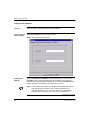
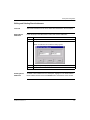
The first step in setting up your Web site is to specify the passwords for viewing
and modifying data.
When you create a new configuration, the Settings window appears automatically
with the Passwords dialog. Use this dialog to set the passwords.
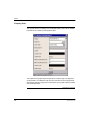
Passwords
Dialog
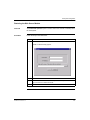
The following illustration shows the fields in the Passwords dialog:
Continued on next page
90
890 USE 152 00 Version 2.0
FactoryCast Configurator
Setting Passwords, Continued
Default Settings
Read Access
Write Access
Until you apply your own password settings:
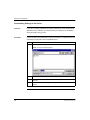
l
The default user name is USER
l
The default HTTP password is USER
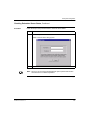
l
The default write password is USER
Complete the first three fields of the dialog box to set the user name and password
for viewing the Web site. Anyone who wants to view the Web site will be prompted
for this user name and password.
l
HTTP User Name is limited to fifteen characters.
l
HTTP Password is also limited to fifteen characters.
l
Confirm the HTTP password by entering it again in the Confirm HTTP
Password field.
Complete the last two fields of the dialog box to set a password for modifying the
Web site. Anyone who wants to modify the Web site must supply this password to
gain write access.
l
Write Password is limited to fifteen characters.
l
Confirm the write password by entering it again in the Confirm Write
Password field.
Applying the
Passwords
Select Apply to save the passwords without exiting the Settings window.
Next Step
If you want to view and modify symbols (variables) in your Web site, your next step
is to set default security parameters.
Otherwise, you may go on to set file locations.
890 USE 152 00 Version 2.0
91
FactoryCast Configurator
Setting Default Access
Overview
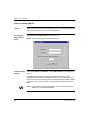
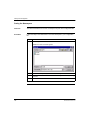
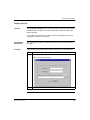
If you want to view and modify symbols (variables) in your Web site, complete the
Default Access dialog. This dialog determines the initial security settings for all the
symbols you will add to the Web site.
Accessing the
Dialog
Select the Default Access tab on the Settings window.
Result: The Default Access dialog appears.
Continued on next page
92
890 USE 152 00 Version 2.0
FactoryCast Configurator
Setting Default Access, Continued
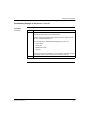
Options
Select one of the following radio buttons:
l
Write Enabled sets write access for all symbols (variables) as you add them to
the configuration. A user who supplies the write password would be able to
modify these symbols.
l
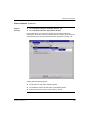
Read Only sets read-only access for all symbols (variables) as you add them
to the configuration. Even if a user supplies the write password, he would not
be allowed to modify these symbols.
These settings can be modified later for individual symbols.
Applying Default
Access
Select Apply to save the Default Access selection without exiting the Settings
window.
Next Step
Setting file locations.
890 USE 152 00 Version 2.0
93
FactoryCast Configurator
Setting File Locations
Overview
Accessing the
File Locations
Dialog
If you want to customize your Web site, use the File Locations dialog to tell
FactoryCast Configurator where to find the following files or directories:
Give the Location of...
In Order To Add...
Programming software database file
Symbols (variables) from a Concept or PL7
database
Directory containing your company logo
Your company logo
Directory containing custom Web files
Custom Web pages with password protection
Select the File Locations tab on the Settings window.
Result: The File Locations dialog appears.
Continued on next page
94
890 USE 152 00 Version 2.0
FactoryCast Configurator
Setting File Locations, Continued
Specifying File
Locations
Use the ellipsis buttons to the right of the text boxes to browse for the desired files
and directories.
Note: The logo file must be in .gif format and it must be named logo.gif.
Applying File
Locations
Select Apply to save the File Locations without exiting the Settings window.
Next Step
Setting the IP address.
890 USE 152 00 Version 2.0
95
FactoryCast Configurator
Setting the IP Address
Overview
The final setting in the Settings window is the IP Address.
Accessing the IP
Address Dialog
Select the IP Address tab on the Settings window.
Result: The IP Address dialog appears.
Setting the IP
Address
Enter the Host Name or IP Address of the Embedded Server. If you enter the
Host Name, and you have a Domain Name Server [DNS] in your intranet, the
correct IP address should appear automatically. If you enter the IP Address, that
address will appear automatically in the field for the host name.
Note: The IP address of the Quantum or Premium Embedded Server and any
host name should be assigned by your system administrator. For
performance reasons, if you do not have a DNS, you should add the
hostname and IP address to your Hosts file on your Windows PC.
Continued on next page
96
890 USE 152 00 Version 2.0
FactoryCast Configurator
Setting the IP Address, Continued
Applying the IP
Address
Select Apply to save the IP Address setting.
If you are satisfied with your settings, select OK to save them and to exit the
Settings window.
Next Step
Your next step depends on which server you are using and how much you intend to
customize the Web site:
l
If you are using the Premium ETY Embedded Server, you must set the XWay
Address.
l
If you are using the Quantum NOE Embedded Server and you are not adding a
database of symbols (variables) or write-enabled direct addresses to your Web
site, you may proceed to Downloading Settings to the Server on page 100.
l
If you are using the Quantum NOE Embedded Server and you are adding a
database of symbols (variables) and write-enabled direct addresses to your
Web site, you may proceed to Creating a Namespace on page 102.
Note: At this point, save your configuration file to disc.
890 USE 152 00 Version 2.0
97
FactoryCast Configurator
Setting the XWay Address
Overview
XWay is a Telemecanique communications protocol. If you are using the Premium
ETY Embedded Server, you must set its XWay Address.
Accessing the
XWay Address
Dialog
Select Server | Set XWay Address from the menu bar.
Setting the XWay
Address
Enter the Host Name or IP Address, and the XWay Address of the Embedded
Server.
Result: The Set XWay Address Service dialog appears.
The XWay address includes the address destination of the Premium ETY
Embedded Server module and the address source of the PC. FactoryCast Client
will scan a free source in this network from a network.63 nested 10 station address
(net.63 to net.54). You must be careful to leave at least one address free in this
range.
Note: The IP address of the Embedded Server and any host name should be
assigned by your system administrator.
Continued on next page
98
890 USE 152 00 Version 2.0
FactoryCast Configurator
Setting the XWay Address, Continued
Applying the
XWay Address
Select OK to download the XWay Address to the Premium ETY Embedded Server.
Next Step
Your next step depends on how much you intend to customize the Web site:
890 USE 152 00 Version 2.0
l
If you are not creating a database of symbols (variables) and write-enabled
direct addresses, you may download the settings to the server.
l
If you are creating a database of symbols (variables) and write-enabled direct
addresses, you may proceed to Creating a Namespace on page 102.
99
FactoryCast Configurator
Downloading Settings to the Server
Overview
If you are not creating a database of symbols (variables) and write-enabled direct
addresses for your Web site, you may download your settings to the Embedded
Server and begin using your site.
Procedure
Follow the steps in the table below to store your settings in a configuration file and
download the configuration to the Embedded Server.
Step
Action
1
Select File | Save As... from the menu bar.
Result: The Save As window appears.
2
Select the directory where you want to store the configuration file.
3
Enter a File name of sixteen characters or less. Configuration files require a .cfg
extension.
4
Click Save to save your settings in the configuration file and exit the Save As
window.
Continued on next page
100
890 USE 152 00 Version 2.0
FactoryCast Configurator
Downloading Settings to the Server, Continued
Procedure,
Continued
Step
Action
5
From the menu bar, select Commands | Download | Advanced | All of the Above to
download the configuration to the Embedded Server.
Result: A Download Confirmation dialog appears with the IP address and any
host name of the Embedded Server.
Note: “All of the Above” will download the following to the web server:
Symbol Table
l
l
l
l
Security File
Modified Home Page
Logo File
Note: If the host name or IP address is incorrect, make the appropriate changes
in the Settings window. (Refer to Setting the IP Address on page 96.)
6
890 USE 152 00 Version 2.0
Click OK to confirm the IP address and begin the download.
101
FactoryCast Configurator
Section 5.2
Creating a Namespace
Overview
Purpose
A namespace is a Web-enabled database containing symbols (variables) and/or
write-enabled direct addresses.
This section describes how to use symbols from a software database and direct
addresses to create a namespace for your Web site.
In This Section
102
This section contains the following topics:
For This Topic...
See Page...
Importing Symbols
103
Setting Symbol Access
108
Adding Direct Addresses
110
Direct Address Blocks and Symbol Security
115
Editing and Deleting Direct Addresses
117
Saving the Namespace
118
Resynchronizing Your Namespace with Its Database
119
890 USE 152 00 Version 2.0
FactoryCast Configurator
Importing Symbols
Overview
If you want to use symbols (variables) in the Data Editor, Graphic Editor or Alarm
Viewer, you must include them in the namespace. The applets will not allow you to
view symbols which are not found in the namespace.
This section describes how to:
Accessing Your
Software
Database
l
Add symbols into a namespace
l
Delete symbols from a namespace
To access a Concept database, you must have the Concept software installed on
your computer. Concept database files have a .prj file extension.
A PL7 database is accessible from any mapped drive. PL7 database files have a
.fef file extension.
Continued on next page
890 USE 152 00 Version 2.0
103
FactoryCast Configurator
Importing Symbols, Continued
Add Symbols
Follow the steps in the table below to import symbols (variables) from a Concept or
PL7 database into your namespace.
Step
Action
1
Click the Add button at the bottom of the Symbols window.
Continued on next page
104
890 USE 152 00 Version 2.0
FactoryCast Configurator
Importing Symbols, Continued
Add Symbols,
Continued
Step
Action
2
Select a programming database file.
Note: If the location of the software database file was entered in the Settings
window, FactoryCast Configurator will skip this step.
Result:The Lookup Variables window appears. It displays symbols associated
with the database.
Continued on next page
890 USE 152 00 Version 2.0
105
FactoryCast Configurator
Importing Symbols, Continued
Add Symbols,
Continued
Step
Action
3
Click on symbols to highlight them individually or in blocks. Press the Control key
to highlight symbols which are not adjacent to one another.
Note: The FactoryCast Configurator automatically filters out symbols with
address ranges that are not within the configured PLC range. The Lookup
Variables window also allows the user to filter variables by:
l Data Type - Elementary or Structured
l Variable Type - Unlocated or Located
l Variable Name
Use the Rescan button to apply a filter and rescan the database.
4
Select Apply to add the selected symbols to the namespace without exiting the
Lookup Variables window. Otherwise, select OK to exit the Lookup Variables
window.
Result: The symbols you selected appear in the Symbols window.
Continued on next page
106
890 USE 152 00 Version 2.0
FactoryCast Configurator
Importing Symbols, Continued
Add Symbols,
Continued
Step
Action
5
To add more symbols, click the Add button at the bottom of the Symbols window
and repeat steps 3 and 4.
Deleting
Symbols
To delete a symbol from a namespace, select the symbol and click the Delete
button at the bottom of the Symbol window.
Next Step
Setting symbol security.
890 USE 152 00 Version 2.0
107
FactoryCast Configurator
Setting Symbol Access
Overview
FactoryCast Configurator sets default access for each symbol (variable) as you
add it to the namespace, based on your selection in the Default Access Settings
dialog.
This section discusses security considerations and describes two ways for you to
modify the security setting for a symbol.
Two Levels of
Access
Each symbol (variable) may be write-enabled or read-only.
l
Write Enabled means users can modify the symbol value after supplying the
write password.
l
Read Only means users cannot modify symbol values, even after supplying
the write password.
CAUTION
CHANGES TO SYMBOLS MAY RESULT IN CHANGES TO YOUR
APPLICATION
Be careful about which symbols (variables) you allow to be modified online, and be cautious
about who has permission to modify them. Unauthorized or incorrect changes to symbols
may change the behavior of your application in ways that may be undesirable or even
dangerous.
Failure to observe this precaution can result in injury or equipment damage.
Using the
Checkbox to Set
Access
Select or deselect the checkbox in the Write Enabled column of the Symbol
window.
l
A checkmark means the symbol is write-enabled.
l
A blank checkbox means the symbol is read-only.
Continued on next page
108
890 USE 152 00 Version 2.0
FactoryCast Configurator
Setting Symbol Access, Continued
Using the
Attributes Button
to Set Access
890 USE 152 00 Version 2.0
Follow the steps in the table below to use the Attributes button to set symbol
access:
Step
Action
1
Highlight a symbol in the Symbol window.
2
Click the Attributes button at the bottom of the window.
3
Select the access option.
4
Click OK.
109
FactoryCast Configurator
Adding Direct Addresses
Overview
If you only want users to view direct addresses, you do not need to include them in
the namespace. The The Data Editor and Graphic Editor can read any direct
address.
If you want users to be able to modify a direct address, you must include it in the
namespace. Any direct address included in the namespace is automatically writeenabled.
This section describes how to import direct addresses into a namespace.
CAUTION
CHANGES TO DIRECT ADDRESSES MAY RESULT IN CHANGES TO YOUR
APPLICATION
Be careful about which direct addresses you allow to be modified online, and be cautious
about who has permission to modify them. Unauthorized or incorrect changes to direct
addresses may change the behavior of your application in ways that may be undesirable or
even dangerous.
Failure to observe this precaution can result in injury or equipment damage.
Premium
Register Values
The following register ranges are valid for Premium:
Address Range
Type
R(ead)/W(rite) Access
%S0 - %S127
Boolean
R/W
%SW0 - %SW255
Word 16
R/W
%SD0 - %SD254
Word 32
R/W
%M0 - %M12151
Boolean
R/W
%MW0 - %MW31367
Word 16
R/W
%MD0 - %MD31366
Word 32
R/W
Continued on next page
110
890 USE 152 00 Version 2.0
FactoryCast Configurator
Adding Direct Addresses, Continued
Quantum
Register Values
Add Direct
Addresses
The following register ranges are valid for writing to the Quantum:
Start Value
End Value
000001
065536
400001
465536
600001
699999
Follow the steps in the table below to add direct addresses into a namespace:
Step
Action
1
Select the Write Enabled Direct Addresses tab in the Configurator window.
Result: The Write Enabled Direct Addresses screen appears.
Continued on next page
890 USE 152 00 Version 2.0
111
FactoryCast Configurator
Adding Direct Addresses, Continued
Adding Direct
Addresses,
Continued
Step
Action
2
Select the Add button at the bottom of the window.
Result: The Add Block Direct Addresses dialog appears.
3
Enter a valid range of addresses for your Quantum or Premium controller.
Note: If you are only using direct addresses in your namespace, you may specify
any valid range for the controller. If you are including symbols in the namespace,
you may only specify direct addresses which are actually configured.
Continued on next page
112
890 USE 152 00 Version 2.0
FactoryCast Configurator
Adding Direct Addresses, Continued
Adding Direct
Addresses,
Continued
Step
Action
4
Select Apply to save the specified registers to the namespace without exiting the
dialog.
Otherwise, select OK to save the registers and return to the Write Enabled Direct
Addresses window.
Result: The direct address register ranges are displayed in the window.
5
To add more direct addresses, repeat steps 2 through 4.
Continued on next page
890 USE 152 00 Version 2.0
113
FactoryCast Configurator
Adding Direct Addresses, Continued
Overlapping
Register Ranges
114
If the register range that you have specified overlaps with a range already in the
namespace, FactoryCast Configurator merges them into a single range and notifies
you with the following message. Select OK to acknowledge the message.
890 USE 152 00 Version 2.0
FactoryCast Configurator
Direct Address Blocks and Symbol Security
Overview
When you import a block of direct addresses into a namespace which already
contains symbols (variables), you may inadvertently include addresses associated
with symbols. This can create a conflict between the security setting for the symbol
itself and for its address.
Likewise, when you import symbols (variables) into a namespace which already
contains a block of direct addresses, you may include symbols whose address is
included in the direct address range. This also can create a security conflict.
This section describes how FactoryCast Configurator notifies you and resolves the
conflict.
Conflict#1
If your block of direct addresses includes a symbol (variable) which has already
been included in the namespace as read-only, FactoryCast Configurator sends you
a message and removes the address from the block. The symbol remains readonly.
When you receive the message, click OK.
Continued on next page
890 USE 152 00 Version 2.0
115
FactoryCast Configurator
Direct Address Blocks and Symbol Security, Continued
Conflict#2
If a symbol (variable) is imported into the namespace as read-only OR if you
change its security setting from write-enabled to read-only, and that symbol is
included in a block of direct addresses, FactoryCast Configurator sends you a
message and removes the address from the block.
When you receive the message, click OK.
Reversing a
Conflict
If you change the security setting on a symbol (variable) from read-only to writeenabled and that symbol had been removed from a block of direct addresses,
FactoryCast Configurator send you a message and will restore it to the block.
When you receive the message, click OK.
116
890 USE 152 00 Version 2.0
FactoryCast Configurator
Editing and Deleting Direct Addresses
Overview
This section describes how to edit or delete direct addresses in the namespace.
Editing Direct
Addresses
Follow the steps in the table below to edit a block of direct addresses:
Step
Action
1
Highlight a block of addresses in the Write Enabled Direct Addresses window.
2
Click the Edit button at the bottom of the window.
Result: The Edit Block Direct Addresses dialog appears.
Deleting Direct
Addresses
890 USE 152 00 Version 2.0
3
Modify the register range by typing a new value in the Start or End field.
4
Click OK.
To delete a direct address from the namespace, highlight it in the Write Enabled
Direct Address window and click the Delete button at the bottom of the window.
117
FactoryCast Configurator
Saving the Namespace
Overview
This section describes how to save a namespace as part of the configuration file.
Procedure
Follow the steps in the table below to save the namespace in your configuration
file.
Step
Action
1
Select File | Save As... from the menu bar.
Result: The Save As window appears.
118
2
Select the directory where you want to save the configuration file.
3
Enter a File name of sixteen characters or less. Configuration files require a .cfg
extension.
4
Select Save.
890 USE 152 00 Version 2.0
FactoryCast Configurator
Resynchronizing Your Namespace with Its Database
Overview
Over time, you may make changes to the Concept or PL7 database from which you
created your namespace. The Configuration Tool will only notify you of differences
between the database and your namespace when you try to make changes in the
namespace.
This section describes how the Configuration Tool notifies you and prompts you to
resynchronize your namespace with the database.
When
FactoryCast
Configurator
Asks You to
Resynchronize
Verifying
Discrepancies
FactoryCast Configurator will prompt you to resynchronize if you have changed the
Concept or PL7 database file and then try to:
l
Add symbols or write-enabled direct addresses
l
Delete symbols or write-enabled direct addresses
l
Set the attributes of symbols
l
Edit write-enabled direct addresses
Select Commands | ReSynchronize PLC Database to verify whether differences
exist between the current configuration and the corresponding database.
The ReSynchronization Status window appears to notify the user if differences are
detected between the configuration and the database.
Continued on next page
890 USE 152 00 Version 2.0
119
FactoryCast Configurator
Resynchronizing Your Namespace with Its Database, Continued
No Differences
Detected
If no discrepancy is detected, the following window appears.
Continued on next page
120
890 USE 152 00 Version 2.0
FactoryCast Configurator
Resynchronizing Your Namespace with Its Database, Continued
Differences
Detected
If a discrepancy between the namespace and the database is detected, a
notification appears in the ReSynchronization Status dialog. Discrepancies include:
l
A symbol in the namespace has been deleted from the database.
l
A symbol in the namespace has had its address or data type changed in the
database.
l
A symbol in the namespace has had its name changed in the database
Continued on next page
890 USE 152 00 Version 2.0
121
FactoryCast Configurator
Resynchronizing Your Namespace with Its Database, Continued
To
Resynchronize
Resynchronizing will alter the item(s) that differ from the database. The
Configuration Tool allows only one resynchronization per configuration session.
Follow the steps in the table below:
Step
Action
1
Select Commands | Resyncronize PLC Database.
2
Select File | Save.
Result: The Resyncronize Function changes the configuration to correct any
discrepancies.
If You Don’t
Resynchronize
122
Until the files are resynchronized, you will not be able to add, delete, change the
attributes of, or edit symbols and write-enabled direct addresses in the namespace.
890 USE 152 00 Version 2.0
FactoryCast Configurator
Section 5.3
Download
Download Overview
Purpose
The Commands | Download menu provides several options for downloading part
or all of the information you have provided to customize your Web site. This section
describes those options and provides a download procedure.
In This Section
This section contains the following topics:
890 USE 152 00 Version 2.0
For This Topic...
See Page...
Download Options
124
How to Download
130
123
FactoryCast Configurator
Download Options
Overview
This section describes the options of the Commands | Download menu.
Download Menu
The following illustration shows the Commands | Download> menu.
Protected
This option allows you to download All Files from a specific directory or to
download a Single File selected from any directory to the password protected area
of an Embedded Server.
Continued on next page
124
890 USE 152 00 Version 2.0
FactoryCast Configurator
Download Options, Continued
Unprotected
890 USE 152 00 Version 2.0
This option allows the user to download All Files from a specific directory or to
download a Single File selected from any directory to the unprotected area of an
Embedded Server.
125
FactoryCast Configurator
Download Options, Continued
Download File
l
Goto Commands | Download | Protected | Any File. OR:
l
Goto Commands | Download | Unprotected | Any File.
Pressing the “OK“ button causes verification of the file selection, including: valid
path, valid file name, etc. and then download the file to wwwroot/secure/user OR:
wwwroot/unsecure/user. See Download on page 123.
A dialog with the following appears:
l
A Host Name text field, which is filled by default
l
An I/P Address numeric text field, which is also filled by default
l
A File drop down list box, which is filled by “browse”
Continued on next page
126
890 USE 152 00 Version 2.0
FactoryCast Configurator
Download Options, Continued
Download
Directory
l
Goto Commands | Download | Protected | All Files. OR:
l
Goto Commands | Download | Unprotected | All Files.
Pressing the “OK“ button causes verification of directory selection, including: valid
path, valid directory name, validity of all files in the directory, etc. and then
download the directory content to wwwroot/secure/user OR: wwwroot/unsecure/
user. See Download on page 123.
A dialog with the following appears:
890 USE 152 00 Version 2.0
l
A Host Name text field, which is filled by default
l
An I/P Address numeric text field, which is also filled by default
l
A Directory drop down list box, which is filled by “browse”
127
FactoryCast Configurator
Download Options, Continued
Advanced Menu
This menu item allows you to selectively download files to modify the Embedded
Server configuration or to configure multiple Embedded Servers performing the
same function. Selecting only the files changed, you can save time on
downloading.
The following illustration shows the Commands | Download | Advanced menu.
Symbol Table
This option allows you to download only the namespace file, without having to
download additional Settings or other configuration information.
Security File
This option allows you to download only the Security file, when a new password
has been entered for the server, without having to download additional Settings or
other configuration information.
Continued on next page
128
890 USE 152 00 Version 2.0
FactoryCast Configurator
Download Options, Continued
Modified Home
Page
This option allows you to download only the Home Page [index.htm] once you have
made modifications to it. The file is Qbf\software\wwwroot\index.htm for
Quantum or Pbf\software\wwwroot\index.htm for Premium. The name of this file
should remain index.htm.
Logo File
This option downloads your company logo file [logo.gif] to the default Web pages.
Before you can download, you must specify the file location in the File Locations
dialog in the Settings pull-down menu. The name of this file should remain
logo.gif.
All of the Above
This option allows you to download all of Settings information including Symbol
Table, Security File, Modified Home Page and your company Logo File.
Module
Descriptor File
This option allows you to download a new module descriptor file supplied by
Schneider Automation Inc. This file contains all of the text descriptions for the
hardware presented by FactoryCast. Refer to Setting File Locations on page 94 for
additional information.
890 USE 152 00 Version 2.0
129
FactoryCast Configurator
How to Download
Overview
This section provides a procedure for using any of the options on the Commands |
Download menu.
Memory Check
FactoryCast Configurator checks how much space is available on the Embedded
Server before downloading. If there is insufficient memory, an error message
appears.
Procedure
Follow the steps in the table below to download information to the Embedded
Server.
Steps
Action
1
Select an option from the Commands | Download menu.
Result: The Download Confirmation dialog appears with the IP address and any
host name of the Embedded Server.
Note: If the IP address or host name is incorrect, make the appropriate changes
in the IP Address dialog. (Refer to Setting the IP Address on page 96.)
2
130
Click OK to confirm the IP address and begin the download.
890 USE 152 00 Version 2.0
FactoryCast Configurator
Section 5.4
Upload
Upload Overview
Purpose
The Commands | Upload menu provides options for uploading one file or all files
within a directory on the FactoryCast server. This section describes those options
and provides the upload procedure. This function is useful for getting a file from the
FactoryCast server which you would like to modify.
In This Section
This section contains the following topics:
890 USE 152 00 Version 2.0
For This Topic...
See Page...
Upload Options
132
How to Upload
135
131
FactoryCast Configurator
Upload Options
Overview
This section describes the options of the Commands | Upload menu.
Upload Menu
The following illustration shows the Commands | Upload menu.
Protected
This option allows you to upload All Files from a specific directory or to upload a
Single File selected from any directory in the password protected area of the
FactoryCast server to a directory specified by you.
Unprotected
This option allows you to upload All Files from a specific directory or to upload a
Single File selected from any directory in the unprotected area of the FactoryCast
server to a directory specified by you.
Continued on next page
132
890 USE 152 00 Version 2.0
FactoryCast Configurator
Upload Options, Continued
Upload File
l
Goto Commands | Upload | Protected | Any File. OR:
l
Goto Commands | Upload | Unprotected | Any File.
Upload allows you to retrieve a file or files from the web server so you can edit
them on your PC. Pressing the “OK“ button causes the selected file to be uploaded
from wwwroot/secure/user OR: wwwroot/unsecure/user to the Directory Selected..
See Upload on page 131.
A dialog with the following appears:
l
A Host Name text field, which is filled by default
l
An I/P Address numeric text field, which is also filled by default
l
A File drop down list box, which is filled by “browse”
Continued on next page
890 USE 152 00 Version 2.0
133
FactoryCast Configurator
Upload Options, Continued
Upload Directory
l
Goto Commands | Upload | Protected | All Files. OR:
l
Goto Commands | Upload | Unprotected | All Files.
Upload All Files allows you to retrieve an entire directory from the web server so
you can edit them on your PC. Pressing the “OK“ button causes the selected
directory content to be uploaded from wwwroot/secure/user OR: wwwroot/
unsecure/user to the Directory Selected. See Upload on page 131.
A dialog with the following appears:
134
l
A Host Name text field, which is filled by default
l
An I/P Address numeric text field, which is also filled by default
l
A Directory drop down list box, which is filled by “browse”
890 USE 152 00 Version 2.0
FactoryCast Configurator
How to Upload
Overview
This section provides a procedure for using any of the options on the Commands |
Upload menu.
Procedure
Follow the steps in the table below to upload information from the Server.
Steps
Action
1
Select an option from the Commands | Upload menu.
Result: The Upload Conformation dialog appears with the IP address and host
name of the FactoryCast. Additionally, there are two fields, one for the source
directory and file and the second for the destination directory for the upload.
Note: If the IP address or host name is incorrect, make the appropriate changes
in the IP Address dialog. Refer to Setting the IP Address on page 96.
890 USE 152 00 Version 2.0
2
Enter the appropriate path and file or use the ellipses button to find the file to
select.
3
Click OK to confirm the IP address and begin the upload.
135
FactoryCast Configurator
Section 5.5
Remove
Overview
This section describes the options of the Commands | Remove menu.
Purpose
The Commands | Remove menu provides options for removing part or all of the
files you have downloaded to customize your Web site. This section describes
those options and provides a remove procedure.
In This Section
This section contains the following topics:
For This Topic...
136
See Page...
Remove Options
137
How to Remove
140
890 USE 152 00 Version 2.0
FactoryCast Configurator
Remove Options
Remove Menu
The following illustration shows the Commands | Remove menu.
Protected
This option allows you to remove All Files from a specific directory or to remove a
Single File selected from any directory in the password protected area of the
embedded server.
Unprotected
This option allows you to download All Files from a specific directory or to
download a Single File selected from any directory in the unprotected area of the
embedded server.
890 USE 152 00 Version 2.0
137
FactoryCast Configurator
Remove Options, Continued
Remove File
l
Goto Commands | Remove | Protected | Any File. OR:
l
Goto Commands | Remove | Unprotected | Any File.
Remove File allows you to remove a file or files from the web server. Pressing the
“OK“ button causes the selected file to be removed from wwwroot/secure/user OR:
wwwroot/unsecure/user. See Remove on page 136.
A dialog with the following appears:
l
A Host Name text field, which is filled by default
l
An I/P Address numeric text field, which is also filled by default
l
A File drop down list box, which is filled by “browse”
Continued on next page
138
890 USE 152 00 Version 2.0
FactoryCast Configurator
Remove Options, Continued
Remove
Directory
l
Goto Commands | Remove | Protected | All Files. OR:
l
Goto Commands | Remove | Unprotected | All Files.
Remove File allows you to remove a directory from the FactoryCast server.
Pressing the “OK“ button causes the selected directory content to be removed from
wwwroot/secure/user OR: wwwroot/unsecure/user. See Remove on page 136.
A dialog with the following appears:
890 USE 152 00 Version 2.0
l
A Host Name text field, which is filled by default
l
An I/P Address numeric text field, which is also filled by default
l
A Directory drop down list box, which is filled by “browse”
139
FactoryCast Configurator
How to Remove
Overview
This section provides a procedure for using any of the options on the Commands |
Remove menu.
Procedure
Follow the steps in the table below to remove information from the Server.
Step
Action
1
Select an option from the Commands | Remove menu.
Result: The Remove Confirmation dialog appears with the IP address and host
name of the Embedded Server as well as a file path entry field.
Note:
140
If the IP address or host name is incorrect, make the appropriate changes
in the IP Address dialog. Refer to Setting the IP Address on page 96.
2
Enter the appropriate path and file or use the ellipses button to find the file to
select.
3
Click OK to confirm the IP address and begin the removal process.
890 USE 152 00 Version 2.0
FactoryCast Configurator
Section 5.6
Web Site Maintenance
Maintenance Overview
Purpose
In This Section
890 USE 152 00 Version 2.0
This section describes how to maintain your Web site, including:
l
Checking server status
l
Backing up files
l
Restoring files
l
Reflashing the module
l
Updating I/O module descriptions
This section contains the following topics:
For This Topic...
See Page...
Checking Embedded Server Status
142
Backing Up Files
145
Restoring the Web Server Module
147
Restoring the Web Server Module,
Continued
148
Updating I/O Module Descriptions
151
141
FactoryCast Configurator
Checking Embedded Server Status
Overview
Memory
Capacity
The Configurator gives you a way to check:
l
Bytes of free memory in the Embedded Server
l
The file name of the last configuration downloaded to the Embedded Server
Consult the table below to find out how much memory your Embedded Server
provides for customizing your Web site:
Embedded Server Model Memory Available for Customizing the Site
Quantum
140 NOE 2x1 10
Customizable based on plug-ins configured
Premium
TSX ETY 110 WS
Customizable based on plug-ins configured
Continued on next page
142
890 USE 152 00 Version 2.0
FactoryCast Configurator
Checking Embedded Server Status, Continued
Procedure
Follow the steps in the procedure below to check the server status:
Step
Action
1
Select Server | Status> from the menu bar.
Result: The Module Status dialog appears.
2
Enter the Host Name or IP Address of the Embedded Server.
Note: Since you do not need a Configuration file open to perform this function
the Host name is not filled in by default.
Continued on next page
890 USE 152 00 Version 2.0
143
FactoryCast Configurator
Checking Embedded Server Status, Continued
Procedure,
Continued
Step
Action
3
Select OK.
Result: The Ethernet Module Status dialog appears. It displays the current
configuration file for the Embedded Server and the number of bytes free in
memory..
4
144
Click OK to exit the Module Status dialog.
890 USE 152 00 Version 2.0
FactoryCast Configurator
Backing Up Files
Overview
The Commands | Backup option is used to archive the entire file contents of the
Embedded Server. A zip file is created in the directory specified as result of the
Backup operation.
The contents of the backup can be used to restore the Embedded Server to the
configuration at the time of the backup.
Do Not Modify
Backup Files
The user should not make any modifications to the directory structures or files in
the zip file.
Procedure
Follow the steps in the table below to create a backup of your configuration file:
Step
Action
1
Select Commands | Backup.
Result: The Backup dialog appears.
2
Enter the Host Name or IP Address of the Embedded Server.
Continued on next page
890 USE 152 00 Version 2.0
145
FactoryCast Configurator
Backing Up Files, Continued
Procedure,
Continued
146
Step
Action
3
Enter the Path and File Name where you would like to store the backup file. Use
the ellipses button to the right of the text box to browse for a location.
4
Click OK to begin the backup.
890 USE 152 00 Version 2.0
FactoryCast Configurator
Restoring the Web Server Module
Overview
The Commands | Restore option is used to restore the contents of a backup file to
the FactoryCast.
Procedure
Follow the steps in the table below:
Step
Action
1
Select Commands | Restore.
Result: The Restore dialog appears.
890 USE 152 00 Version 2.0
2
Enter the Host Name or IP Address of the Embedded Server.
3
Enter the Path and File Name of the backup file. Use the ellipses button to the
right of the text box to browse for the file.
4
Click OK.
147
FactoryCast Configurator
Restoring the Web Server Module, Continued
Overview
If the server fails or its files become corrupted through user error, you can use the
Server | Restore Defaults option to restore the FactoryCast Configurator files.
This menu item restores the selected module to the state in which it was shipped
from the factory. This may take some time, so be prepared.
Conditions for
Restoring
In order to restore the Embedded Server to the factory supplied configuration, you
must have unaltered FactoryCast Configurator files on your hard drive. If you have
altered the FactoryCast Configurator directory files on your hard drive in any way -for instance, by replacing the default home page with your own home page -- you
must reinstall FactoryCast Configurator on your hard drive before you reflash the
module. Otherwise, the module will be restored with the files on your hard drive
which may have caused the initial problem.
If you have altered the FactoryCast Configurator files on your hard drive in any way
-- for instance, by replacing the default home page with your own home page -- you
must reinstall FactoryCast Configurator on your hard drive before you reflash the
module.
Consequences
of Restoring
Module initialization deletes all files on the FactoryCast Server except data
template for the Data Editor and Graphic Editor.
.
Continued on next page
148
890 USE 152 00 Version 2.0
FactoryCast Configurator
Restoring the Web Server Module, Continued
Restore Defaults
Command
When “Restore Defaults” is selected, the module will be cleared (except rdt and gdt
directories) and the default plug-ins will be downloaded again.
Note: If “OK” is selected the module files will be restored to the selected
packages. If “CANCEL” is selected, all selections will be cleared and the
dialog dismissed.
Continued on next page
890 USE 152 00 Version 2.0
149
FactoryCast Configurator
Restoring the Module, Continued
Procedure
Follow the steps in the table below:
Step
Action
1
Select Server | Restore Defaults.
Result: The Initialize dialog appears.
150
2
Enter the Host Name or IP Address of the Embedded Server.
3
Select OK.
890 USE 152 00 Version 2.0
FactoryCast Configurator
Updating I/O Module Descriptions
Overview
Over time, the I/O module descriptions for the modules displayed in the default
Web pages may become outdated. Schneider Automation will make available, from
time to time, new I/O module descriptions to be downloaded to the Embedded
Server module.
When you receive a new I/O module description file from Schneider Automation,
follow the procedure below to download the file to the server.
Procedure
Follow the steps in the table below to download updated I/O module
descriptions.
Steps
Action
1
Select Commands | Download | Advanced | Module Descriptor File from the
menu bar.
Result: The Download Module Descriptor dialog appears and prompts you for
the IP address and host name of the Embedded Server.
Note: If the Host Name or IP Address is incorrect, make the appropriate changes
in the IP Address dialog. (Refer to Setting the IP Address on page 96.)
2
890 USE 152 00 Version 2.0
Click “OK”.
151
FactoryCast Configurator
152
890 USE 152 00 Version 2.0
Adding Custom Pages to the Site
6
At a Glance
Purpose
You may choose to add your own Web pages to the site on the Embedded Server.
The FactoryCast Configuration Tool allows you to protect them with the same
passwords as the default pages or to put them in an unprotected area, where
anyone can view them without a password.
FactoryCast Configurator provides some simple Java applets you can include to
create dynamic data from the controller right in your custom Web pages..
This section discusses how to add custom pages to the site and how to use the
Java applets on those pages.
Note: When planning custom Web pages, be sure to keep them within the limits
of the memory available for customization. (Refer to Checking Embedded
Server Status on page 142.)
At a Glance
890 USE 152 00 V.2
This chapter contains the following sections:
For These Topics...
See Section...
On Page...
Working with Custom Pages
1
154
Using FactoryCast’s Java Applets
2
160
153
Custom Pages
Section 6.1
Working with Custom Pages
Overview
Purpose
In This Section
154
You may develop any pages you want to customize the FactoryCast Configurator
site. FactoryCast Configurator gives you three different methods for adding these
pages to the site:
l
You may replace the default home page with one of your own by following a
particular procedure
l
You may add supporting pages and place them under password protection
l
You may add supporting pages and make them available to any user
This section contains the following topics:
For This Topic...
See Page...
Downloading a Custom Home Page
155
Downloading Other Protected Pages
157
Downloading an Unprotected Web Site
158
Removing Unprotected Web Files
159
890 USE 152 00 V.2
Custom Pages
Downloading a Custom Home Page
Overview
If you want to replace the default home page with one of your own, you must take
the following steps:
l
Back up the original FactoryCast configuration, so that you can restore it later if
necessary
l
Move the supplied default home page to a secure place
l
Create a new home page or edit the existing page
l
Replace it with your home page
l
Download your home page to the Embedded Server
Backing Up the
Original
Configuration
Before you change the default home page, you should back up the configuration,
following the procedure in Backing Up Files on page 145. That way, if any problems
develop with the Embedded Server, you will be able to restore the server to its
original configuration. Remember, you can always re-install from CD-ROM.
Creating Your
Home Page
You must give your home page the same name as the default home page:
index.htm. Be sure to retain the hyperlinks needed to get to the Schneider supplied
pages.
Moving the
Default Home
Page
Here is the location of the default home page:
Drive\FactoryCast Configurator\ (QBF or PBF)\software\wwwroot\Index.htm
Copy the default home page from the wwwroot directory and move it to a secure
place.
Placing Your
Home Page
Copy your home page into the wwwroot directory where you found the default
home page. Be sure you name it index.htm
Continued on next page
890 USE 152 00 V.2
155
Custom Pages
Downloading a Custom Home Page, Continued
What About
Image Files?
Any image files for your new home page should be placed in the same directory as
your company logo. This directory is specified in the File Settings dialog.
Image file names must conform to DOS 8.3 format (no more than eight letter file
name and three letter extension) and should be lower case (ie. machine1.htm).
Downloading
Follow the steps in the table below to download your new home page to the
Embedded Server.
Steps
Action
1
Select Commands | Download | Advanced | Modified Home Page from the
menu bar.
Result: The Download Home Page File dialog appears with the IP address and
any host name of the Embedded Server.
Note: If the Host Name or IP Address is incorrect, make the appropriate changes
in the IP Address dialog. Refer to Setting the IP Address on page 96.
2
156
Click OK.
890 USE 152 00 V.2
Custom Pages
Downloading Other Protected Pages
Overview
If you are adding supporting Web pages to the default Web site, you may choose to
protect them with the same user name and password as the default pages.
In order to add password-protected pages to the site, you must specify the
directory where they are located and then download them to the server.
Specifying File
Locations
Place the files for your Web pages and any images for the pages in a single
directory.
Be sure all file names conform to DOS 8.3 format (no more than eight letter file
name and three letter extension). The file names should be lower case (ie.
machine1.htm).
Use the File Locations dialog to specify the location of the files. (Refer to Setting
File Locations on page 94.)
Download
Options
If you are only downloading the password-protected Web pages and related
images, you can use the Commands | Download | Protected | All Files option.
Note: Remember to create new hyperlinks to the other web pages so you can
access them in the browser.
Procedure
Follow the steps in the table below to download to the server.
Steps
Action
1
Select an option from the Commands | Download | Protected | All Files menu.
Result: The Download Confirmation dialog appears with the IP address and any
host name of the Embedded Server.
Note: If the IP address or host name is incorrect, make the appropriate changes
in the IP Address dialog. (Refer to Setting the IP Address on page 96.)
2
890 USE 152 00 V.2
Click OK to confirm the IP address and begin the download.
157
Custom Pages
Downloading an Unprotected Web Site
Overview
You may choose to have an unprotected Web pages. These are pages that:
l
Have read-only information
l
Can be accessed without a password
Use the Commands | Download | Unprotected | All Files option to download
unprotected Web pages to the Embedded Server.
File Names and
Location
Before you can download unprotected Web pages to the Embedded Server, you
must place the page and its image files in one folder.
Each subdirectory should have a page named Index.htm. Web pages and image
files must have names conforming to DOS 8.3 format (no more than eight letter file
name and three letter extension) and should be lower case (ie. machine1.htm).
Download
Procedure
Follow the steps in the table below to download an unprotected Web site to the
Embedded Server.
Steps
Action
1
Select Commands | Download | Unprotected | All Files from the menu bar.
Result: The Download Unprotected Web Files dialog appears and prompts you
with the IP address and any host name of the Embedded Server.
Note: If the Host Name or IP Address is incorrect, make the appropriate changes
in the IP Address dialog. Refer to Setting the IP Address on page 96.
158
2
Enter the source directory containing the Web files. Use the ellipsis button to the
right of the text box to search for the directory.
3
Click OK.
890 USE 152 00 V.2
Custom Pages
Removing Unprotected Web Files
Overview
890 USE 152 00 V.2
If you want to remove unprotected Web files from the Embedded Server, See
Remove on page 136.
159
Custom Pages
Section 6.2
Using FactoryCast’s Java Applets
Overview
Purpose
This section describes how to use the Java Applets LiveLabelMgrApplet,
LiveLabelApplet, LiveBeanMgrApplet, and LiveBeanApplet to include
dynamic data from the controller on your Web pages.
In This Section
This section contains the following topics:
160
For This Topic...
See Page...
Using the Applets on a Web Page
161
LiveBeanMgr Applet
161
LiveLabelApplet Parameters
166
LiveLabelApplet Example #1
169
LiveLabelApplet Example #2
170
890 USE 152 00 V.2
Custom Pages
Using the Applets on a Web Page
Overview
The supplied applets can be included on a Web page to query and display dynamic
data from a Quantum or Premium controller without having to know or write Java
code.
LiveBeanMgr
Applet
The LiveBeanMgrApplet allows the Web page to display dynamic data from the
controller. This applet must be included once on the page if any instances of
LiveBeanApplet are included in the page.
LiveBeanMgrApplet can be included on a Web page in two possible forms. One
form is as an invisible applet, if the Web page is only for monitoring PLC values.
The other form is as an icon of a key, if the Web page is to send new values to the
PLC as well as monitor values. If the form that allows values to be sent to the PLC
is used, when a Web browser user clicks on the applet (icon of a key), a dialog is
presented that allows the user to enter the password that enables writes to the
PLC.
Here is the HTML code that you use to include the applet on a Web page that is to
be used only for monitoring:
<APPLET codebase="/classes"
archive="SAComm.jar,GDE.jar,Widgets.jar"
code="com.schneiderautomation.gde.LiveBeanMgrApplet"
width=0 height=0>
</APPLET>
Here is the HTML code that you use to include the applet on a Web page that is to
be used for sending values to a PLC as well as monitoring:
<APPLET codebase="/classes"
archive="SAComm.jar,GDE.jar,Widgets.jar"
code="com.schneiderautomation.gde.LiveBeanMgrApplet"
width=32 height=32>
<PARAM name=MODE value="READWRITE">
</APPLET>
Continued on next page
890 USE 152 00 V.2
161
Custom Pages
Using the Applets on a Web Page, Continued
LiveLabelMgr
Applet
The LiveLabelMgrApplet allows the Web page to display dynamic data from
the controller. This applet MUST be included once on the page if any instances of
LiveLabelApplet are included on the page.
Here is the HTML code that you use to include the applet on a page:
<APPLET codebase=”/classes” archive=”SAComm.jar”
code=”com.schneiderautomation.factorycast.LiveLabelMgrApplet
”
width=0 height=0>
</APPLET>
LiveLabelApplet
The LiveLabelApplet is included one time for each variable (symbol) or direct
address monitored on the Web page. For instance, if you are monitoring three
variables, you would include the applet three times.
This applet displays the following three fields:
162
Field
Description
Label
Your label for the variable (symbol) or direct address
Value
Run-time value of the variable (symbol) or direct address
Units
The units you specify for the value
890 USE 152 00 V.2
Custom Pages
Using the Applets on a Web Page, Continued
LiveBeanApplet
The LiveBeanApplet is included one time for each variable (symbol) or direct
address monitored/controlled on the Web page. For instance, if you are monitoring
three variables, you would include the applet three times. LiveBeanApplet allows
any graphic object (Java Bean) that was created with the Graphic Editor to be
included on a Web page as a separate applet. (See Graphic Editor on page 184, for
information on the Graphic Editor.) Any graphic object that has been saved as part of
a Graphic Editor graphic display can be retrieved from the graphic file and presented
by the applet.
Note: If a Web page contains both LiveLabelApplet and LiveBeanApplet,
then it must contain a single instance of LiveBeanMgrApplet, not
LiveLabelMgrApplet. (LiveBeanMgrApplet supports both
LiveLabelApplet and LiveBeanApplet, while
LiveLabelMgrApplet supports only LiveLabelApplet.)
Continued on next page
890 USE 152 00 V.2
163
Custom Pages
LiveBeanApplet
LiveBeanApplet
Parameters
The LiveBeanApplet uses parameters to allow you to specify the graphic object
to be presented by the applet and to set the applet’s background color.
Parameter…
Defines…
LIBRARY
The name of the graphic display which contains the graphic object that is
to be presented by the applet. (This will be the same name that was used
when the graphic display was saved with the Graphic Editor .)
This parameter is required.
BEAN
The name of the graphic object that is to be retrieved from the graphic
display specified by the LIBRARY parameter. (This will be the name that
appears as the ‘Name’ property of the graphic object.)
This parameter is required.
BACKGRND
The background color for the applet. Acceptable values are WHITE,
LT_GRAY, GRAY, DK_GRAY, BLACK, RED, PINK, ORANGE,
YELLOW, GREEN, MAGENTA, CYAN, and BLUE. Also, a RGB color
value can be entered using the format “0xRRGGBB” where RR, GG and
BB are the hexadecimal values for the red, green and blue components,
respectively.
This parameter is optional, but is normally set to match the color of the
HTML page.
In addition to the above parameters, the <APPLET> tag for a LiveBeanApplet
must include ‘width’ and ‘height’ attributes. Normally, the size of a
LiveBeanApplet is set to match the size of the graphic object that it is
presenting. To get the size of a graphic object, select it while the Graphic Editor is
in editing mode. The selected object’s name and size are shown in the “Information
Area” at the top of the Graphic Editor applet.
Continued on next page
164
890 USE 152 00 V.2
Custom Pages
LiveBeanApplet Parameters, Continued
LiveBeanApplet
Example
All instances of LiveBeanApplet that are included in a Web page follow the
same pattern, with only the applet parameters and size varying for each instance.
Here is the HTML code for including a LiveBeanApplet that will present the
graphic object named “MyMeter” which was saved by the Graphic Editor as part of
the graphic display, “Library 1”.
<APPLET codebase="/classes"
archive="SAComm.jar,GDE.jar,Widgets.jar"
code="com.schneiderautomation.gde.LiveBeanApplet"
width=180 height=160>
<PARAM name=LIBRARY
value="Library1">
<PARAM name=BEAN
value="MyMeter">
<PARAM name=BACKGRND
value="0xDDEEFF">
</APPLET>
Note: For information about adding graphic applets into web pages, see Applet
Parameters on page 203.
More Information
890 USE 152 00 V.2
For more information about creating Java applets and graphic objects to obtain runtime data from a PLC, refer to the Software Developer’s Kit included on the
FactoryCast installation CD ROM.
165
Custom Pages
LiveLabelApplet Parameters
Overview
The LiveLabelApplet uses several parameters which allow you to customize
the applet.
Data Parameters
The applet’s data parameters, their meaning, and default values are shown below.
Parameter...
Defines...
With Default Value...
LABEL
A text label to identify the data item
No label
UNITS
A text label to identify the value’s engineering units No units displayed
ADDRESS
The address of the Concept/PL7 variable (symbol)
name or Quantum/Premium direct address
None
DATATYPE
The data type of the variable (symbol) or direct
address. Acceptable values are:
UNDEFINED
SHORT
USHORT
INT
UINT
DINT
UDINT
REAL
TIME
BOOL
8-bit signed integer
8-bit unsigned integer
16-bit signed integer
16-bit unsigned integer
32-bit signed integer
32-bit unsigned integer
32-bit IEEE floating point
32-bit unsigned integer (in ms)
1-bit discrete (boolean)
NOTES: If the ADDRESS parameter is a direct
address, a DATATYPE parameter must be
provided. If ADDRESS is a direct address for a
discrete PLC reference (Quantum 0x/1x reference),
DATATYPE must be set to BOOL. DATATYPE
may be set to BOOL only for discrete PLC
references.
If the ADDRESS parameter is the name of a
Concept or PL7 variable, the DATATYPE
parameter is optional. If the DATATYPE is
specified for a variable, it must exactly match its
actual data type.
Continued on next page
166
890 USE 152 00 V.2
Custom Pages
LiveLabelApplet Parameters, Continued
Data Parameters,
Continued
Parameter...
Defines...
With Default Value...
FORMAT
The display format for the value. Acceptable values
for this parameter are:
DEC for most data
types
DEC
HEX
BIN
ASCII
TIME
BOOL
decimal
hexadecimal
binary
bytes displayed as ASCII characters
‘day_hr_min_sec_ms’
ON_WORD or OFF_WORD (see
below)
TIME for data type
TIME
BOOL for data type
BOOL
NOTES: If DATA TYPE is REAL, a FORMAT other
than DEC will give unpredictable results if the value
cannot be converted to an integer.
Time is not a valid FORMAT for Premium (ETY).
GAIN
The gain (multiplier) for scaling the retrieved value
to engineering units.
1.0
NOTE: Scaling is be performed only if GAIN or
BIAS is set and FORMAT is DEC. Linear scaling is
performed by the formula:
SCALED_VALUE=GAINxRAW_VALUE+BIAS
BIAS
The bias (offset) for scaling the retrieved value to
engineering units. See NOTE for GAIN.
0.0
ON_WORD
A text value to be shown when value is non-zero
(Use only if the FORMAT is BOOL).
ON
OFF_WORD
A text value to be shown when value is zero
(Use only if the FORMAT is BOOL).
OFF
Continued on next page
890 USE 152 00 V.2
167
Custom Pages
LiveLabelApplet Parameters, Continued
Format
Parameters
Size Parameters
168
The format parameters for the applet, their meaning and default values are shown
below:
Parameter...
Defines...
With Default Value...
FOREGRND
Foreground color of the applet. Acceptable values
are: WHITE, LT_GRAY, GRAY, DK_GREY,
BLACK, RED, PINK, ORANGE, YELLOW,
GREEN, MAGENTA, CYAN, and BLUE.
BLACK
BACKGRND
Background color for the applet. For acceptable
values, see FOREGRND.
LT_GRAY
ERROR_
COLOR
Foreground color of the VALUE field when unable
to retrieve the value from the PLC. For acceptable
values, see FOREGRND.
MAGENTA
FONT_NAME
Name of the font used by the applet. Acceptable
values are: SERIF, SANSSERIF, and
MONOSPACE.
SANSSERIF
FONT_BOLD
If set, displays all text in the applet as bold.
Acceptable values are: TRUE and FALSE.
FALSE
FONT_ITALIC
If set, displays all text in the applet in italics.
Acceptable values are: TRUE and FALSE.
FALSE
FONT_SIZE
Sets the point size of the font used by the applet.
12
The size of a LiveLabelApplet is specified in the width and height attributes of
its <APPLET> tag. The LABEL and UNITS fields of the applet will always take the
width required to display the text values of their associated applet parameters. The
remaining width of the applet is given to its VALUE field.
890 USE 152 00 V.2
Custom Pages
LiveLabelApplet Example #1
Overview
The applet example in this section contains almost every applet parameter.
Example Code
Here is the HTML code for this example:
<APPLET codebase=”/classes” archive=”SAComm.jar”
code=”com.schneiderautomation.factorycast.LiveLabelApplet”
width=300 height=30>
<PARAM name=LABEL
value=”Reactor 1 Temperature”>
<PARAM name=UNITS
value=”F”>
<PARAM name=ADDRESS
value=”40101” or “%MW100” (Premium)>
<PARAM name=DATATYPE
value=”UINT”>
<PARAM name=FORMAT
value=”DEC”>
<PARAM name=GAIN
value=”2.0”>
<PARAM name=BIAS
value=”100.0”>
<PARAM name=FOREGRND
value=”WHITE”>
<PARAM name=BACKGRND
value=”BLACK”>
<PARAM name=ERROR_COLOR
value=”RED”>
<PARAM name=FONT_NAME
value=”SERIF”>
<PARAM name=FONT_BOLD
value=”TRUE”>
<PARAM name=FONT_ITALIC
value=”FALSE”>
<PARAM name=FONT_SIZE
value=”10”>
</APPLET>
890 USE 152 00 V.2
169
Custom Pages
LiveLabelApplet Example #2
Overview
This is an example of a minimal applet, using default values for most parameters.
Example Code
Here is the HTML code for this example:
<APPLET codebase=”/classes” archive=”SAComm.jar”
code=”com.schneiderautomation.factorycast.LiveLabelApplet”
width=300 height=30>
<PARAM name=LABEL
value=”Reactor 1 Pressure”>
<PARAM name=UNITS
value=”PSI”>
<PARAM name=ADDRESS
value=”PT_101”
</APPLET>
170
890 USE 152 00 V.2
Editors
7
At a Glance
In This Chapter
890 USE 152 00 V.2
This chapter contains the following topics:
For This Topic...
See Page...
Data Editor
172
Graphic Editor
184
171
Editors
Section 7.1
Data Editor
Purpose
Every default Web page contains a link to the Data Editor. The Data Editor is a
Java applet that enables you to create dynamic data tables that are updated with
run-time data from the PLC.
This section describes how to use the Data Editor to view and modify the values of
variables (symbols) and direct addresses.
In This Section
This section contains the following topics:
For This Topic...
172
See Page...
The Data Editor Spreadsheet
173
Creating a Data Template
178
Inserting Variables in a Data Template
179
Inserting Direct Addresses in a Template
180
Modifying Data Values
181
Saving a Data Template
182
Using an Existing Data Template
183
890 USE 152 00 V.2
Editors
The Data Editor Spreadsheet
Overview
The Data Editor displays data in a spreadsheet with the following fields:
l
Variable Name
l
Address
l
Data Type
l
Value
l
Format
l
Status
This section provides a snapshot of the spreadsheet and an explanation of each
field.
Spreadsheet
Here is a Data Editor spreadsheet:
Continued on next page
890 USE 152 00 V.2
173
Editors
The Data Editor Spreadsheet, Continued
Variable Name
Field
The Variable Name column contains the names of Concept or PL7 variables
(symbols).
The only variables which may be used in the Data Editor are the ones in the
namespace on the Embedded Server. If you try to enter a variable which is not in
the namespace, a ‘variable not found’ message appears.
Note: The Data Editor can only read values from a namespace which was
created from the same program as the one running in the controller. The
program used in the controller is displayed at the top of the Data Editor. If
the namespace was created using a different program, its name is
displayed at the bottom of the Data Editor.
Continued on next page
174
890 USE 152 00 V.2
Editors
The Data Editor Spreadsheet, Continued
Address Field
The Address column contains direct addresses and the addresses of Concept or
PL7 variables. Any direct address may be viewed by entering its reference in this
field. It does not have to be included in the namespace.
Valid Direct
Addresses for
Quantum
l
Coils (0x)
l
Discrete inputs (1x)
l
Input registers (3x)
l
Output/holding registers (4x)
l
Extended memory registers (6x)
l
“Page zero” memory registers (8x)
Valid Direct
Addresses for
Premium
Address
Type
(R)ead or (W)rite Access
%KWi
WORD 16
R
%KDi
WORD 32
R
%MDi
WORD 32
R/W
%SDi
WORD 32
R/W
%Irs.c
BOOLEAN
R
%Qrs.c
BOOLEAN
R/W
%Mi
BOOLEAN
R/W
%Si
BOOLEAN
R/W
%IWrs.c.i
WORD 16
R
%MWi
WORD 16
R/W
%SWi
WORD 16
R/W
%QWrs.c.i
WORD 16
R/W
%MWrs.c.i
WORD 16
R/W
%MWrs.MOD.i
WORD 16
R/W
%KWrs.c.i
WORD 16
R/W
r=rack number, s=slot number, c=channel number, andi=range number
Continued on next page
890 USE 152 00 V.2
175
Editors
The Data Editor Spreadsheet, Continued
FIP I/O
Addresses
Address
Type
(R)ead or (W)rite Access
%I\rs.2.d\m.c
BOOLEAN
R
%Q\rs.2.d\m.c
BOOLEAN
R/W
%Iw\rs.2.d\m.c.i
WORD 16
R
%Qw\rs.2.d\m.c.i
WORD 16
R/W
%Mw\rs.2.d\m.c.i
WORD 16
R/W
%Kw\rs.2.d\m.c.i
WORD 16
R.
r=rack number, s=slot number, c=channel number, i=range number d=device
number, and m=module number
Data Type Field
The Data Type field contains the data type of the variable (symbol) or direct
address. Variable data types appear automatically when the variable is located.
Direct address data types must be set by the user from a dropdown list. The
following data types are valid:
Abbreviation
Value Field
Data Type
INT
16-bit signed integer
UINT
16-bit unsigned integer
DINT
32-bit signed integer
UDINT
16-bit unsigned integer
REAL
32-bit IEEE floating point
TIME
32-bit unsigned integer (in ms)
BOOL
1-bit discrete (boolean)
The Value column will be filled with the value of the variable (symbol) or direct
address. This field is updated continuously.
Continued on next page
176
890 USE 152 00 V.2
Editors
The Data Editor Spreadsheet, Continued
Format Field
Status Field
The Format field contains the format type for displaying the value of the variable
(symbol) or direct address. The following formats are available:
Abbreviation
Format Type
bool
Boolean
dec
Decimal
hex
Hexadecimal
binary
Binary
ASCII
bytes displayed as ASCII characters
time
day_hr_min_sec_ms
The Status column contains messages about the status of communications with
the variable (symbol) or direct address. If communications are normal, the status
message will be “OK”.
If there is a problem communicating with the variable or direct address, the Status
column will contain an error message describing the problem.
890 USE 152 00 V.2
177
Editors
Creating a Data Template
Overview
When you want to see the values of variables (symbols) or direct addresses, you
enter the variable name or direct address on a Data Editor spreadsheet. The
spreadsheet containing your data is called a data template.
To Get a Fresh
Spreadsheet
A blank spreadsheet appears when you open the Data Editor.
If you have been working with a spreadsheet in the Data Editor and would like a
fresh one, select <new> from the dropdown menu in the upper lefthand corner of
the applet.
CAUTION
This will delete the current spreadsheet unless you save it first.
178
890 USE 152 00 V.2
Editors
Inserting Variables in a Data Template
Overview
If you want to view or modify the value of a variable (symbol) in the namespace,
you must insert that variable in a data template.
Two Ways to
Insert Variables
To insert a variable (symbol) in a data template, you can:
Using the
Lookup Variable
Dialog
l
Type its name into a Variable Name cell in an empty row on the spreadsheet
and press the Enter key
l
Use the Lookup Variable dialog
Follow the steps in the table below to use the Lookup Variable dialog.
Step
Action
1
Click the Lookup button above the spreadsheet.
Result: The Lookup Variable dialog appears.
2
Highlight the variables you want to insert in the data template.
3
Click OK.
Result: The variables you selected are displayed in the template.
890 USE 152 00 V.2
179
Editors
Inserting Direct Addresses in a Template
Overview
If you want to view or modify the value of a direct address, you must insert that
direct address in a data template.
Two Ways to
Insert Direct
Addresses
To insert a direct address(es) in a data template, you can:
Using the Insert
Rows Dialog
l
Type the address in an Address cell in an empty row of the spreadsheet and
press the Enter key
l
Use the Insert Rows dialog
Follow the steps in the table below to use the Insert Rows dialog.
Step
Action
1
Click the Insert Rows button above the spreadsheet.
Result: The Insert Rows dialog appears.
2
Type in the Starting address and Number of rows to insert. This will insert a
block of rows beginning with the starting address.
Result: The Data type and a default Format will appear automatically.
3
You may adjust the Data type and Format by selecting from the dropdown
menus.
4
Click OK.
Result: The direct addresses you specified are displayed in the template.
180
890 USE 152 00 V.2
Editors
Modifying Data Values
Overview
You can use the Data Editor to modify the values of some variables (symbols) and
direct addresses and send the new values to the controller.
Restrictions on
Modifying Data
You can only modify the values of variables (symbols) or direct addresses which
are write-enabled in the namespace.
Procedure
Follow the steps in the table below to modify the value of a variable (symbol) or
direct address:
Step
Action
1
Display the variable or direct address in a data template.
2
Click the Password button from the Data Editor menu.
Result: A Password dialog appears.
3
Enter the write password.
4
Click OK.
5
Change the value of the variable or direct address in the Value field of the
template.
6
Press Enter.
Result: The new value is sent to the controller.
890 USE 152 00 V.2
181
Editors
Saving a Data Template
Overview
If you save a data template, you can use it again to view or modify the same
variables (symbols) or direct addresses.
Procedure
Follow the steps in the table below to save a data template:
Step
Action
1
Click the Password button from the Data Editor menu.
Result: A Password dialog appears.
2
Enter the write password.
3
Click OK.
Result: The Save button is enabled on the Data Editor menu.
4
Click the Save button.
5
Type a name for the data template in the text box. A template name must be
eight characters or less. Names are case sensitive. They may contain upper or
lower-case characters, digits, underscores, dashes, and dollar signs.
6
Click OK.
Result: A Save dialog appears.
182
890 USE 152 00 V.2
Editors
Using an Existing Data Template
Overview
Once you have saved a data template, you can use it to view or modify the values
of the same variables (symbols) and direct addresses.
Finding a Data
Template
A drop-down menu on the Data Editor lists all the data templates which have been
saved.
Retrieving a Data
Template
Select the data template you want from the dropdown menu. It will appear on a
spreadsheet.
Modifying a Data
Template
If you enter the write password, you can modify and save a new version of a data
template.
890 USE 152 00 V.2
183
Editors
Section 7.2
Graphic Editor
Introduction
This section describes the functions and features for the Graphic Editor. The
Graphic Editor is a Java applet which enables you to create dynamic graphic
displays, via a Web browser, using a set of pre-defined graphic objects. The
Graphic Editor serves as both the editor for creating and modifying the displays and
the run-time environment for viewing the displays as they are dynamically animated
with run-time data from the PLC.
In This Section
This section contains the following topics:
184
For This Topic...
See Page...
Overview
185
Top Window User Functions
188
Display Window User Functions
197
Property Sheet
200
Security
202
Applet Parameters
203
Graphic Objects
205
890 USE 152 00 V.2
Editors
Overview
Top Window
The Graphic Editor applet is divided into three windows. The Top Window provides
the area for presenting all the user controls and dialogs for creating, saving,
reading and editing a graphic display.
The figure below shows the Graphic Editor applet with its initial top window and
empty display and message windows.
Display Window
The Display Window provides the area for presenting the current graphic display.
When you create a new graphic display, this window becomes an “empty canvas”,
ready for you to add the graphic objects that will make up the desired graphic
display.
Message
Window
The Message Window provides a scrollable message window for presenting any
messages that are generated by the Graphic Editor.
Continued on next page
890 USE 152 00 V.2
185
Editors
Overview, Continued
Note: On most Embeded Servers you cannot download both the Data Editor
and Graphic Editor because of memory restrictions. If you want both, you
must remove an equivalent amount of plug-ins.
Graphic Objects
All the graphic objects that are provided with the Graphic Editor are capable of
communicating with the PLC from which the Graphic Editor applet was
downloaded. There is no additional “wiring” of the graphic objects with
“communication objects”. All the graphic objects are designed as stand-alone,
meaning that there are no connections required between the objects, and each is
capable of operating independently.
Viewing a
Graphic Display
After the Graphic Editor applet has been uploaded to a Web browser, you will
typically be interested in either viewing a graphic display (for monitoring/controlling
the PLC application) or creating/modifying a graphic display.
For a user who just wants to view and interact with existing graphic displays (e.g.,
an operator), they can select the desired graphic displays from the list that is
available as soon as the applet is presented. They will need to enter a password
only if they want to write data to the PLC.
Create and
Modify Graphic
Displays
If you want to create and modify graphic displays, click the “Edit...” button and you
are presented with the customary editing capabilities for a graphic editor. That is,
select objects from a palette, drop them onto a canvas, move and size them with a
mouse, and set their properties. You can immediately test the modified graphic
display with run-time data from the PLC by exiting editor mode (click the 'Done'
button). When satisfied with your creation, the graphic display can be saved to the
PLC for re-use by clicking the “Save...” button, if you have entered the correct
password.
Continued on next page
186
890 USE 152 00 V.2
Editors
Overview, Continued
User Functions
890 USE 152 00 V.2
Most of the Graphic Editor’s user functions are available from the top window,
which is discussed in Top Window User Functions on page 188. From the display
window, you can directly manipulate a graphic object’s size and location. All
properties of a graphic object (e.g., scaling values, labels, colors, PLC addresses of
the run-time data) are set by means of the Property Sheet, which is described in
Property Sheet on page 200.
187
Editors
Top Window User Functions
Overview
The Graphic Editor applet's top window consists of several “dialog panels”, only
one of which is shown at time. Switching from one dialog to another is done by
clicking buttons on the current dialog. This section describes the dialog panels that
comprise the top window.
Top Dialog
The “Top Dialog” is the dialog panel that is initially shown in the top window when
the Graphic Editor applet is started. Access to all other dialog panels of the top
window is from this dialog.
188
890 USE 152 00 V.2
Editors
Top Window User Functions, Continued
The controls of the “Top Dialog” provide the following functions:
Save Dialog
l
Drop-down List. The drop-down list box shows all the graphic display files that
have been saved to the web server module, and are available for retrieving.
When you select a graphic display from this list, the graphic display currently
visible in the window is replaced with the one selected. If the current graphic
display has been modified since it was last saved, you will be asked for
confirmation that the changes are to be discarded. If the special entry <new> is
chosen from the list, then the display window is cleared, and a new graphic
display can be created.
l
Save. The 'Save' button causes the “Save Dialog” to become visible. This
button is disabled until you have entered a correct write-enable password.
l
Delete. The 'Delete...' button causes the “Delete Dialog” to become visible.
This button is disabled until you have entered a correct password, or if the
current graphic display has not yet been saved.
l
Edit. The 'Edit...' button causes the "Edit Dialog" to become visible.
l
Password. The 'Password...' button causes the "Password Dialog" to become
visible.
l
Information display area. The information display area shows the name and
version of the Concept or PL7 program that is running in the connected PLC.
The “Save Dialog” allows you to save the current graphic display.
Continued on next page
890 USE 152 00 V.2
189
Editors
Top Window User Functions, Continued
When the “Save Dialog” is presented, the name of the current graphic display is
shown in the dialog’s text field. If the current graphic display has never been saved
(i.e., a <new> graphic display), then the text field is blank. Once you have either
accepted the current name (a “save” operation) or provided a new name (a “save
as” operation), then you can click the OK button to save the contents of the current
graphic display to the web server module. The “Cancel” button will cause the “Top
Dialog” to be shown again, with no action being taken.
Delete Dialog
The “Delete Dialog” allows you to delete the current graphic display.
If you click the “Yes” button, the existing graphic display window is cleared and the
graphics file on the web server module is deleted. Clicking the “No” button will
cause the “Top Dialog” to be shown again, with no action being taken.
190
890 USE 152 00 V.2
Editors
Top Window User Functions, Continued
Password Dialog
The “Password”Dialog” allows you to enter the password that enables those user
functions that modify graphic display files or PLC run-time data values.
If you enter the correct password and click the “OK” button, then you will be allowed
to save and delete the current graphic display. Correct password entry also permits
you to write new values to the PLC (via those graphic objects that support writing
values to a PLC, if any). If you click the “OK”button when the text field is empty,
then the current password permissions, if any, are cleared. The “Cancel” button will
cause the “Top Dialog” to be shown again, with no changes made to current
password permissions.
Continued on next page
890 USE 152 00 V.2
191
Editors
Top Window User Functions, Continued
Edit Dialog
192
The “Edit Dialog” allows you to select a graphic object for placement in the display
window, and provides access to all of the graphic editing functions. The graphic
objects that are available to you are presented in a set of palettes, with one palette
visible at a time.
890 USE 152 00 V.2
Editors
Top Window User Functions, Continued
The controls of the “Edit Dialog” provide the following functions:
l
The Drop-down List Box shows the set of palettes that are available. When
you select the name of a palette from the list, the graphic objects that are in
that palette are presented in the palette display area of the dialog.
l
The Palette shows the graphic objects that are in the current palette with an
icon that depicts each graphic object's type (meter, button, etc.). When you
click any of the icons in the palette, a graphic object of the corresponding type
becomes selected for insertion. While the Graphic Editor is in “insert mode,” if
you click in an open area of the display window, an instance of the selected
graphic object is inserted into the graphic display.
l
The Information Area shows the name and size of the graphic object that is
currently selected.
l
The Cut button causes the currently selected graphic object(s) to be removed
from the graphic display and saved to a buffer (i.e., an internal clipboard),
replacing any existing contents of the buffer.
l
The Copy button causes the currently selected graphic object(s) to be copied
to the buffer, replacing any existing contents.
l
The Paste button causes the content of the clipboard to be inserted into the
upper left corner of the graphic display. The pasted graphic objects can then
be moved to the desired location in the display.
l
The Properties button causes the Properties Sheet for the currently selected
graphic object to be shown. See Property Sheet on page 200.
l
The Layout button causes the “Layout Dialog” to become visible.
l
The Options button causes the “Options Dialog” to become visible.
l
The Done button causes the “Top Dialog” to be shown again.
Continued on next page
890 USE 152 00 V.2
193
Editors
Top Window User Functions, Continued
Layout Dialog
The “Layout Dialog” allows you to change the position and size of a group of
graphic objects.
The controls of the "Layout Dialog" provide the following functions:
l
For aligning graphic objects’ edges, the “Right”, “Bottom”, “Left”, and “Top”
buttons cause the currently selected graphic objects to be moved so that their
specified sides are at the same position. At least two graphic objects must be
selected for these buttons to be enabled.
l
For aligning graphic objects’ centerlines, the “Horizontally”, and “Vertically”
buttons cause the currently selected graphic objects to be moved so that their
vertical or horizontal centerlines, respectively, are at the same position. At
least two graphic objects must be selected for these buttons to be enabled.
l
For positioning graphic objects so that they are evenly spaced, the
“Horizontally” and “Vertically” buttons cause the currently selected graphic
objects to be moved so that either the horizontal or vertical spacing between
the objects is the same. At least three graphic objects must be selected for
these buttons to be enabled.
Continued on next page
194
890 USE 152 00 V.2
Editors
Top Window User Functions, Continued
l
To automatically size graphic objects, use the “Width” and “Height” buttons to
re-size the currently selected graphic objects so that either the widths or
heights, respectively, of the objects match. At least two graphic objects must
be selected for these buttons to be enabled.
l
The “Done” button causes the “Edit Dialog” to be shown again.
Note: For all layout operations (except “space evenly”) one of the selected
objects is considered the “reference object” to which all other selected
objects refer in order to know their new position or dimension. For
example, when the “Width” button is pressed, all of the selected objects
will have their width changed to match the width of the reference object.
The reference object is differentiated from the other selected objects by
making its selection box a different color than the others.
Options Dialog
The “Options Dialog”allows you to change the settings related to a grid that can be
drawn in the display window. The grid is solely for assistance in editing a graphic
display and is shown only when the Graphic Editor is in “edit mode”. Edit mode
starts when you switch to the “Edit Dialog” and ends when you return to the “Top
Dialog”.
Continued on next page
890 USE 152 00 V.2
195
Editors
Top Window User Functions, Continued
The controls of the “Options Dialog” provide the following functions:
196
l
The cell size of the grid can be changed by the entering the grid's column width
and row height into the dialog's text fields.
l
If the “Show grid” check-box is checked, the grid will be drawn; otherwise, no
grid will be shown.
l
If the “Snap to grid” check-box is checked, then, when you change the size or
position of a graphic object, the changed coordinate(s) or dimension(s) is
automatically adjusted so that it coincides with a grid point.
l
The “OK” button causes the current option settings to become active, and the
“Edit Dialog” to be shown again.
l
The “Cancel” button causes the “Edit Dialog” to be shown again, with no option
settings being changed.
890 USE 152 00 V.2
Editors
Display Window User Functions
Overview
The user functions available from the Graphic Editor display window include object
selection, moving and sizing. All moving and sizing operations require that the
graphic object(s) that is to be modified must first be selected. A selected object is
indicated by surrounding it with a box; a deselected object has no surrounding box.
The figure below shows the Graphic Editor display window containing three graphic
objects, with only the one in the middle being selected.
Selecting
Graphic Objects
A graphic object’s selection state (selected/deselected) can be set by the following
user actions:
l
A single graphic object can be selected by simply clicking on it with a mouse. If
any other objects are currently selected, they will be deselected.
Continued on next page
890 USE 152 00 V.2
197
Editors
Display Window User Functions, Continued
Sizing Graphic
Objects
l
Multiple graphic objects can be selected by constructing a bounding box in the
display window. If you press a mouse button in an open area of the display
window (i.e., not on a graphic object) and drag the mouse without releasing the
mouse button, then a bounding box or “rubberband box” will be shown, where
one corner of the box is fixed at the location where the mouse button was
initially pressed, and the opposite corner tracks the current mouse position.
When the mouse button is released, all of the objects that intersect the
bounding box will be selected. Any objects that are outside the bounding box
will be deselected.
l
A graphic object's selection state can be toggled between selected and
deselected, without affecting the selection state of any other objects, by
pressing the “Ctrl” key when clicking on the object. With this action, graphic
objects can be individually added or removed from the current group of
selected objects.
l
A graphic object can be selected, without affecting the selection state of any
other objects, by pressing the “Shift” key when clicking on the object. When an
object is selected by this action, it becomes the “reference object” (see Layout
Dialog on page 194) for the group of selected objects. The primary purpose of
this action is to change the reference object in a group of selected objects prior
to invoking one of the “Layout” operations.
l
All graphic objects can be deselected by clicking the mouse in an open area of
the display window, that is, not on a graphic object.
A graphic object's size can be changed by first selecting it, and then using the
mouse to change the size of the object's selection box. As you move the mouse
over an object's selection box, the mouse pointer changes to reflect the type of
sizing operation that will be performed. If you press a mouse button while the
mouse is over an object's selection box and drags the mouse without releasing the
mouse button, then a bounding box or “rubber-band box” is shown. When the
mouse button is released, the object's size is changed to match the size of the
bounding box. There are eight possible sizing actions depending on which part of
an object's selection box is dragged. Each corner of the box will allow only its
adjacent sides to move, each side of the box will allow only that side to move.
Continued on next page
198
890 USE 152 00 V.2
Editors
Display Window User Functions, Continued
Moving Graphic
Objects
A graphic object’s location in the display window can be changed by using the
mouse. If you press a mouse button while the mouse is over an object and drag the
mouse without releasing the mouse button, then a bounding box will be shown.
When the mouse button is released, the object’s position is changed to the location
of the bounding box.
Multiple graphic objects can be moved by first selecting the objects to be moved,
and then dragging the entire group of objects in the same way a single object is
moved. When a group of objects is being moved, a bounding box is shown for each
object in the group.
Setting Graphic
Object
Properties
890 USE 152 00 V.2
You can set a graphic object’s properties via the Property Sheet (see Property
Sheet on page 200). If the Property Sheet is visible, then the properties of the
currently selected graphic object are presented for editing. The Property Sheet can
be made visible by pressing the “Properties...” button or by double clicking the
mouse anywhere on the selected object in the display window.
199
Editors
Property Sheet
The Property Sheet is a “floating” (non-modal) dialog that presents all the settable
properties of the currently selected graphic object.
The properties of a graphic object are specific to an object’s type. The properties
are presented in a scrollable list, with the name and value of each property listed.
See Graphic Objects on page 205 for a description of the graphic objects provided
with the Graphic Editor.
Continued on next page
200
890 USE 152 00 V.2
Editors
Property Sheet, Continued
Lookup Dialog
890 USE 152 00 V.2
For each of the graphic objects provided with the Graphic Editor, a property editor
is provided for its “address” property. This property editor not only allows you to
directly enter the address of a Quantum/Premium register (or Concept/PL7 variable
name), but also provides access to the “Lookup Dialog.” The Lookup Dialog allows
you to pick a Concept/PL7 variable name from a list of variables that have been
“web enabled” by the FactoryCast Configurator.
201
Editors
Security
You are protected from unauthorized access to your PLC data in three ways:
202
l
The HTML page containing the Graphic Editor applet has been placed in a
“secure” directory on the web module, then the Web browser user is asked for
a password before being allowed to download the HTML page.
l
You must enter the correct password via the “Password Dialog” to have
permission to save/delete files or send data values to the connected PLC. With
respect to sending data values to the PLC, the Graphic Editor will enforce its
“read-only” mode by disabling the user-input controls of all graphic objects.
l
The FactoryCast Configurator allows you to specify that an item is read-only.
The Graphic Editor will enforce the read-only attribute of a variable/address by
rejecting any request to set a new value for the data item, and informing the
user in the Graphic Editor message window.
890 USE 152 00 V.2
Editors
Applet Parameters
Overview
The Graphic Editor supports two applet parameters to customize its behavior.
Applet parameters are specified with <PARAM>tags within the <APPLET> tag in
the Graphic Editor’s HTML page. The parameters recognized by the Graphic Editor
applet are:
l
LOAD - This parameter tells the Graphic Editor to auto-load a specific graphics
file when it starts. If the specified file does not exist, an error message is
presented to you. If this parameter is not provided in the <APPLET> tag, then
no graphics file is auto-loaded at startup, and you must select the initial
graphics file from the list provided by the Graphic Editor.
l
MODE - This parameter tells the Graphic Editor whether to startup in its normal
“Edit Mode” or in a special “View Mode”. When started in view mode, the
Graphic Editor will show only its display window. When this parameter is used
with the LOAD parameter, a web site can be designed using HTML pages that
are dedicated to specific graphic displays. No explicit selection of graphic files
would be required by a user, providing more typical HMI screen behavior. The
possible values for this parameter are:
m
EDIT - the Graphic Editor will startup in its normal Edit Mode (default
value).
m
VIEW_RO -- the Graphic Editor will startup in read-only view mode. The
Web browser user will not be allowed to send data values to the PLC.
m
VIEW_RW -- the Graphic Editor will startup in read/write view mode. The
Web browser user will be allowed to send data values to the PLC after
entering the write-access password.
Continued on next page
890 USE 152 00 V.2
203
Editors
Applet Parameters, Continued
Example
The following is an example of an applet tag for the Graphic Editor that will cause it
to startup in view mode and automatically load the graphics file named “UNIT_1”.
The Web browser user would be allowed to send values to the PLC via any graphic
objects that support sending values, if they have entered the write-access
password.
<APPLET codebase=”/classes”
archive=”SAComm.jar,GDE.jar,Widgets.jar”
code=”com.schneiderautomation.gde.GdeApplet”
width=”700”
height=”514”>
<PARAM name=”LOAD”
value=”UNIT_1”>
<PARAM name=”MODE”
VALUE=”VIEW_RW”>
</APPLET>
204
890 USE 152 00 V.2
Editors
Graphic Objects
Overview
The set of graphic objects provided in the Graphic Editor is intended to support
building graphic displays that mimic conventional instrument panels. All of the data
monitoring and control objects have built-in communication capabilities, and are
designed as stand-alone graphic objects.
Additionally, to support customers that want to put several simple applets on a
single HTML page, each object in the Graphic Editor set is provided in an applet
version. When used in conjunction with the LiveBeanApplet, the Graphic Editor
graphic objects can be used in the same way as the LiveLabelApplet.
The following is a description of the standard graphic objects and their properties:
Horizontal
Indicator
A Horizontal Indicator provides an analog representation of the value of a variable
or direct address in a PLC by drawing a horizontal bar whose length is proportional
to the value as a percentage of its range in engineering units. Optionally, a digital
indication of the value can be shown in the center of the bar area.
Property
Description
Name
The name for the graphic object
Limits
Address
The direct address (or the name of a variable) to monitor See Note 1
Data Type
The data type of the direct address or variable
Background
The background color for the graphic object
Label
The label to be displayed as part of the graphic object
Label Color
The color for the label
Label Font
The font for the label
Major Scale
Divisions
The number of major (labeled) scale divisions
0 to 100
Minor Scale
Divisions
The number of minor (unlabeled) scale divisions
0 to 100
Scale Color
The color for the scale and its labels
Scale Font
The font for scale labels
See Note 2
Scale Precision The number of fractional digits to be shown for scale
labels (Set to -1 to use a general exponential format.)
Maximum EU
Value
-1 to 6
The maximum value, in engineering units, of the direct
address or variable
Continued on next page
890 USE 152 00 V.2
205
Editors
Graphic Objects, Continued
Horizontal
Indicator,
Continued
Minimum EU
Value
The minimum value, in engineering units, of the direct
address or variable
Maximum PLC The maximum raw (unscaled) value of the direct address or See Note 3
Value
variable in the PLC
Minimum PLC The minimum raw (unscaled) value of the direct address or See Note 3
Value
variable in the PLC
Value Visible
Indicates whether a digital display of the scaled value is to
be shown
Value Font
The font for the digital display of the value, if shown
Bar
Background
The background color for the bar indicator area
Bar Color
The color for the indicator bar (when scaled value within
High/Low limits)
High High
Limit Value
The value in engineering units for the ‘High High’ limit
High High
Limit Color
The color for the indicator bar when scaled value is greater
than the ‘High High’ limit
High Limit
Value
The value in engineering units for the ‘High’ limit
High Limit
Color
The color for the indicator bar when scaled value is greater
than the ‘High’ limit
Low Limit
Value
The value in engineering units for the ‘Low’ limit
Low Limit
Color
The color for the indicator bar when scaled value is less
than the ‘Low’ limit
Low Low Limit The value in engineering units for the ‘Low Low’ limit
Value
Low Low Limit The color for the indicator bar when scaled value is less
Color
than the ‘Low Low’ limit
Limit
Deadband
The deadband (as percentage of EU range) to apply to
High/Low limit checking
0 to 10
Border Width
The width (in pixels) for the graphic object’s border
0 to 32
Border Color
The color for the graphic object’s border
PLC Value
A simulated, raw (unscaled) input value for testing the
graphic object
See Note 3
Continued on next page
206
890 USE 152 00 V.2
Editors
Graphic Objects, Continued
Vertical Indicator
A Vertical Indicator provides an analog representation of the value of a variable or
direct address in a PLC by drawing a vertical bar whose length is proportional to
the value as a percentage of its range in engineering units.
Property
Description
Name
The name for the graphic object
Limits
Address
The direct address (or the name of a variable) to monitor
See Note 1
Data Type
The data type of the direct address or variable
See Note 2
Background
The background color for the graphic object
Label
The label to be displayed as part of the graphic object
Label Color
The color for the label
Label Font
The font for the label
Major Scale
Divisions
The number of major (labeled) scale divisions
0 to 100
Minor Scale
Divisions
The number of minor (unlabeled) scale divisions
0 to 100
Scale Color
The color for the scale and its labels
Scale Font
The font for scale labels
Scale
Precision
The number of fractional digits to be shown for scale labels -1 to 6
(Set to -1 to use a general exponential format.)
Maximum EU The maximum value, in engineering units, of the direct
Value
address or variable
Minimum EU
Value
The minimum value, in engineering units, of the direct
address or variable
Maximum
PLC Value
The maximum raw (unscaled) value of the direct address
or variable in the PLC
Minimum
PLC Value
The minimum raw (unscaled) value of the direct address or See Note 3
variable in the PLC
Bar
Background
The background color for the bar indicator area
Bar Color
The color for the indicator bar (when scaled value within
High/Low limits)
High High
Limit Value
The value in engineering units for the ‘High High’ limit
High High
Limit Color
The color for the indicator bar when scaled value is greater
than the ‘High High’ limit
See Note 3
Continued on next page
890 USE 152 00 V.2
207
Editors
Graphic Objects, Continued
Vertical
Indicator,
Continued
High Limit
Value
The value in engineering units for the ‘High’ limit
High Limit
Color
The color for the indicator bar when scaled value is greater
than the ‘High’ limit
Low Limit
Value
The value in engineering units for the ‘Low’ limit
Low Limit
Color
The color for the indicator bar when scaled value is less
than the ‘Low’ limit
Low Low
Limit Value
The value in engineering units for the ‘Low Low’ limit
Low Low
Limit Color
The color for the indicator bar when scaled value is less
than the ‘Low Low’ limit
Limit
Deadband
The deadband (as percentage of EU range) to apply to
High/Low limit checking
Border Width The width (in pixels) for the graphic object’s border
0 to 10
0 to 32
Border Color The color for the graphic object’s border
PLC Value
Horizontal or
Vertical Slider
A simulated, raw (unscaled) input value for testing the
graphic object
See Note 3
A Horizontal or Vertical Slider provides an analog representation of the value of a
variable or direct address in a PLC by drawing a scrollbar whose “thumb” position is
proportional to the value as a percentage of its range in engineering units. With a
mouse, a user can change the value of the scrollbar and cause a new value to be
sent to the PLC.
Property
Description
Name
The name for the graphic object
Limits
Address
The direct address (or the name of a variable) to get/set See Note 1
Data Type
The data type of the direct address or variable
Background
The background color for the graphic object
Label
The label to be displayed as part of the graphic object
Label Color
The color for the label
Label Font
The font for the label
Major Scale
Divisions
The number of major (labeled) scale divisions
See Note 2
0 to 100
Continued on next page
208
890 USE 152 00 V.2
Editors
Graphic Objects, Continued
Horizontal or
Vertical Slider,
Continued
Minor Scale
Divisions
The number of minor (unlabeled) scale divisions
Scale Color
The color for the scale and its labels
Scale Font
The font for scale labels
0 to 100
Scale Precision The number of fractional digits to be shown for scale
labels (Set to -1 to use a general exponential format.)
-1 to 6
Maximum EU
Value
The maximum value, in engineering units, of the direct
address or variable
Minimum EU
Value
The minimum value, in engineering units, of the direct
address or variable
Maximum PLC
Value
The maximum raw (unscaled) value of the direct address See Note 3
or variable in the PLC
Minimum PLC
Value
The minimum raw (unscaled) value of the direct address See Note 3
or variable in the PLC
Unit Increment The amount that the scaled value should change when
the scrollbar’s arrow buttons are clicked
Horizontal or
Vertical Selector
Block
Increment
The amount that the scaled value should change when
the scrollbar’s scroll area is clicked
Border Width
The width (in pixels) for the graphic object’s border
Border Color
The color for the graphic object’s border
0 to 32
A Horizontal or Vertical Selector allows a user to make a selection from a set of
choices. When a selection is made, the value corresponding to the choice is sent to
the PLC. The choices are shown as labels of a “scale,” with the current selection
indicated by the position of the “thumb” of a scrollbar.
Property
Description
Name
The name for the graphic object
Limits
Address
The direct address (or the name of a variable) to get/set See Note 1
Data Type
The data type of the direct address or variable
Background
The background color for the graphic object
Choices
The choices for the selector. Each choice is given as a Minimum of
‘label=value’ entry (when a user selects ‘label,’ ‘value’ two choices
is sent to PLC)
required
Label
The label to be displayed as part of the graphic object
See Note 2
Continued on next page
890 USE 152 00 V.2
209
Editors
Graphic Objects, Continued
Horizontal or
Vertical Selector,
Continued
Digital Indicator
Label Color
The color for the label
Label Font
The font for the label
Scale Visible
Indicates whether a “scale,” labeled with the choices, is
to be shown
Scale Color
The color for the scale and its labels
Scale Font
The font for scale labels
Border Width
The width (in pixels) for the graphic object’s border
Border Color
The color for the graphic object’s border
0 to 32
A Digital Indicator provides a numeric representation of the value of a variable or
direct address in a PLC. The value can be shown in various formats, and can be
made to change color when a preset high or low limit is exceeded.
Property
Description
Name
The name for the graphic object
Limits
Address
The direct address (or the name of a variable) to
monitor
See Note 1
Data Type
The data type of the direct address or variable
See Note 2
Background
The background color for the graphic object
Label
The label to be displayed as part of the graphic object
Label Color
The color for the label
Label Font
The font for the label
Value Format
The format (decimal, hex, etc.) to use in displaying the
scaled value
Value Precision
The number of fractional digits to be shown for the
scaled value (Set to -1 to use a general exponential
format.)
Value
Background
The background color for the value display area
Value Color
The text color for the digital display of the value
Value Font
The font for the digital display of the value
Units
The label for the engineering units of the value
(appended to the numeric display of the value)
-1 to 6
Continued on next page
210
890 USE 152 00 V.2
Editors
Graphic Objects, Continued
Digital Indicator,
Continued
Maximum EU
Value
The maximum value, in engineering units, of the direct
address or variable
Minimum EU
Value
The minimum value, in engineering units, of the direct
address or variable
Maximum PLC
Value
The maximum raw (unscaled) value of the direct
address or variable in the PLC
See Note 3
Minimum PLC
Value
The minimum raw (unscaled) value of the direct
address or variable in the PLC
See Note 3
High High Limit
Value
The value in engineering units for the ‘High High’ limit
High High Limit
Color
The color for the digital indication of the value when it
is greater than the ‘High High’ limit
High Limit Value
The value in engineering units for the ‘High’ limit
High Limit Color
The color for the digital indication of the value when it
is greater than the ‘High’ limit
Low Limit Value
The value in engineering units for the ‘Low’ limit
Low Limit Color
The color for the digital indication of the value when it
is less than the ‘Low’ limit
Low Low Limit
Value
The value in engineering units for the ‘Low Low’ limit
Low Low Limit
Color
The color for the digital indication of the value when it
is less than the ‘Low Low’ limit
Limit Deadband
The deadband (as percentage of EU range) to apply to 0 to 10
High/Low limit checking
Border Width
The width (in pixels) for the graphic object’s border
Border Color
The color for the graphic object’s border
PLC Value
A simulated, raw (unscaled) input value for testing the See Note 3
graphic object
0 to 32
Continued on next page
890 USE 152 00 V.2
211
Editors
Graphic Objects, Continued
Message Display
Push Button
A Message Display shows a text message based on the value of a variable or
direct address in a PLC. For each specified message, a value is also specified that
will trigger its display.
Property
Description
Name
The name for the graphic object
Limits
Address
The direct address (or the name of a variable) to
monitor
See Note 1
Data Type
The data type of the direct address or variable
See Note 2
Background
The background color for the graphic object
Messages
The set of messages to display. Each message is
given as a ‘value=text’ entry (when the PLC value
equals ‘value’, ‘text’ is displayed as the message)
Message
Background
The background color for the message display area
Message Color
The color for the message text
Message Font
The font for the message text
Label
The label to be displayed as part of the graphic object
Label Color
The color for the label
Label Font
The font for the label
Border Width
The width (in pixels) for the graphic object’s border
Border Color
The color for the graphic object’s border
PLC Value
A simulated input value for testing the graphic object
Minimum of one
message
required
0 to 32
A Push Button allows a user to send preset value(s) to a PLC when clicked with the
mouse.
Property
Description
Name
The name for the graphic object
Limits
Address
The direct address (or the name of a variable) to set
See Note 1
Data Type
The data type of the direct address or variable
See Note 2
Background
The background color for the graphic object
Values
The value(s) to send to the PLC
Label
The label to be displayed as part of the graphic object
Label Color
The color for the label
Label Font
The font for the label
See Note 4
Continued on next page
212
890 USE 152 00 V.2
Editors
Graphic Objects, Continued
Push Button,
Continued
Analog Meter
Button Label
The text label for the button
Button
Background
The color for the button
Button Label
Color
The color for the button label
Button Label
Font
The font for the button label
Border Width
The width (in pixels) for the graphic object’s border
Border Color
The color for the graphic object’s border
0 to 32
An Analog Meter provides an analog representation of the value of a variable or
direct address in a PLC by drawing a pointer on a circular dial whose position is
proportional to the value as a percentage of its range in engineering units. The size
of the meter’s circular dial (degrees sweep of a circle), the colors for the dial, and
the style of the pointer can all be set.
Property
Description
Name
The name for the graphic object
Limits
Address
The direct address (or the name of a variable) to
monitor
See Note 1
Data Type
The data type of the direct address or variable
See Note 2
Background
The background color for the graphic object
Label
The label to be displayed as part of the graphic object
Label Color
The color for the label
Label Font
The font for the label
Major Scale
Divisions
The number of major (labeled) scale divisions
0 to 100
Minor Scale
Divisions
The number of minor (unlabeled) scale divisions
0 to 100
Scale Color
The color for the scale and its labels
Scale Font
The font for scale labels
Scale Precision
The number of fractional digits to be shown for scale -1 to 6
labels (Set to -1 to use a general exponential format.)
Continued on next page
890 USE 152 00 V.2
213
Editors
Graphic Objects, Continued
Analog Meter,
Continued
Maximum EU
Value
The maximum value, in engineering units, of the direct
address or variable
Minimum EU
Value
The minimum value, in engineering units, of the direct
address or variable
Maximum PLC
Value
The maximum raw (unscaled) value of the direct
address or variable in the PLC
See Note 3
Minimum PLC
Value
The minimum raw (unscaled) value of the direct
address or variable in the PLC
See Note 3
Dial Degrees
Sweep
The amount of a circular arc to use for drawing the dial 60 to 300
Pointer Type
The type (needle, arrow head, etc.) of pointer to use
Pointer Color
The color for the pointer
Dial Color
The color for the dial (that part that is within the High/
Low limits)
High High Limit
Value
The value in engineering units for the ‘High High’ limit
High High Limit
Color
The color for the part of the dial that is greater than the
‘High High’ limit
High Limit Value
The value in engineering units for the ‘High’ limit
High Limit Color
The color for the part of the dial that is greater than the
‘High’ limit
Low Limit Value
The value in engineering units for the ‘Low’ limit
Low Limit Color
The color for the part of the dial that is less than the
‘Low’ limit
Low Low Limit
Value
The value in engineering units for the ‘Low Low’ limit
Low Low Limit
Color
The color for the part of the dial that is less than the
‘Low Low’ limit
Border Width
The width (in pixels) for the graphic object’s border
Border Color
The color for the graphic object’s border
PLC Value
A simulated, raw (unscaled) input value for testing the See Note 3
graphic object
0 to 32
Continued on next page
214
890 USE 152 00 V.2
Editors
Graphic Objects, Continued
Rotary Slider
A Rotary Slider provides an analog representation of the value of a variable or
direct address in a PLC by drawing a knob on a circular dial whose position is
proportional to the value as a percentage of its range in engineering units. The size
of the circular dial (degrees sweep of a circle) and knob color can be set. With a
mouse, a user can change the position of the knob and cause a new value to be
sent to the PLC.
Property
Description
Name
The name for the graphic object
Limits
Address
The direct address (or the name of a variable) to get/set See Note 1
Data Type
The data type of the direct address or variable
Background
The background color for the graphic object
Label
The label to be displayed as part of the graphic object
Label Color
The color for the label
Label Font
The font for the label
Major Scale
Divisions
The number of major (labeled) scale divisions
0 to 100
Minor Scale
Divisions
The number of minor (unlabeled) scale divisions
0 to 100
Scale Color
The color for the scale and its labels
Scale Font
The font for scale labels
Scale Precision
The number of fractional digits to be shown for scale
labels (Set to -1 to use a general exponential format.)
Dial Degrees
Sweep
The amount of a circular arc to use for drawing the dial 60 to 300
Dial Color
The color for the dial
Knob Color
The color for the knob
Maximum EU
Value
The maximum value, in engineering units, of the direct
address or variable
Minimum EU
Value
The minimum value, in engineering units, of the direct
address or variable
Maximum PLC
Value
The maximum raw (unscaled) value of the direct
address or variable in the PLC
See Note 3
Minimum PLC
Value
The minimum raw (unscaled) value of the direct
address or variable in the PLC
See Note 3
Border Width
The width (in pixels) for the graphic object’s border
0 to 32
Border Color
The color for the graphic object’s border
See Note 2
-1 to 6
Continued on next page
890 USE 152 00 V.2
215
Editors
Graphic Objects, Continued
Rotary Selector
A Rotary Selector allows a user to make a selection from a set of choices. When a
selection is made, the value corresponding to the choice is sent to the PLC. The
choices are shown as labels of a “scale,” with the current selection indicated by the
position of the knob. The size of the circular dial (degrees sweep of a circle) and
knob color can be set.
Property
Description
Name
The name for the graphic object
Limits
Address
The direct address (or the name of a variable) to
get/set
See Note 1
Data Type
The data type of the direct address or variable
See Note 2
Background
The background color for the graphic object
Choices
The choices for the selector. Each choice is given
Minimum of
as a ‘label=value’ entry (when a user selects ‘label,’ two choices
‘value’ is sent to PLC)
required
Label
The label to be displayed as part of the graphic
object
Label Color
The color for the label
Label Font
The font for the label
Scale Visible
Indicates whether a “scale,” labeled with the
choices, is to be shown
Scale Color
The color for the scale and its labels
Scale Font
The font for scale labels
Dial Degrees
Sweep
The amount of a circular arc to use for drawing the
dial
Knob Color
The color for the knob
Border Width
The width (in pixels) for the graphic object’s border
Border Color
The color for the graphic object’s border
60 to 300
0 to 32
Continued on next page
216
890 USE 152 00 V.2
Editors
Graphic Objects, Continued
Trend Recorder
A Trend Recorder provides a continuous, time-based charting of the value of a
variable or direct address in a PLC. A Trend Recorder emulates a strip-chart
recorder, with the pen on the right, and the “paper” moving from right to left. A
vertical scale can be shown on the left side of the chart for showing the range of the
value being recorded, and a horizontal scale can be shown below the chart for
showing the time span of the chart. The rate at which the chart is updated, and the
appearance of the chart can be set.
Property
Description
Name
The name for the graphic object
Limits
Address
The direct address (or the name of a variable) to monitor
See Note 1
Data Type
The data type of the direct address or variable
See Note 2
Background
The background color for the graphic object
Label
The label to be displayed as part of the graphic object
Label Color
The color for the label
Label Font
The font for the label
Major Scale
Divisions
The number of major (labeled) vertical scale divisions
0 to 100
Minor Scale
Divisions
The number of minor (unlabeled) vertical scale divisions
0 to 100
Scale Color
The color for the scales and their labels
Scale Font
The font for scale labels
Scale
Precision
The number of fractional digits to be shown for the vertical
scale labels (Set to -1 to use a general exponential format.)
-1 to 6
Maximum EU The maximum value, in engineering units, of the direct address
Value
or variable
Minimum EU
Value
The minimum value, in engineering units, of the direct address
or variable
Maximum
PLC Value
The maximum raw (unscaled) value of the direct address or
variable in the PLC
See Note 3
Continued on next page
890 USE 152 00 V.2
217
Editors
Graphic Objects, Continued
Trend Recorder,
Continued
Minimum
PLC Value
The minimum raw (unscaled) value of the direct address or
variable in the PLC
See Note 3
Update
Period
The update interval (in seconds) for the chart
0.5 to 120
Time Scale
Divisions
The number of horizontal scale divisions
0 to 6
Chart
Background
The color for the chart area
Pen Color
The color of the “pen“ used to record the scaled value
Grid Color
The color of the grid drawn in the chart area
Vertical Grid
Divisions
The number of vertical divisions for the grid
Border Width The width (in pixels) for the graphic object’s border
0 to 100
0 to 32
Border Color The color for the graphic object’s border
Display Link
A Display Link is a special graphic object that allows the user to switch to another
graphic display by clicking on it with a mouse. To indicate to the user that the object
is a link to another display, the text label for the link is underlined and the mouse
cursor changes to a hand icon when the mouse is moved over it. This object is
especially useful when the Graphic Editor is used in its “view mode,” where no
drop-down list of graphic displays is available for selecting a display.
Property
Description
Label
The text label for the link
Limits
Link Display Name
The name of the graphic display to be loaded when the
link is clicked
Label Color
The color for the link text
Label Font
The font for the link text
Continued on next page
218
890 USE 152 00 V.2
Editors
Graphic Objects, Continued
NOTES
890 USE 152 00 V.2
1.
If the Address property of a graphic object is a direct address, the Data Type
property must be specified and cannot be set to UNDEFINED. If the Address
property is a variable name, the Data Type property does not have to be
specified and can be set to UNDEFINED. If, however, the Data Type property
is specified for a variable, it must exactly match the variable’s actual data type.
2.
If the Address property is a direct address for a discrete PLC reference
(Quantum 0x/1x reference), the Data Type property must be set to BOOL. The
Data Type property may be set to BOOL only for a discrete PLC reference.
3.
The meaning of the possible values of the Data Type property are:
UNDEFINED
no data type specified
BOOL
1-bit discrete (Boolean)
SHORT
8-bit signed integer
USHORT
8-bit unsigned integer
INT
16-bit signed integer
UINT
16-bit unsigned integer
DINT
32-bit signed integer
UDINT
32-bit unsigned integer
REAL
32-bit IEEE floating point
TIME
32-bit unsigned integer (in milliseconds)
4.
The limits for the Maximum PLC Value and Minimum PLC Value properties are
the natural limits of the Data Type property that is set. A Data Type setting of
UNDEFINED is treated as a REAL with respect to its limit values.
5.
For a Push Button, a minimum of one value must be provided. If the Address
property is a variable name, then only one value will ever be sent to the PLC,
and any additional values are ignored. If the Address property is a direct
address, then all of the values provided will be sent to the PLC as an array of
values starting at the specified direct address.
219
Editors
220
890 USE 152 00 V.2
Alarm Viewer
8
At a Glance
In This Section
This section contains the following topics:
For This Topic...
See Page...
Display
222
Limitations
227
Purpose
The Alarm Viewer is a Java applet designed to monitor Premium PLCs. It is not
currently supported by Quantum. It is a Client Runtime Function and will run in the
JVM of internet client browser (Internet Explorer, Netscape Navigator, etc.).
References
Refer to the following manuals for a full explanation of the software.
Language
Manual
Part Number
Order Number
Spanish
Manual de instalación de las funciones
de diagnióstico
TLX DS DIAG PL7 33S
W915905840701A02
German
Handbuch zur Inbetriebnahme der
Diagnosefunktionen
TLX DS DIAG PL7 33G
W915905840201A02
French
Manuel de mise en œuvre des fonctions
de diagnostic
TLX DS DIAG PL7 33F
W915905840101A02
English
Diagnostic Functions Setup Manual
TLX DS DIAG PL7 33E
W915905840301A02
Abbreviations
DFB : Derived Function Block
Continued on next page
890 USE 152 00 V.2
221
Alarm Viewer
Display
Select Server | Alarm Viewer.
Note: “Alarm Viewer” is a “Plug-in” You must download it before you can use it.
The display is composed of:
Button bar
1.
Button bar (in the work area),
2.
List of alarms,
3.
Status frame.
The button bar contains five buttons:
This button is used to acknowledge a selected alarm in the list. A request is
sent to the PLC (Diagnostic Buffer).
This button is used to acknowledge all alarms in the list that can be
acknowledged. A request for each alarm is sent to the PLC
This button is used to delete a selected alarm in the list. There is no request
sent to the PLC. This command affects only the alarm list in Alarm Viewer.
This button is used to delete all alarms in the list that can be deleted. There
is no request sent to the PLC. This command affects only the alarm list in
Alarm Viewer.
This button displays a frame that contains help.
Continued on next page
222
890 USE 152 00 V.2
Alarm Viewer
Display, Continued
List of alarms
Alarms in the list are displayed in historical order. The last alarm in runtime is
added to the end of the list.
Continued on next page
890 USE 152 00 V.2
223
Alarm Viewer
Display, Continued
Each line displayed in the list corresponds to an alarm and contains the following
information:
Type: An icon that represents the alarm type. For each type there is a different
icon:
DFB alarm
Grafcet alarm
System alarm
A-SI alarm
Ack: An icon that represents the acknowledgement status.
This alarm must be acknowledged by the user.
Alarm has been acknowledged.
Alarm doesn’t need to be acknowledged.
Message: Alarm text.
Appearance: Date and time when alarm occurs.
Disappearance: Date and time when alarm disappears.
Continued on next page
224
890 USE 152 00 V.2
Alarm Viewer
Display, Continued
Zone or area number: Area or geographical zone from which the error comes
(common area : 0).
Note:
l
l
l
You can change the column width by using the mouse.
The number of alarms that can be displayed in the list is limited to 1000. When this limit
is reached, a warning message is displayed in the status frame.
Alarm Viewer displays alarms from all zones. The zone contains values from 0 ... 15.
Note: An alarm that appears is displayed in red text and there is no
Disappearance. An alarm that disappears is displayed in green text with
Disappearance.
Status Frame
This frame is used to display the error, an informative message, or throughput
messages. For example: "Diagnostic Application is not configured in this
application".
Continued on next page
890 USE 152 00 V.2
225
Alarm Viewer
Operation and Management of Alarms
Browsing
Use the “Up”, “Down”, “PageUp”, or “PageDown” keys or the mouse to select
(highlight) the alarms in the list. Use the scroll bar if the list contains more alarms
than can be displayed in the dialog.
Acknowledgment
To acknowledge an alarm that requires acknowledgment, select the alarm and use
the appropriate toolbar button.
Several alarms can be acknowledged at one time by using the “Ack All” button.
Note: An alarm can be acknowledged by another Alarm Viewer. In this case,
Alarm Viewer is notified and the alarm is displayed as acknowledged.
Deleting an
Alarm from the
List
226
l
An alarm that requires acknowledgment, or an alarm that has not disappeared
cannot be deleted
l
DELETE and DELETE ALL buttons can be used to delete only those alarms
which have disappeared and have been acknowledged (if required)
890 USE 152 00 V.2
Alarm Viewer
Limitations
For each alarm, there is additional information stocked in the diagnostic buffer. For
example, many DFBs have outputs named STATUS (word) where the error cause
is coded. Alarm Viewer doesn’t use this information. It displays only basic
information about alarms.
The Alarm Viewer will only work with the TSX ETY 110 WS hardware. It needs at
least Premium PLC TSX57/PCX57/PMX57 V3.3 and PL-7 PRO or PL-7 Junior
Version V3.3.
890 USE 152 00 V.2
227
Alarm Viewer
228
890 USE 152 00 V.2
Browser Requirements, Settings
and Security Considerations
A
At a Glance
Purpose
In order to view the Java applets on FactoryCast Web sites, you must have the
correct browser version. This appendix discusses that requirement and other
browser considerations.
In This Appendix
This appendix contains the following topics:
For This Topic...
890 USE 152 00 V.2
See Page...
Browser Version
230
Browser Settings
231
Browser Security Considerations
235
229
Browser Requirements, Settings and Security Considerations
Browser Version
Overview
In order to view the Java applets in the FactoryCast Web pages, you must have a
browser which supports the Java Development Kit (JDK) 1.1.5.
Which Browsers
Qualify?
The browsers that meet that requirement are:
l
Netscape Navigator 4.06 and Netscape Communicator 4.5 and higher
l
Internet Explorer 4.0 w/Service Pack 2 and higher
Which Browser
Do I Have?
Your browser name and version are displayed in the browser Help | About drop
down menu.
How Do I
Upgrade?
You can download the required version of a browser from the following sites:
Download Browser...
At Web Site...
Netscape Navigator 4.06
Netscape Communicator 4.5
http://www.netscape.com
Internet Explorer 4.0 w/Service Pack 2 http://www.microsoft.com
230
890 USE 152 00 V.2
Browser Requirements, Settings and Security Considerations
Browser Settings
Overview
If you are using Microsoft Internet Explorer and you have trouble viewing Java
applets, you can modify your browser security settings to improve your ability to
view the applets.
Procedure
Follow the steps in the table below to modify the security settings of the browser:
Step
Action
1
Open Internet Explorer.
2
Select View | Internet Options from the menu bar.
Result: The Internet Options window appears.
Continued on next page
890 USE 152 00 V.2
231
Browser Requirements, Settings and Security Considerations
Browser Settings, Continued
Procedure,
Continued
Step
Action
3
Select the Security tab.
Result: The Security dialog appears.
4
Select the Custom button in the security level settings section.
Continued on next page
232
890 USE 152 00 V.2
Browser Requirements, Settings and Security Considerations
Browser Settings, Continued
Procedure,
Continued
Step
Action
5
Select the Settings button.
Result: The Security Settings dialog appears.
Continued on next page
890 USE 152 00 V.2
233
Browser Requirements, Settings and Security Considerations
Browser Settings, Continued
Procedure,
Continued
Step
Action
6
Select the Java Custom Settings button.
Result: The Internet Zone dialog appears.
234
7
Select the Edit Permissions tab.
8
Under the Run Unsigned Content, select Enable.
9
Click OK.
890 USE 152 00 V.2
Browser Requirements, Settings and Security Considerations
Browser Security Considerations
Security Issue
Both Netscape Navigator and Internet Explorer remember a user name and
password once entered for a Web site.
We Recommend
Close the browser after each session to prevent unauthorized people from using
your passwords to gain read or write access to your site.
If you are using Internet Explorer, you may also have to change your security
settings using the custom settings option. Under the options for User
Authentication, select “Prompt for user name and password.”
890 USE 152 00 V.2
235
Browser Requirements, Settings and Security Considerations
236
890 USE 152 00 V.2
Performance Benchmarks
B
At a Glance
Purpose
In This Appendix
This appendix contains performance benchmarks for:
l
The Premium Embedded Server
l
The Quantum Embedded Server
l
The FactoryCast Configurator
This appendix contains the following topics:
For This Topic...
890 USE 152 00 V.2
See Page...
Premium Performance Benchmarks
238
Quantum Performance Benchmarks
241
Configuration Tool Performance Benchmarks
242
237
Performance Benchmarks
Premium Performance Benchmarks
Overview
This section contains performance information for the TSX ETY 110 WS V2.2 Web
Embedded Server compared with the TSX ETY 110 V2.2 Ethernet Module.
All the response time are in ms. The client and the server have the same cycle
time.
Average time of
1 EF READ-VAR
of 50 words
ETHWAY
TSXETY 110 V2.2
Cyclic
5
10
20
50
73
73
76
82
103
TSXETY 110 WS installed
73
72
76
83
138
TSXETY 110 WS running with
data editor
73
73
75
83
127
TSXETY 110 WS running with
sysdiag on ETY client
86
88
91
98
149
TSXETY 110 WS running with
sysdiag on ETY client and server
93
98
99
99
148
Cyclic
5
10
20
50
TSXETY 110 V2.2
74
75
77
84
102
TSXETY 110 WS installed
74
73
77
84
106
TSXETY 110 WS running with
data editor
74
73
77
85
108
TSXETY 110 WS running with
sysdiag on ETY client
80
85
90
98
109
TSXETY 110 WS running with
sysdiag on ETY client and server
92
94
100
108
128
TCP/IP
Continued on next page
238
890 USE 152 00 V.2
Performance Benchmarks
Premium Performance Benchmarks, Continued
Average time of
8 EF READ-VAR
of 50 words
ETHWAY
TSXETY 110 V2.2
Cyclic
10
50
221
229
247
TSXETY 110 WS installed
223
229
247
TSXETY 110 WS running with
data editor
224
231
249
TSXETY 110 WS running with
sysdiag on ETY client
236
240
254
TSXETY 110 WS running with
sysdiag on ETY client and server
246
252
275
Cyclic
10
50
TSXETY 110 V2.2
244
254
287
TSXETY 110 WS installed
244
261
291
TSXETY 110 WS running with
data editor
245
259
293
TSXETY 110 WS running with
sysdiag on ETY client
262
270
309
TSXETY 110 WS running with
sysdiag on ETY client and server
304
307
337
TCP/IP
Continued on next page
890 USE 152 00 V.2
239
Performance Benchmarks
Premium Performance Benchmarks, Continued
Throughput time
of Bridge
ETHWAY
TSXETY 110 V2.2
Cyclic
10
20
50
55
56
55
26
TSXETY 110 WS running
51
51
47
18
TSXETY 110 WS running with
Comm ETY Bridge
61
58
58
56
TSXETY 110 WS running with
Comm ETY client and server
Bridge
62
63
62
23
Cyclic
10
20
50
57
57
60
31
TCP/IP
TSXETY 110 V2.2
240
TSXETY 110 WS running
58
56
55
33
TSXETY 110 WS running with
Comm ETY Bridge
65
63
64
67
TSXETY 110 WS running with
Comm ETY client and server
Bridge
66
69
67
54
890 USE 152 00 V.2
Performance Benchmarks
Quantum Performance Benchmarks
Overview
These Quantum Web Embedded Server performance tests were run on Win95 on
a Dell OptiPlex Gxi at 200 MHZ. The PLC was a Quantum 424.
Performance
Data
The following table contains the performance data for the Quantum Web
Embedded Server.
Web Scanner w/MSTR Block
50 scans
100 scans
200 scans
500 scans
Web scanner loaded, 1 MSTR
48.2ms
33.4ms
134.3ms
34.3ms
34.3ms
Web scanner loaded, 2 MSTR
43.7ms
66.4ms
45.6ms
43.8ms
46.7ms
Web scanner loaded, 4 MSTR
72.35ms
86.19ms
73ms
74ms
74ms
90ms
Web scanner loaded, 4 MSTR, 1
browser
107.3ms
72.5ms
73ms
72ms
Web scanner loaded, 4 MSTR, 3
browsers
78.9ms
94.2ms
80.5ms
81.1ms
120ms
Web scanner loaded, 4 MSTR, 5
browsers
105ms
80.5ms
80ms
90ms
Web scanner loaded, 4 MSTR, 5
instances of Internet Explorer (no
cache)
104.1ms
92.5ms
85.2ms
88.9ms
90ms
85.2ms
90ms
120ms
92.5ms
Web scanner loaded, 4 MSTR, 5
108ms
instances of Internet Explorer (cache 83.7ms
on)
890 USE 152 00 V.2
241
Performance Benchmarks
Configuration Tool Performance Benchmarks
Overview
This section provides test results for downloading a namespace and for
downloading a Web site.
Application
Download
In this performance test, the Download Namespace Only option was chosen.
Web Site
Download
242
Trial
ETY Embedded Server
(min:sec)
NOE Embedded Server
(min:sec)
1
:20
:05
2
:20
:18
3
:20
:11
In this test, 10 HTML files of 2 K each were downloaded to the server.
Trial
ETY Embedded Server
(min:sec)
NOE Embedded Server
(min:sec)
1
1:32
1:25
2
2:00
2:45
3
2:00
2:45
890 USE 152 00 V.2
B
AC
Index
A
Alarm Viewer 221
Alarm Viewer Display 222
Operation and Management of
Alarms 226
Analog I/O diagnostics 74
B
Browser
Version 30, 56, 229
C
Company logo 94
Configuration Tool
Overview 15
System requirements 17
Controller status 34, 60
Custom Web pages
Protected 30, 56, 94, 157
Unprotected 30, 56, 158
Using Java applets 160
Configuration, new 89
D
Data Editor 172
Data templates 178
Direct addresses 180
Write-enabled 181
890 USE 152 00 V.2
Default Web site
Premium 53
Quantum 27
Setup 79
Default Web site
Read-only 21
Digital I/O diagnostics 72
Distributed I/O diagnostics 45
Direct addresses
Read-only110
Write-enabled 102, 110
Downloading
New module descriptions 151
Procedure 130
Settings 100
E
Embedded Server
Backing up files 145
Checking status 142
Initializing 148
Module status 36
Module status 62
Overview 14
Premium
Benchmarks 237
Quantum
Benchmarks 237
Reflashing 148
Restoring files 147
243
Index
F
R
FIP I/O diagnostics 65
Firewall 24
Register values
Valid for Premium 110, 175
Valid for Quantum 111, 175
Remote I/O diagnostics 38
H
Home page, custom 155
I
IP address 96
J
Java applets
Using on custom pages 160
Viewing 229
N
O
Option module diagnostics 64
S
Security 108, 235
Conflicts 115
Symbols 92, 93, 102, 108, 172, 179, 181
System requirements 17
V
Variables 92, 93, 102, 108, 172, 179, 181
Namespace 102, 108, 110
Resynchronizing 119
Saving 118
W
P
Web site
Security 21
Write access 22, 23, 93, 108
Passwords 22, 31, 57, 90
Security 21
Performance Benchmarks 237
X
XWay address 98
244
890 USE 152 00 V.2
31001229
Schneider Electric GmbH
Steinheimer Strasse 117
D-63500 Seligenstadt
Tel: (49) 6182 81-2584
Fax: (49) 6182 81-2860
Schneider Electric S.A.
245, Route des Lucioles-BP147
F-06903 Sophia-Antipolis Cedex
Tel: (33) 92 96 20 00
Fax: (33) 93 65 37 15
Modicon, Square D and Telemecanique are PLC brand names from Schneider. These products are sold in
the US by Square D; in Canada, Latin America, Europe, Africa, Asia/Pacific and Middle East by Schneider; in
Germany by AEG Schneider Electric; in China and Persian Gulf by Schneider Electric; in South Africa by
ASA Systems Automation; in Austria by Online.
Schneider Electric, Inc.
One High Street
North Andover, MA 01845
Tel: (1) 508-794-0800
Fax: (1) 508-975-9400
1098
890 USE 152 00 V.1 © 1998 Schneider Automation, Inc. All rights reserved.