1
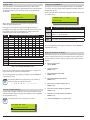
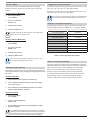
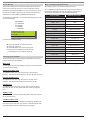
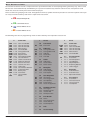
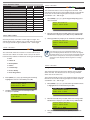
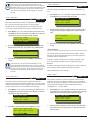
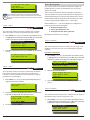
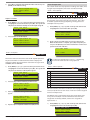
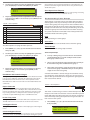
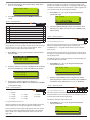
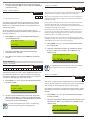
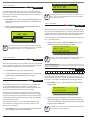
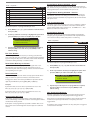
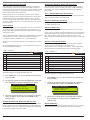
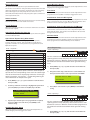
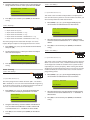
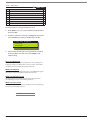
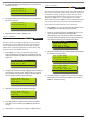
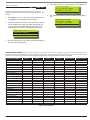
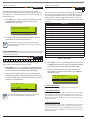
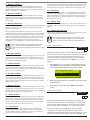
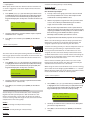
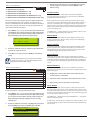
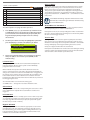
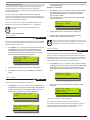
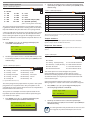
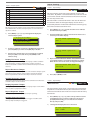
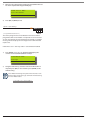
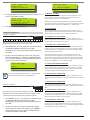
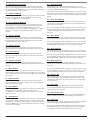
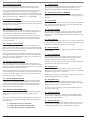
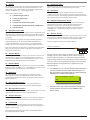
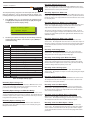
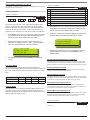
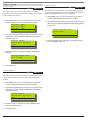
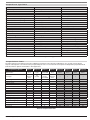
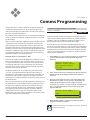
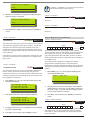
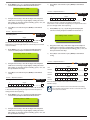
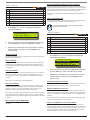
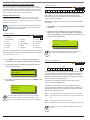
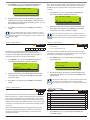
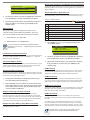
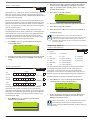
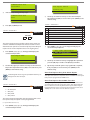
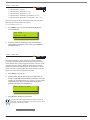
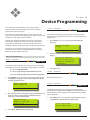
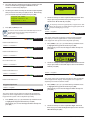
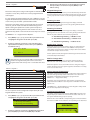
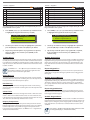
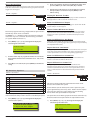
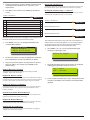
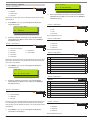
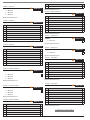
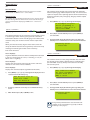
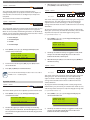
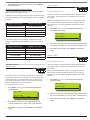
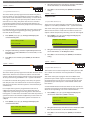
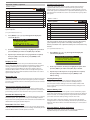
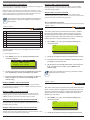
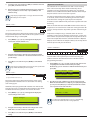
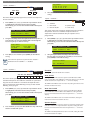
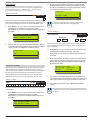
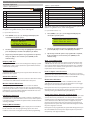
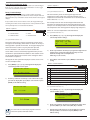
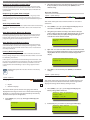
Solution 64 | Installer Guide | Comms Programming 1) If the event log reaches 100% capacity before a SolutionLink RAS session is established then the system will send a ‘Log Overflow’ report. The panel will also log these events in its memory. Press [MENU] + [5] + [3] + [0]. The keypad will display the current Call Back telephone number if programmed. Call Back Number N001 Press [MENU] + [5] + [3] + [2]. The keypad will display the current threshold limit. The default is 70% full. 1) Press 0-9 OK to SAVE Log Threshold N001 2) 3) Using the numeric keys, enter all the digits of the Call Back number. You can change a single digit by scrolling the cursor left or right. For special characters including, pause, * or #, use the up and down arrow keys. Note Using the numeric keys enter the new threshold limit, then press [OK] to save and exit or press [MENU] to exit without saving. There is no need to enter the % symbol. 2) Press [OK] to save and exit or press [MENU] to exit without saving. i 070 % Press 0-9 OK to SAVE You must add any area codes or other special access numbers which are required to be able to dial the remote computer from the panel phone line. Simply add these numbers before the Call Back number. i Note Each time a SolutionLink RAS session is established with the panel, the log information will be uploaded to the SolutionLink database where it can be reported on or archived for later use Comms > Remote Access > Comms > Remote Access > RAS Security PIN MENU 5-3-1 Ring Count MENU 5-3-3 10 0 = No Answer 1 2 3 4 5 6 7 8 The RAS security PIN programmed here must match the security PIN programmed in the customer file of the SolutionLink RAS upload/download database otherwise a connection to the panel cannot be established. 1) 1 to 15 = Answer Ring Count This menu sets the number of rings the panel will wait until answering an incoming call. Programming a zero will stop the panel from answering any incoming calls. Press [MENU] + [5] + [3] + [3]. The keypad will display the current ring count. 1) Press [MENU] + [5] + [3] + [1]. The keypad will display the current RAS Security PIN. The default = 12345678. Ring Count N001 RAS Security PIN 10-10 Rings Press 0-9 OK to SAVE 12345678 Press 0-9 OK to SAVE 2) Using the numeric keys, enter all the digits of the new RAS security PIN. You can change a single digit by scrolling the cursor left or right. 3) Press [OK] to save and exit or press [MENU] to exit without saving. i Note Comms > Remote Access > Log Threshold MENU 5-3-2 7 0 % Bosch Security Systems | 11/05 | BLCC110I If answering machine bypass is required to allow a SolutionLink connection to be made without the answering machine answering the call, see MENU 5-3-4 — SolutionLink RAS Options Comms > Remote Access > SolutionLink Options The control panel can store up to 256 system events in its built in history log. A newly installed panel will have 100% of its log space available for new events (0% full). As the panel starts to store events in the log, the capacity for new events is reduced. The history log is 100% full when event 256 is stored in memory. Event 257 will start to overwrite the oldest events in the log. When the Log Threshold option is programmed, the panel will send a ‘Log Threshold’ report to the base station when the event log reaches the percentage as set since the last SolutionLink session. Use the up and down arrow keys to select the required ring count then Press [OK] to save and exit or press [MENU] to exit without saving. 2) 1) RAS MENU 5-3-4 1 RAS Allowed Y 2 Call Back Verification Required N 3 Terminate RAS on Alarm Y 4 Answer Bypass Y 5 Answer Incoming Call Only If Armed N 6 Remote Program Editing Only When Disarmed N 7 Allow User Functions Via Remote Access Software Y 8 Report / Log RAS Start / End Sessions Y Press [MENU] + [5] + [3] + [4]. The keypad will display the current RAS options. 9-7