1
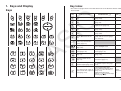
Key
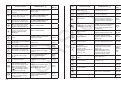
@
Mat V
A
W
Primary Function
Inputs List command (page 3-2).
Enters
letter U.
Enters number 2.
Inputs Mat command (page 2-41).
Enters
letter V.
Enters number 3.
[
Addition function (page 2-1).
Specifies positive value.
]
Y
i
Z
?
= SPACE
Subtraction function.
Specifies negative value.
Enters number 0.
Enters decimal point.
P
Enables entry of exponent
(page 2-1).
”
$
Ans
=
U
Combined
with ?
Enters number 1.
B
X
Combined with Enter before value to specify
as negative (page 2-1).
Displays result of calculation.
Display
Selecting Icons
S To select an icon
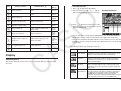
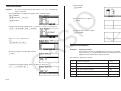
1. Press K to display the Main Menu.
2. Use the cursor keys (B, C, D, A) to
move the highlighting to the icon you want.
Currently selected icon
Enters
letter W.
Enters open bracket.
Enters
letter X.
Enters close bracket.
Enters
letter Y.
Inputs imaginary number unit
(page 2-30).
Enters
letter Z.
Enters character =.
Enters
a blank
space.
Inputs value of pi (page 2-13).
Enters pi symbol.
Enters
double
quotation
mark
(page 2-7).
AS
IO
List U
Recalls most recent calculation
result (page 2-9).
Inputs a new line.
C
This section describes how to select an icon in the Main Menu to enter the mode
you want.
3. Press U to display the initial screen of the
mode whose icon you selected. Here we will
enter the STAT mode.
• You can also enter a mode without highlighting an icon in the Main Menu by
inputting the number or letter marked in the lower right corner of the icon.
• Use only the procedures described above to enter a mode. If you use any other
procedure, you may end up in a mode that is different than the one you thought
you selected.
The following explains the meaning of each icon.
Icon
Mode Name
Description
RUN • MAT
(Run • Matrix)
Use this mode for arithmetic calculations and function
calculations, and for calculations involving binary, octal,
decimal, and hexadecimal values and matrices.
STAT
(Statistics)
Use this mode to perform single-variable (standard
deviation) and paired-variable (regression) statistical
calculations, to perform tests, to analyze data and to
draw statistical graphs.
e • ACT
(eActivity)
eActivity lets you input text, math expressions, and other
data in a notebook-like interface. Use this mode when
you want to store text or formulas, or built-in application
data in a file.
S • SHT
(Spreadsheet)
Use this mode to perform spreadsheet calculations.
Each file contains a 26-column × 999-line spreadsheet.
In addition to the calculator’s built-in commands and
S • SHT mode commands, you can also perform
statistical calculations and graph statistical data using the
same procedures that you use in the STAT mode.
E-3