1
22
Using the AXIS 70/70U
AXIS 70/70U User’s Guide
Using a standard PC Keyboard
Connecting a standard keyboard to your AXIS 70/70U will allow you to
quickly search for any destination names within the resident list. You can do
this by simply typing in the first couple of characters of the destination name
you wish to search. The AXIS 70/70U message display will automatically show
the destination that best matches the keyboard input.
Adding a new e-mail address to the list using a keyboard
1. If the keyboard is not already connected, make sure that the power supply to
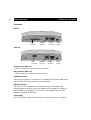
the AXIS 70/70U is disconnected and connect the keyboard to the keyboard
connector located on the rear panel. Reconnect the power supply.
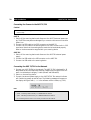
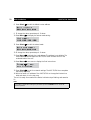
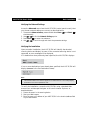
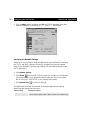
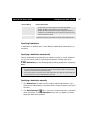
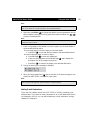
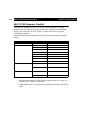
2. Press the Insert key on your keyboard. The following prompt will appear on the
message display:
3. Type the new e-mail address you want to add, and press Enter.
Note:
Only the five most-recently added temporary destinations will appear in the destination list.
Contact your Network Administrator if you want to add a destination permanently.
Viewing the Scanned Images
The AXIS 70/70U creates images in standard PDF formats. Note that these files
are merely images that do not include searchable text.
Note:
Use Adobe Acrobat or Capture to capture text in PDF documents and convert it to bitmap text
that can be corrected, indexed, searched, or copied to other files.
Specifying a Sender
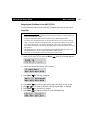
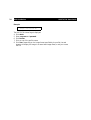
If the Administrator has enabled users to specify the sender of scanned
documents* you can also identify yourself, your department or organization
as the sender of distributed information directly from the AXIS 70/70U Control
Panel, as follows: