1
4.
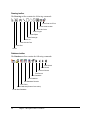
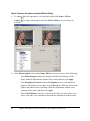
Change the Font, Font Size, Bold, Italic, and Font Color.
5.
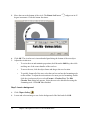
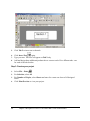
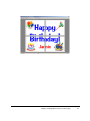
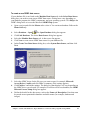
Click OK to insert the circular text.
To format circular text
1.
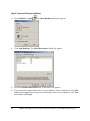
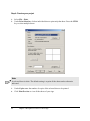
Select the circular text object and select Format > Circular Text or double-click the
circular text object. The Edit Circular Text dialog box appears.
2.
Make your changes. Text must be selected in the text field to apply any formatting
changes. The alignment and flip attributes will be applied to all text.
3.
Click OK to apply the changes.
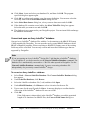
To align and flip circular text
1.
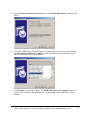
Select the circular text object and select Format > Circular Text or double-click the
circular text object. The Edit Circular Text dialog box appears.
2.
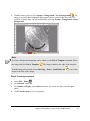
Select or enter a Rotate number. This number indicates the starting point angle for the
circular text. To rotate the text precisely, type the number of degrees or click the up and
down arrows.
3.
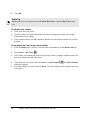
Click the Rotate Left
that direction.
4.
Click the Flip Text
modes.
5.
Click OK to apply the changes.
, Center
, or Rotate Right
buttons to nudge the text in
button to toggle between the flipped up or flipped upside down
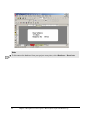
Quick Tip
Right-click the circular text object to access Edit Circular Text.
Insert date and time
Add the current system date and time to your design. You can insert the date and time
information on the Master tab only.
To change the default date and time setting, select Tools > Options > General tab.
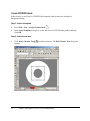
To insert date and time
1.
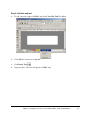
Click the Master tab to select it.
Chapter 4 Start your design: Insert date and time
23