1
3.
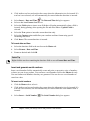
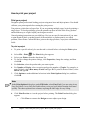
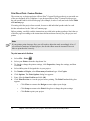
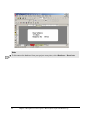
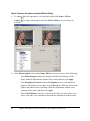
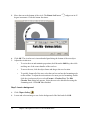
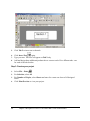
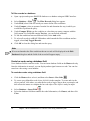
Select File > Acquire > Acquire Image. The dialog box that appears will vary since this
command uses the interface software provided by your device manufacturer. Capture and/
or select the image.
4.
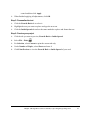
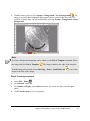
Close the dialog box. It may close automatically for some devices. The image is inserted
in the design.
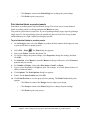
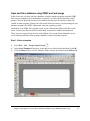
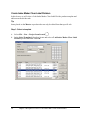
Insert and create bar codes
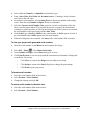
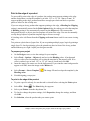
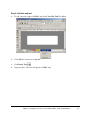
Create and print bar codes on your Avery product. DesignPro creates several bar code types.
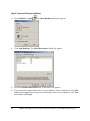
When DesignPro is installed, the default bar code type is set to Code 39. To change the default
type, select Tools > Options > General tab.
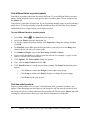
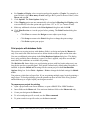
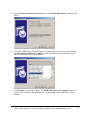
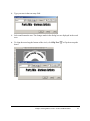
Human readable text is the information you enter in the bar code object. This information is
encoded to create the bar code. To display the bar code information as human readable text,
select Display Plaintext in the Bar Code dialog box.
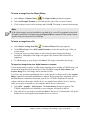
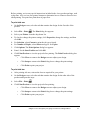
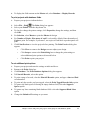
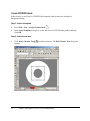
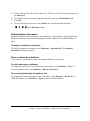
To move a bar code object, click the object frame. The mouse pointer appears as the Move
icon. Move the object.
You can also create bar codes using a serial number or database field.
Note
We recommend that you obtain bar code requirements from the appropriate authorities to
ensure you are creating the bar code to specification. We also recommend that you perform
extensive bar code reading tests before you apply the bar codes. Also note that resizing or
changing the appearance of a bar code may cause readability problems.
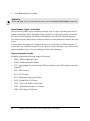
Bar code types available in DesignPro
•
EAN 8
•
EAN 13
•
EAN 128
•
Code 128 (Type A, B, C)
•
Code 39
•
2/5 Standard
•
2/5 Interleaved
•
Codabar
28
Chapter 4 Start your design: Insert and create bar codes