1
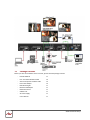
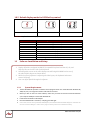
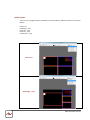
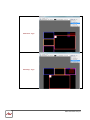
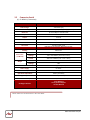
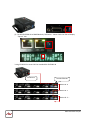
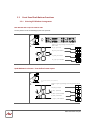
1.8.2 Default display modes for KVM hot key control
Full
Quad1
Quad2
* Red Icon implies the main display area.
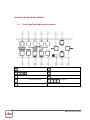
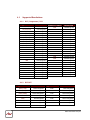
Key Combination1
Ctrl + Alt + Shift + 1
Ctrl + Alt + Shift + 2
Ctrl + Alt + Shift + 3
Ctrl + Alt + Shift + 4
Ctrl + Alt + Shift + 5
Ctrl + Alt + Shift + 6
Ctrl + Alt + Shift + 7
Ctrl + Alt + Shift + 8
Ctrl + Alt + Shift + 0
1.9
Function Description
Keyboard & mouse control granted to computer #1
Keyboard & mouse control granted to computer #2
Keyboard & mouse control granted to computer #3
Keyboard & mouse control granted to computer #4
Switch Video #1 to the main display area
Switch Video #2 to the main display area
Switch Video #3 to the main display area
Switch Video #4 to the main display area
4
Mode switching between Full, Quad1, Quad2, Quad3
Software Installation and Setup
1. Hotkey definitions are based on IBM PS/2 compatible keyboard and the Ctrl, Alt, and
Shift keys are on the LEFT side of the keyboard.
2. Switching video source to the main display area will bring MX-1004K back to one of
the video default layouts as shown above.
3. While the control software is adjusting the video layout, the keyboard and mouse
control will be off.
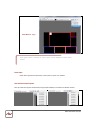
4. User can define Quad3 through the software
1.9.1
1.
2.
3.
4.
5.
System Requirements
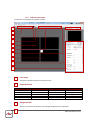
The DVI-SPLITPRO-4K provides a software control program which runs under Microsoft Windows 98,
2000, XP, Vista, 7 through the interface of RS-232 serial control.
Before you click on the icon of the software, make sure you have secured the connection between
your computer COM port and the DVI-SPLITPRO-4K.
Install driver for RS232 to USB adapter
Once DVI-SPLITPRO-4K is turned on, it display green LED light
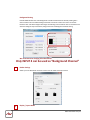
Ensure that correct driver for RS232-USB Adapter (included with DVI-SPLITPRO-4X/K) are installed. You
can check “Device Manger” under “Ports” page to check if drivers are installed correctly
www.avenview.com|10