1
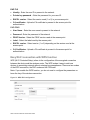
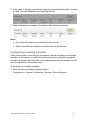
2. Enter the user name and password required for logging into the FTP server in the
corresponding fields.
3. In the Directory Structure field, select the root directory, parent directory, or child
directory.
When the parent directory is selected, you have the option to use the Device Name,
Device Number, or Device IP for the name of the directory.
When the Child Directory is selected, you can use the Camera Name or Camera No.
as the name of the directory.
4. Select the Upload Type checkbox to enable uploading the captured image to the
FTP server.
5. Select the Anonymous checkbox to enable anonymous access to the FTP server.
When you select this checkbox, the user name and password will not be requested.
Note: The anonymous access function must be supported by the FTP server.
6. Click Save.
Note: If you want to upload the captured images to the FTP server, you must enable the
continuous snapshot or the event-triggered snapshot on the Snapshot page.
Configuring UPnP settings
Universal Plug and Play (UPnP) is a networking architecture that provides compatibility
among networking equipment, software, and other hardware devices. The UPnP
protocol allows devices to connect seamlessly and simplifies the implementation of
networks in the home and corporate environments.
With the function enabled, the camera is connected to the Wide Area Network via the
router, you do not need to configure port mapping for each port.
To configure UPnP settings:
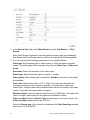
1. Enter the UPnP settings interface.
Configuration > Camera Configuration > Network > UPnP
36
Clare Controls IP Network Camera User Guide