1
Note
Printing the printer settings
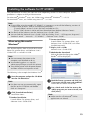
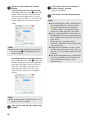
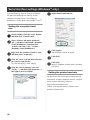
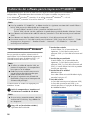
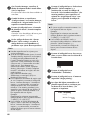
● P-touch Editor Lite LAN is ideal for
●
●
●
●
creating simple labels. To create labels
with more complex designs, use P-touch
Editor 5.0.
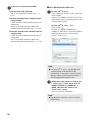
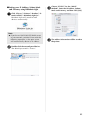
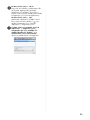
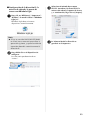
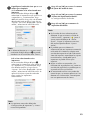
When using the P-touch Editor Lite LAN
for the first time, “Add shortcut” dialog
box appears. Select the desired location
from “Start menu”, “Desktop” or “Quick
Launch bar”, then put a check mark in
the box, and click [OK]. You can access
to the P-touch Editor Lite LAN from the
shortcut next time.
Since P-touch Editor Lite LAN uses the
network printing method and not the
driver settings, high speed printing and
high resolution printing using HG tape
are not available.
Print jobs from the full version of P-touch
Editor sent from another computer may
interrupt your printing. P-touch Editor Lite
LAN will resume printing once the print
job from the full version has been
completed.
For more detailed information, see the
“Software User’s Guide” (PDF).
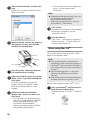
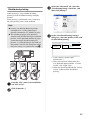
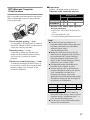
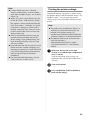
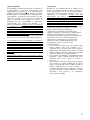
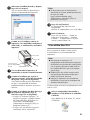
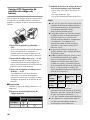
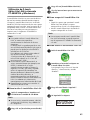
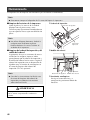
The printer settings page prints a report listing
the printer settings and the network settings (PT9800PCN only). You can print the printer
settings page using the Feed/Cut button of the
printer.
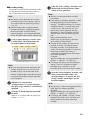
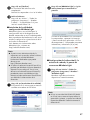
Note
● The node name and Ethernet address in
addition to its detailed information are
printed in the printer settings list.
<Node name> BRNXXXXXXXXXXXXXXX
<Ethernet Address> XXXXXXXXXXXXXXX
● The default Node name of the network
card in the printer is
“BRNXXXXXXXXXXXXXXX” where
“XXXXXXXXXXXXXXX” is the Ethernet
address.
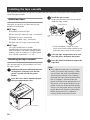
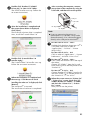
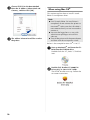
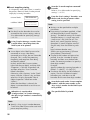
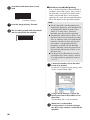
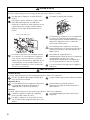
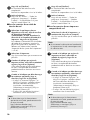
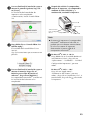
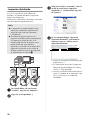
Make sure that the TZ or HG tape
1 cassette is set and the tape compartment
cover is closed.
To print the printer settings page, we
recommend to use the tape wider than 1"
(24 mm).
2
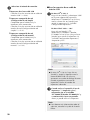
Turn on the printer.
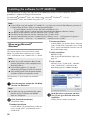
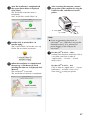
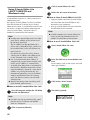
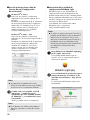
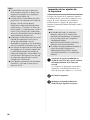
Press and hold the Feed/Cut button to
3 print out the settings.
43