1
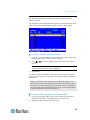
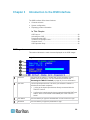
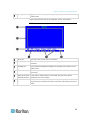
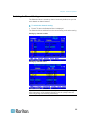
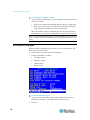
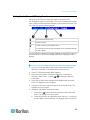
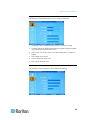
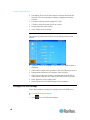
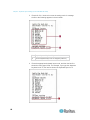
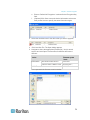
Chapter 5: System Settings Adjusting the OSD Menu Position You may move the OSD menu to the position you prefer on the screen. To adjust the OSD menu position: 1. If you do not see the OSD on the screen, press the hot key twice QUICKLY to activate it. The default hot key is Scroll Lock. 2. Press F5. The Administration Menu appears. 3. Select the first submenu, System Configuration. To select the submenu, either press 1, or press or to highlight it and then press Enter. 4. Press Tab or Shift+Tab to highlight the "Menu" item in the Display Position field, and press Enter. The highlight color turns green. 5. Now move the OSD menu to the position you prefer by pressing the arrow keys. 6. Press Enter to confirm the new position. The highlight color turns yellow. 7. Press S to save the changes or Esc to quit the current menu or submenu. If pressing Esc, the message “Save the changes [Y/N/ESC]” appears on the message bar. Press Y to save the changes, N to abort the changes, or Esc to return to the current menu or submenu. Resetting System Settings You may clear current system settings and have all settings return to factory defaults. These settings are: All settings involved on the Administration Menu, including: System Configuration User Configuration Channel Configuration To reset system settings: 1. If you do not see the OSD on the screen, press the hot key twice QUICKLY to activate it. The default hot key is Scroll Lock. 2. Press F5. The Administration Menu appears. 3. Select the fourth submenu, Factory Default Reset. To select the submenu, either press 4, or press or to highlight it and then press Enter. 55