1
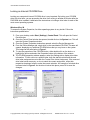
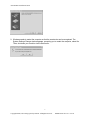
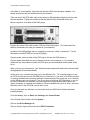
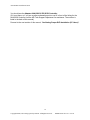
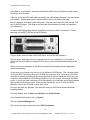
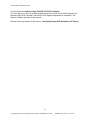
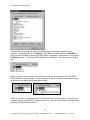
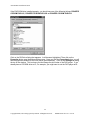
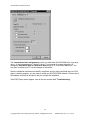
ASI Hardware Installation Guide Locking an Internal CD-ROM Drive Locking your computer's internal CD-ROM drive is very important. By locking your CD-ROM drive to a drive letter, you are preventing the drive from moving to another drive letter after the DVD-ROM drive is added. Listed below are instructions on locking a drive letter for each of the most current operating systems. Windows 95 or 98 To access the System Properties, for either operating system is very similar. Follow the instructions posted below. 1. From your desktop, select Start | Settings | Control Panel. This will open the Control Panel window. 2. Once the Control Panel window has opened, double-click on the System icon. This will open the System Properties window. 3. Once the System Properties window has opened, select the Device Manager tab. 4. From the Device Manager tab, single-click on the area labeled CD-ROM. This area will expand, displaying any additional CD-ROM drives that you may have on the system. This image can be seen below in Figure 1. 5. To view the properties of the CD-ROM device, either double-click on the device, or highlight the device and select the Properties button at the bottom of the window. 6. The CD-ROM properties window appears, select the Settings tab to display drive letter information. To lock a drive to a specific letter, both the start drive letter and the end drive letter assignments must match the Current Drive Letter Assignment. If the reserved drive letter boxes are empty, or do not match the current assignment, utilize their respective drop down boxes to make the correct selection. An example of a locked drive is shown below in Figure 2. As the drive is locked into place, press OK to save the changes. Figure 1 Figure 2 2 Copyright2000, Advertising Specialty Institute. All Rights Reserved. HRDW200001.doc Rev. 5/16/00