1
30
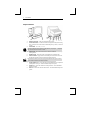
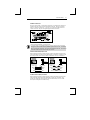
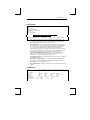
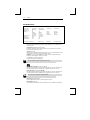
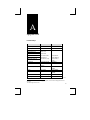
Setup
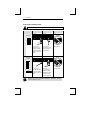
SCREEN Menu
EXEC1
GLOBAL COMM 1
Auto Wrap Yes
Auto Scroll Yes
Auto Line Feed
Margin Bell Yes
Column Change
Columns
Cursor Home
Data Lines 24/42
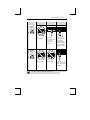
AUX/COMM2
KEYBOARD1 SCREEN1
VISUAL1
MODE1
TAB1
FUNCT1
BELL
No
No
Yes
No
No
Save Screen
Erase Screen
80
132
Upper left
Auto Scroll Dependent
25/43
ENTER:menu ↑ ↓ :line ← →
Auto Wrap [Yes, No]
SPACE: select
S-SETUP:exit
CTL-SETUP:SES#1
Selecting Yes will cause the cursor to wrap to the beginning of the next line when it
passes the right margin. A No selection will cause the cursor to remain stationary at the
right margin.
Auto Scroll [Yes, No]
Selecting Yes will cause the screen to scroll up when data is entered passed the margin
of row 24/42 (25/43) depending on data line setting. A No selection will cause the
cursor to position itself at the first position of row 1, when data is entered at the last
position on row 24/42 (25/43).
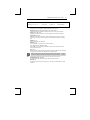
Auto Linefeed [Yes, No]
If Yes is selected, an internal linefeed is performed moving the cursor to the beginning
of the next row when a Return code is received. An internal linefeed is also generated
when the cursor advances past the end of a row. Selecting No will cause the cursor to
move to the beginning of the current row when a Return code is received.
Margin Bell [Yes, No]
Sounds a momentary audible sound when the cursor is nearing the end of the right
margin. Selecting No will disable this feature.
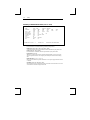
Column Change [Save Screen , Erase Screen]
Select to save screen data or erase screen data when changing number of columns (80 or
132) display.
Columns [80, 132]
Select to display 80 or 132 columns.