1
Uninstalling ServerIron ADX modules
2
• Selecting the slot-asm3 parameter disables the ASM in slot 3 of the ServerIron ADX 8000 &
10000 chassis.
• Selecting the slot-asm4 parameter disables the ASM in slot 4 of the ServerIron ADX 8000 &
10000 chassis.
Uninstalling a Management module
When removing an Active Management module from a ServerIron ADX 4000, ServerIron ADX 8000
or ServerIron ADX 10000 you must shutdown and power-off the system first. You may then
physically remove the Management module from the chassis.
When removing a Standby Management module from an operating ServerIron ADX 8000 or
ServerIron ADX 10000 you should perform the following actions in the order shown:
1. Execute the disable standby-mgmt-module command to allow the system to gracefully
shutdown functions that are related to the module before physically removing it.
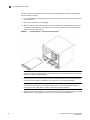
2. Physically remove the Standby Management module from the chassis.
3. If you execute the disable standby-mgmt-module command but do not physically remove it
from the chassis, it can be brought on-line using the enable standby-mgmt-module command.
NOTE
The ServerIron 4000 accommodates only one Management module, so it doesnot have a
Standby Management module.
Command Syntax
The Syntax for the disable standby-mgmt-module and enable standby-mgmt-module commands is
described in the following:
Syntax:disable standby-mgmt-module
Syntax:enable standby-mgmt-module
Uninstalling a Switch Fabric module
When removing a Switch Fabric module (SFM) from a ServerIron ADX 4000, ServerIron ADX 8000
or ServerIron ADX 10000 you must shutdown and power-off the system first. It can then be
physically removed from the chassis.
NOTE
All of the Switch Fabric modules in a ServerIron ADX are required for proper operation. Consequently,
after powering down a ServerIron ADX and removing an SFM, it must be reinstalled before powering
up the system.
Brocade ServerIron ADX Installation Guide
53-1003445-01
47