1
Using the LCD Display Features
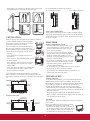
POWER
SOURCE
7
1
1
2
3
4
5
6
7
8
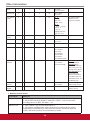
Button
2
0~9, number
buttons
3
MUTE
Description
Press the respective button to input a character or
number.
2
9
RETURN
-
1
8
EXIT
9
4
5
- VOL +
PICTURE
6
SOUND
7
POWER
8
RETURN
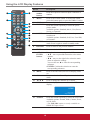
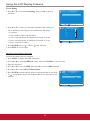
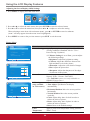
Press to return to the previous channel.
9
EXIT
Press to exit the OSD menu screen.
10
▲▼◄►/
ENTER
buttons
11
MENU
12
C.C
13
14
▼ CH ▲
INFO
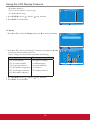
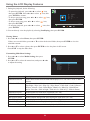
Press these buttons to navigate the OSD menus.
•▲/▼ - move upward/downward to select menu
options.
•◄/► - move to the right/left to select the main
menu or adjust the settings.
You can also use ► to enter the corresponding
submenu.
•ENTER: Confirm the selection or enter the
corresponding submenu.
Press to turn the OSD (On-Screen Display) menu
on.
Press to select the Closed Caption menu in the AV
mode.
Press to change the channels up or down.
Press to display the current state of the LCD
display.
10
ENTER
MUTE
MENU
11
3
12
VOL
CH
13
14
INFO
5
6
PICTURE
SOUND
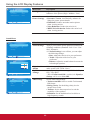
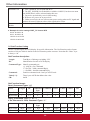
Press this button repeatedly to select the preset
picture mode.
Available options: Standard, Movie, User, Power
Saving, or Dynamic.
Press this button repeatedly to select the preset
sound mode.
Available options: Standard, Soft, User, User SRS,
or Dynamic.
Press this button to turn the power on from standby
mode. Press it again to return to standby mode.
C.C
4
Press to turn off the sound. To restore the sound,
press this button again, or press the VOL+/- button.
Press to adjust the volume.
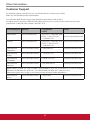
ASPECT
15
HDMI
1080p 60Hz
Aug-18 15:02 Sat
15
ASPECT
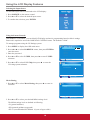
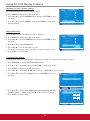
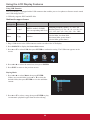
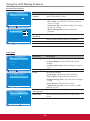
Press this button repeatedly to select the screen size.
Available options: Normal, Wide, Cinema, Zoom,
or Full 100%.
* For Full 100% option, it is only available on
HDMI/DVI input source.
12