1
16
Emerge Digital Extender System Installer/User Guide
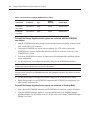
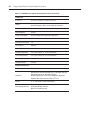
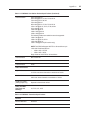
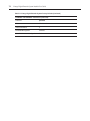
Table 2.5: Default Network Settings (ECMS2000 User Station)
Component
IP Address
Type
Default
Gateway
Subnet Mask
ECMS2000
User Station
192.168.13.1
Static
0.0.0.0
255.255.255.0
ECMS2000
Transmitter
192.168.13.2
Static
0.0.0.0
255.255.255.0
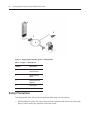
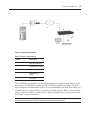
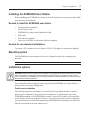
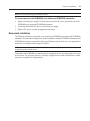
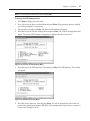
To install the Emerge digital extender system on a network with the ECMS2000
user station:
1.
With the ECMS2000 transmitter already connected to the remote workstation, connect it to the
LAN via the unit's RJ-45 connector.
2.
Connect the ECMS2000 user station to the peripherals. Use UTP cable to connect the
ECMS2000 user station to the Ethernet network via the RJ-45 connector on the rear of the
ECMS2000 user station.
3.
Turn on the ECMS2000 user station. A connection will be automatically established with the
remote workstation.
4.
Use the serial menu to reconfigure the network settings for the ECMS2000 transmitter.
NOTE: If the ECMS2000 user station and ECMS2000 transmitter are to be located on different subnets,
configure their network settings before you connect to the network.
NOTE: If there are already ECMS2000 transmitter and ECMS2000 user station pairs operating on the subnet,
configure network settings of new ECMS2000 transmitter and ECMS2000 user station pairs before connecting
them to the network.
5.
Use the serial menu to reconfigure the network settings for the ECMS2000 user station.
6.
Repeat this procedure for each ECMS2000 transmitter and ECMS2000 user station pair you
wish to install on the network.
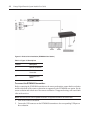
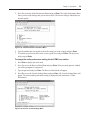
To install the Emerge digital extender system on a network in Desktop Mode:
1.
Ensure that each ECMS2000 transmitter and ECMS2000 user station has a unique IP address.
2.
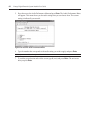
Using the DM2000 Manager appliance, locate and add the units to the DM2000 Manager
appliance database. For information on how to do this, refer to the Emerge® DM2000 Manager
Installer/User Guide.