1
AdderLink X-DVIPRO-DL
User Guide
Experts in
Connectivity
Solutions
KVM Extender
Solutions
Troubleshooting...................................................................................................11
Getting assistance...............................................................................................12
Appendix A - Cables for use with digital extenders...................................13
Warranty...............................................................................................................15
Safety information...............................................................................................15
Radio frequency energy.....................................................................................15
INTRODUCTION
Connections...........................................................................................................5
Mounting the modules – desk or rack.......................................................5
Connections at the local module................................................................6
Power connection.....................................................................................7
Connections at the remote module...........................................................8
Power connection.....................................................................................9
Further information
INSTALLATION
Installation
General use..........................................................................................................10
Video display (EDID) information.............................................................10
HDMI 1.3a operation...................................................................................10
Power and activity indicators.....................................................................10
OPERATION
Welcome.................................................................................................................2
Cable type and distance rules......................................................................2
Supplied items........................................................................................................3
Optional extras......................................................................................................4
Operation
FURTHER
INFORMATION
Introduction
CONTENTS
Contents
1
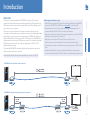
Recommended 50m link cable for best results: Adder part number - VSCAT7-50
• Cable screening is paramount. The best cable screening specifications for digital KVM
extension are: S/FTP, S/STP or PiMF. Please see Appendix A for further details.
• Extension distances up to 50m are supported with single uninterrupted runs of
recommended cable (Adder CAT7 patch cable) at full resolution.
• Extensions of 50m may be achieved with single uninterrupted runs of shielded CAT6a
bulk/trunk (not patch) cable at full resolution.
• Adder does not recommend CAT5e cables for use with this product.
• Overall cable runs must be reduced by 5m for each additional cable coupling.
• Run specifications may be increased by 10m when using resolutions of 1280 x 1024 or
lower.
• All patch cables should be as short as possible and should be no longer than 2m.
• It is recommended that Adder CAT7 patch cables are used for maximum performance.
OPERATION
X-DVIPRO-DL link with direct cable connection
Cable type and distance rules
INTRODUCTION
Thank you for choosing the AdderLink X-DVIPRO-DL extenders. These compact
modules provide the quickest way to extend high quality dual link DVI digital video plus
USB keyboard, mouse and stereo audio with an additional two USB peripherals up to 50
meters away from your computer.
Thanks to our long involvement and investment in extender technology we have
succeeded in overcoming the numerous problems associated with extending digital video
signals. Using our proprietary transmission techniques the X-DVIPRO-DL modules can
extend all dual link video resolutions up to 2560 x 1600. In effect, the X-DVIPRO-DL can
reliably transfer video rates up to 330 Mpixels per second. This is in addition to multiple
USB channels plus stereo audio - all via the same single length of CAT6a or CAT7
shielded twisted pair cabling.
The AdderLink X-DVIPRO-DL extender modules have been designed to be quick to
install and totally transparent in operation.
INSTALLATION
WELCOME
CONTENTS
Introduction
FURTHER
INFORMATION
X-DVIPRO-DL link with cable and patch panel connections
2
CONTENTS
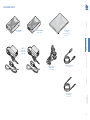
SUPPLIED ITEMS
AdderLink DVIPRO-DL
Local module
Information wallet
containing:
AdderLink DVIPRO-DL
Remote module
2x
12.5W power
adapters and
country- specific
power cords
OPERATION
USB cable 2m (type A to B)
Part number:VSC24
3.5mm jack to jack
stereo audio cable
Part number:VSC22
FURTHER
INFORMATION
Dual link video cable
DVI-D to DVI-D
Part number:VSCD3V
INSTALLATION
INTRODUCTION
Four self-adhesive rubber feet
Safety document
3
CONTENTS
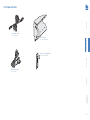
OPTIONAL EXTRAS
Rack mount chassis
Part number: X-RMK-CHASSIS
INTRODUCTION
50 meter CAT7 link cable
Part number:VSCAT7-50
INSTALLATION
Rack mount kit for X-DVIPRO-DL
Part number: X-RMK-FASCIA
FURTHER
INFORMATION
OPERATION
HDMI to DVI-D video cable
Part number:VSCD11
4
Desk mount
Apply the supplied self-adhesive rubber feet to
the underside of the module.
INTRODUCTION
The X-DVIPRO-DL modules can be situated on a desk or alternatively, for larger
installations, mounted within an optional rack mount chassis.
INSTALLATION
Mounting the modules – desk or rack
Rack mount
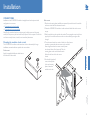
1 Place the rack securing plate (available as a separate kit) onto the front of the module
and secure it with the two countersunk screws.
2 Orient the X-DVIPRO-DL module on its side so that its labeled face is the correct
way up.
3 Slide the module into the required rack position. The rectangular cut-out in the front
upper lip of the rack allows the two screws on the module’s upper edge to slide
through.
4 The rack mount chassis has a series of holes in its floor that are
spaced to accommodate the two screws on the module’s
lower edge. Ensure that the screws correctly locate
into the two holes of the chosen slot. The rack
securing plate on the module should now be
flush with the front of the rack mount
chassis.
5 Use the third (pan-head)
screw, in the top hole
of the rack securing
plate to fasten the
module to the rack.
OPERATION
Installation of the X-DVIPRO-DL modules is straightforward and requires minimal
configuration in most cases.
• Connections at the local module
• Connections at the remote module
Note: After all connections have been made, power up the display screen and the remote
module first.Then power up the local module and finally switch on the computer.This will allow
each item to correctly discover, in order, the one immediately downstream.
FURTHER
INFORMATION
CONNECTIONS
CONTENTS
Installation
5
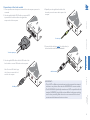
Connections at the local module
4 Optionally use the supplied audio cable to link
the audio port to the stereo audio output of the
computer.
To audio port
5 Connect the link cable (see page 2 for cable advice) to
the local module socket labeled TO REMOTE.
INTRODUCTION
CONTENTS
1 Where possible, ensure that power is removed from the computer system to be
connected.
2 Use the supplied dual link DVI-D cable to connect the DVI
input socket of the local module to the digital video
output socket of the computer.
INSTALLATION
To video output port
3 Use the supplied USB cable to link the USB socket of the
local module to a vacant USB socket on the computer.
To USB port
IMPORTANT:
• This is NOT an Ethernet port and must not be connected to network
switches or any device other than the X-DVIPRO-DL remote module.
• The X-DVIPRO-DL (dual link) extenders are NOT compatible with the
standard X-DVIPRO (single link) versions. Where both types are being
used in close proximity, take care not to cross connect the local and
remote modules between the two versions.
OPERATION
CATx link cable
FURTHER
INFORMATION
Note: Do not use USB cables longer
than 3 meters to connect the local
module to the computer.
6
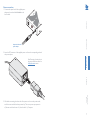
Power connection
INTRODUCTION
CONTENTS
1 Connect the output lead of the supplied power
adapter to the socket labeled POWER on the
local module.
Output lead from the
power adapter
3 Wait before connecting the other end of the power cord to a nearby mains outlet,
until the remote module has been powered up. The correct power up sequence is:
a) Remote module and screen > b) Local module > c) Computer.
FURTHER
INFORMATION
OPERATION
Note: Please pay close attention to
the power related items within the
Safety information section.
INSTALLATION
2 Insert the IEC connector of the supplied power cord into the corresponding socket of
the power adapter.
7
4 Optionally connect a set of stereo speakers
to the module.
CONTENTS
1 Place the remote module adjacent to the user location.
2 Connect a dual link DVI-D cable from the video monitor to
the DVI output socket of the remote module.
Note: If dual link screen resolutions are required,
the DVI-D cables used at both the local and
remote modules must be dual link types.
To speakers
To video monitor
5 Connect the link cable (see page 2 for cable advice) to
the remote module socket labeled TO LOCAL.
INSTALLATION
3 Connect the leads from the keyboard and mouse
to the two USB sockets on the remote module.
INTRODUCTION
Connections at the remote module
Note: The total current that may be drawn from the USB ports is 1.2A, which should be
sufficient for a keyboard, mouse (no more than 100mA each) and any two other devices
(500mA maximum each). If more power for USB devices is required, please use a powered
USB hub.
FURTHER
INFORMATION
To keyboard, mouse
and other USB
peripherals
IMPORTANT:
• This is NOT an Ethernet port and must not be connected to network
switches or any device other than the X-DVIPRO-DL local module.
• The X-DVIPRO-DL (dual link) extenders are NOT compatible with the
standard X-DVIPRO (single link) versions. Where both types are being
used in close proximity, take care not to cross connect the local and
remote modules between the two versions.
OPERATION
CATx link cable
8
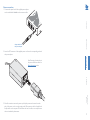
Power connection
INTRODUCTION
CONTENTS
1 Connect the output lead of the supplied power adapter
to the socket labeled POWER on the remote module.
Output lead from
the power adapter
3 After all connections are made, power up the display screen and connect the other
end of this power cord to a nearby mains outlet. Then power up the local module and
finally switch on the computer. This will allow each item, in order, to correctly discover
the one immediately downstream.
FURTHER
INFORMATION
OPERATION
Note: Please pay close attention to
the power related items within the
Safety information section.
INSTALLATION
2 Insert the IEC connector of the supplied power cord into the corresponding socket of
the power adapter.
9
Operation
Local module
Yellow:
• On when a valid single link DVI video input signal is being
received from the computer.
• Blinks (mostly on with short off periods) when a valid
dual link DVI video input signal is being received from the
computer.
• Flashes if no valid DVI signal is being received from the
computer.
• Off if the CATx link cable is disconnected.
HDMI 1.3a operation
Remote module
INTRODUCTION
Green:
• On when power is present.
Extended Display Identification Data (or EDID) is an industry standard scheme which
allows video displays to declare their capabilities to the computer’s video adapter
circuitry, allowing the latter to optimize their outputs accordingly. Since the widespread
adoption of the scheme, video adapters have become increasingly dependent on receiving
relevant EDID information during start-up, before they will output anything more than a
rudimentary video signal.
Each time that the remote module is powered on, it attempts to read the EDID
information from the connected DVI video monitor. If the attempt is successful, the
information is transferred to the local module and stored within non-volatile memory.
This information is then made available to the computer’s video adapter when required.
Using optional HDMI to DVI converter cables (Adder part number:VSCD11), the
AdderLink X-DVIPRO-DL can support HDMI video and audio up to the 165MHz clock
rate (1920 x 1080 at 60Hz, 24-bit color).
Eight channels of HDMI audio are supported with sample sizes of 16, 20 or 24-bits at
32KHz, 44.1kHz, 48kHz, 88.2kHz, 96kHz, 176.4kHz, or 192kHz (simultaneously with the
jack audio).
Note:The High-bandwidth Digital Content Protection (HDCP) and Consumer Electronics Control
(CEC) schemes are not supported.
CONTENTS
Each module provides two indicators to confirm power status and also feedback about
the various input signals: INSTALLATION
Video display (EDID) information
Power and activity indicators
Green:
• On when power is present.
Yellow:
• On when a valid single link DVI video input signal is being
received from the local module.
• Blinks (mostly on with short off periods) when a valid dual
link DVI video input signal is being received from the local
module.
• Flashes if the CATx link is present but no valid DVI video
signal is being received from the local module.
• Off if the CATx link cable is disconnected.
OPERATION
In use, the X-DVIPRO-DL modules should be transparent - the system and its
peripherals should operate exactly as normal, the only difference being that they are now
up to 50 meters apart.
FURTHER
INFORMATION
GENERAL USE
10
Further information
Only single link resolutions are displayed
• Check that the video cables connected to the local and remote modules are both
specifically dual link types.
INTRODUCTION
No video image is displayed on the remote monitor
• Check the yellow indicators on the local and remote modules while no keys are
pressed on the keyboard and no mouse movements are being made:
LOCAL: If the yellow indicator is flashing*, then the video feed to the local module is
not valid. Try connecting a DVI monitor (preferably using the same DVI link cable as
used with the local module) directly to the computer and check for a correct image.
REMOTE: If the yellow indicator is flashing*, then the video feed via the link cable is
not valid. If the link cable is long, try using a short link cable temporarily to check for
basic operation.
If the yellow indicators are off, then the link cable is not properly connected.
• Check that both the local and remote ends of the extender are X-DVIPRO-DL
variants. The single link X-DVIPRO modules are not compatible with X-DVIPRO-DL.
INSTALLATION
If you experience problems when installing or using the X-DVIPRO-DL modules, please
check through this section for a possible solution. If your problem is not listed here and
you cannot resolve the issue, then please refer to the Getting assistance section.
CONTENTS
TROUBLESHOOTING
* Take care not to confuse the flash and blink codes used by the yellow indicators:
• A flash is when the yellow indicator shows a regular on/off cycle every second, to
warn that there’s a video feed problem.
• A blink is when the yellow indicator is mostly on with short off periods, to confirm
that a valid dual link video signal is present.
OPERATION
Video blanking is occurring on the remote display screen
• Check that the correct type and length of link cable is being used. Please see the cable
advice given on page 2 and also in Appendix A.
FURTHER
INFORMATION
This chapter contains a variety of information, including the following:
• Troubleshooting - see right
• Getting assistance
• Appendix A - Cables for use with digital extenders
• Safety information
• Warranty
• Radio frequency energy statements
11
GETTING ASSISTANCE
• Online solutions and updates – www.adder.com/support
Check the Support section of the adder.com website for the latest solutions and
firmware updates.
• Adder Forum – forum.adder.com
Use our forum to access FAQs and discussions.
CONTENTS
If you are still experiencing problems after checking the information contained within this
guide, then we provide a number of other solutions:
FURTHER
INFORMATION
OPERATION
INSTALLATION
INTRODUCTION
• Technical support – www.adder.com/contact-support-form
For technical support, use the contact form in the Support section of the
adder.com website - your regional office will then get in contact with you.
12
APPENDIX A - Cables for use with digital extenders
Insulation displacement
The teeth of the insulation displacement connectors are designed to straddle and hug
the sides of the solid center conductor of the cable.
The teeth of the insulation piercing connectors penetrate the middle of the cable and
nest in between the stranded wires. If insulation piercing connectors are used on solid
core cable then the connection will not be stable as the teeth will try to but are unable
to penetrate the solid center conductor. The teeth will then slide off the solid core and
not make a stable contact.
Types of shielding
Solid
Stranded
Stranded cabling is found in patch cables and is intended to connect the front of the wall
plate to the extender or computer using RJ45 connectors. They need to be more flexible
because the cabling gets disconnected and connected constantly.
For a digital extender application, solid conductor cables give a better performance as
these allow for a higher bandwidth and have less attenuation. Ideally a thickness of 22
AWG should be used.
Insulation piercing
The third and final factor in determining the cable to be used in digital extension is
shielding. The shielding protects the cable from two types of interference, internal
crosstalk and external interference. Internal crosstalk is the interference between the
different pairs inside the cable. External interference is any interference that comes from
outside the cable. This is caused by many things; proximity to mobile phones, bundling
cables together or running them over lighting fixtures.
Internal crosstalk is most detrimental to digital extension as the signals cannot be
recovered after experiencing crosstalk.You are left with a black screen.
The most common type of shielding is Screened/Unshielded Twisted Pair (S/UTP). This has
an overall shield and will protect the signal from external interference. However it does
not provide any protection from crosstalk.
The next type of shielding is Shielded Twisted Pair (STP). This has four individual shields,
one for each data pair. This is good for protecting the signal from internal crosstalk but
does not provide an overall shield to protect against external interference.
If you combine the two types of shielding together you have Screened/Shielded Twisted Pair
(S/STP). This is also sometimes referred to as Shielded/Foil Twisted Pair (S/FTP). This has four
individual shields, one for each pair and an overall shield. S/STP is the best cable to protect
against any interference and is the cable choice to be used for digital KVM extension.
CONTENTS
INTRODUCTION
Twisted pair cables can have either solid or stranded conductors. Solid cables come
in bulk spools and are often referred to as infrastructure or bulk cabling. They are less
flexible than stranded cables but have less attenuation. These cables are typically run
throughout a building and terminate at the rear of a wall plate.
For each type of cable there is also an associated RJ45 connector. It is important that the
correct type of connector is used for the type of cabling.
Insulation displacement RJ45 connectors are designed to work with solid conductor cables
while insulation piercing RJ45 connectors are designed to work with stranded conductor
cables.
INSTALLATION
Types of cable
Types of RJ45 connector
OPERATION
The demands of extending high resolution DVI and HDMI digital video signals are
considerable and mean that it is not possible to use Cat5e cabling to achieve the
maximum extension distance of 50 meters. The large video bandwidth involved means
that to achieve the best possible performance from digital extenders, it is vital that the
correct cabling is chosen.
There are three important factors to consider when choosing a cable for use with digital
extenders.
IMPORTANT: Please remember that even though they use network-style
cables, the link ports of the modules are NOT Ethernet ports and must not
be connected to network switches or any other devices.
FURTHER
INFORMATION
Introduction
13
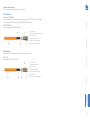
Adder recommends
We recommend the following two types of cable:
Daetwyler 7702P flex
This is stocked by Adder with the following part number VSCAT7-50. This is a 50m length
of Daetwyler 7702P terminated with HRS TM31P RJ45 connectors.
CU 7702 4P flex
Flexible data cable S/FTP Cat.7 AWG26
CONTENTS
Patch Cables
1 Inner conductor:
AWG26 bare copper wire, stranded
3 Screen pair: Alu PETP foil
4 Screen: Tinned braided copper
5 Sheath: FR/PVC grey RAL 7035
INTRODUCTION
2 Wire: 0.99 mm Ø
Bulk Cables
CU 7120
Data cable S/FTP Cat.7A AWG 23
1 Inner Conductor:
AWG23 bare copper wire
2 Wire: 1.5 mm Ø
INSTALLATION
Daetwyler 7120 with Harting RJ Industrial 10G RJ45 connectors.
3 Screen Pair: Alu PETP foil
FURTHER
INFORMATION
5 Outer Sheath:
FRNC/LSOH orange RAL 2003
OPERATION
4 Screen: Tinned braided copper
14
WARRANTY
Adder Technology Ltd warrants that this product shall be free from defects in
workmanship and materials for a period of two years from the date of original purchase.
If the product should fail to operate correctly in normal use during the warranty period,
Adder will replace or repair it free of charge. No liability can be accepted for damage due
to misuse or circumstances outside Adder’s control. Also Adder will not be responsible
for any loss, damage or injury arising directly or indirectly from the use of this product.
Adder’s total liability under the terms of this warranty shall in all circumstances be
limited to the replacement value of this product.
If any difficulty is experienced in the installation or use of this product that you are
unable to resolve, please contact your supplier.
This equipment has been tested and found to comply with the limits for a class A
computing device in accordance with the specifications in the European standard
EN55022. These limits are designed to provide reasonable protection against harmful
interference. This equipment generates, uses and can radiate radio frequency energy
and if not installed and used in accordance with the instructions may cause harmful
interference to radio or television reception. However, there is no guarantee that
harmful interference will not occur in a particular installation. If this equipment does
cause interference to radio or television reception, which can be determined by turning
the equipment on and off, the user is encouraged to correct the interference with one
or more of the following measures: (a) Reorient or relocate the receiving antenna.
(b) Increase the separation between the equipment and the receiver. (c) Connect
the equipment to an outlet on a circuit different from that to which the receiver is
connected. (d) Consult the supplier or an experienced radio/TV technician for help.
FCC Compliance Statement (United States)
This equipment generates, uses and can radiate radio frequency energy and if not
installed and used properly, that is, in strict accordance with the manufacturer’s
instructions, may cause interference to radio communication. It has been tested and
found to comply with the limits for a class A computing device in accordance with
the specifications in Subpart J of part 15 of FCC rules, which are designed to provide
reasonable protection against such interference when the equipment is operated in a
commercial environment. Operation of this equipment in a residential area may cause
interference, in which case the user at his own expense will be required to take whatever
measures may be necessary to correct the interference. Changes or modifications not
expressly approved by the manufacturer could void the user’s authority to operate the
equipment.
Canadian Department of Communications RFI statement
This equipment does not exceed the class A limits for radio noise emissions from digital
apparatus set out in the radio interference regulations of the Canadian Department of
Communications.
Le présent appareil numérique n’émet pas de bruits radioélectriques dépassant les limites
applicables aux appareils numériques de la classe A prescrites dans le règlement sur le
brouillage radioélectriques publié par le ministère des Communications du Canada.
INTRODUCTION
European EMC directive 2004/108/EC
INSTALLATION
A Category 6a (or better) twisted pair cable must be used to connect the units in order
to maintain compliance with radio frequency energy emission regulations and ensure a
suitably high level of immunity to electromagnetic disturbances.
All other interface cables used with this equipment must be shielded in order to maintain
compliance with radio frequency energy emission regulations and ensure a suitably high
level of immunity to electromagnetic disturbances.
CONTENTS
RADIO FREQUENCY ENERGY
OPERATION
• For use in dry, oil free indoor environments only.
• Do not use to link between buildings.
• Ensure that the twisted pair interconnect cable is installed in compliance with all
applicable wiring regulations.
• Do not connect the CATx link interface (RJ45 style connector) to any other
equipment, particularly network or telecommunications equipment.
• Warning – the power adapter contains live parts.
• No user serviceable parts are contained within the power adapter - do not dismantle.
• Plug the power adapter into an earthed socket outlet close to the unit that it is
powering.
• Replace the power adapter with a manufacturer approved type only.
• Do not use the power adapter if the power adapter case becomes damaged, cracked
or broken or if you suspect that it is not operating properly.
• If you use a power extension cord with the units, make sure the total ampere rating of
the devices plugged into the extension cord do not exceed the cord’s ampere rating.
Also, make sure that the total ampere rating of all the devices plugged into the wall
outlet does not exceed the wall outlet’s ampere rating.
• The units and power supplies can get warm in operation – do not situate them in an
enclosed space without any ventilation.
• The units do not provide ground isolation and should not be used for any applications
that require ground isolation or galvanic isolation.
FURTHER
INFORMATION
SAFETY INFORMATION
15
CONTENTS
www.adder.com/contact-details
Support:
forum.adder.com
INTRODUCTION
Contact:
INSTALLATION
www.adder.com
Documentation by:
www.ctxd.com
© 2014 Adder Technology Limited
All trademarks are acknowledged.
Part No. MAN-X-DVIPRO-DL-ADDER • Release 1.0a
FURTHER
INFORMATION
OPERATION
Web:
16