1
Picture Setting
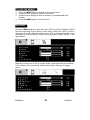
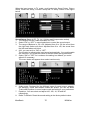
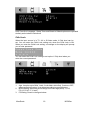
When the input source is in PC mode, you can select Brightness, Contrast,
Position, Video noise, Sharpness, Auto Adjust, Info, Color Temp.,( Red,
Green, Blue can be adjusted) and Reset to Default. Shown in the figure
below:
1.
2.
3.
4.
5.
6.
7.
8.
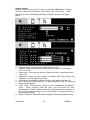
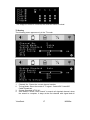
Brightness and Contrast: Could adjust from 0 to 100.
Position: There are two options, Horizontal and Vertical, could adjust
from -50 to +50.
Video noise: There are two options, Phase and Clock, could adjust from
-50 to +50.
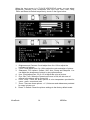
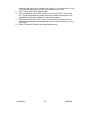
Sharpness: Select from five options of Softest, Soft, Auto, Sharp and
Sharpest. You may adjust it if you like.
Auto Adjust: Automatically adjust PC input to the optimal screen size.
Info: Prompt the current size for PC input resolution (only the resolution
shown by this device).
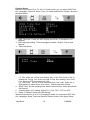
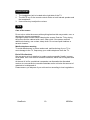
Color Temp.: There are four options of color temperature provided for
users – Warm, Normal, Cold and User. You can select the color
temperatures of Warm, Normal and cold or manually adjust red, green or
blue in the personal setting (you can only adjust red, green and blue in
the personal setting).
Reset To Default: Reset the picture settings to the factory default mode.
ViewSonic
13
N2060w