1
Chapter 8 Working with vApps
8
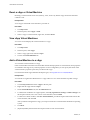
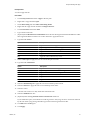
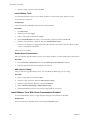
Select a primary NIC and network for each virtual machine.
9
(Optional) Select Show network adapter type and select a type for each NIC.
10
Select an IP assignment method for each NIC.
If you select Static - Manual, type the IP address.
11
Click Next.
12
Select Show networking details, review the network information, and click Next.
13
Review the summary for the vApp and click Finish.
Import a Virtual Machine to a vApp from vSphere
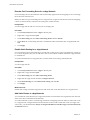
You can import an existing virtual machine to a vApp from vSphere
Prerequisites
Verify that you are an organization administrator or vApp author.
Procedure
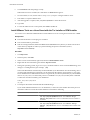
1
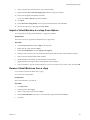
Click the My Cloud tab and click vApps in the left pane.
2
Right-click the vApp and select Open.
3
On the Virtual Machines tab, click Import from vSphere.
4
Select the source vCenter server from the drop-down menu and select the virtual machine to import.
5
Enter a name for the imported virtual machine.
6
(Optional) Enter a description for the imported virtual machine.
7
(Optional) Select a storage profile for the imported virtual machine.
8
Choose whether to copy the virtual machine or to move it from the source vCenter server, and click OK.
Remove Virtual Machines from a vApp
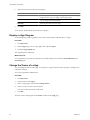
You can remove virtual machines from a vApp.
You are at least a vApp author.
Prerequisites
The virtual machine is powered off.
Procedure
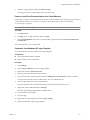
1
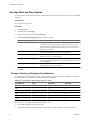
Click My Cloud.
2
In the left pane, click vApps.
3
Select a vApp, right-click, and select Open.
4
On the Virtual Machines tab, select a virtual machine, right-click and select Delete.
5
Click Yes.
VMware, Inc.
69