1
Working With Apple Mainstage
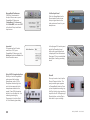
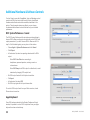
Using GiO for Mainstage audio input and output:
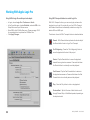
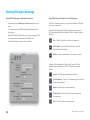
• In Mainstage, choose Mainstage > Preferences, and click on
Audio.
• In the Audio pane, select GIO in the Audio Output and Audio
Input menus.
• Select 128 in the I/O Buffer Size menu. Please see page 19-20
for more details how to optimize the I/O Buffer Size.
• Close the Preferences window when complete.
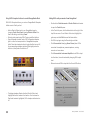
Using GiO’s Transport buttons to control Mainstage
With GiO’s Transport buttons, you can control Mainstage’s Playback
and Looper instruments.
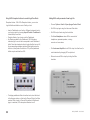
Load the Guitar Rig template “Single Amp & One Backing Track”.
With this template loaded, the behavior of GiO’s Transport buttons is
as follow:
Play - Tap the Play button to start or stop playback.
Fast Forward - Tap the Fast Forward button mute the
Playback Channel Strip only.
Rewind - Tap the Rewind button to turn Cycle on and off.
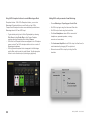
Load the Guitar Rig template “Single Amp & Looper. With this
template loaded, the behavior of GiO’s Transport buttons is as
follows:
Record - Tap Record to start and stop recording.
Go To Beginning - Tap the “Go to Beginning” button to undo
the last recording pass
Rewind - Tap Rewind to reverse something
Fast Forward - Tap Fast Forward to fade out previously
recorded audio
Play - Tap Play to start and stop playback.
15
GiO by APOGEE – User’s Guide