1
Table of Contents
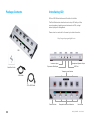
Package Contents
Introducing GiO
Quick Start
System Requirements
Getting Started
Install Apogee Software
Connect the USB Cable
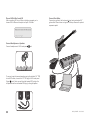
Choose GiO for Mac Sound I/O Connect Headphones or Speakers Connect Your Guitar
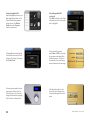
Set up GarageBand ‘09
GarageBand Preferences
Using GiO’s Stompbox Buttons
Set the Input Level
Record!
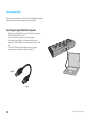
Connecting GiO
Connecting an Apple Macintosh computer
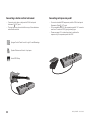
Connecting Headphones
Connecting Powered Speakers
Connecting a Home Stereo
Connecting an Instrument Amplifier
Connecting a Guitar or other Instrument
Connecting an Expression Pedal
Working With Apple GarageBand
Using GiO for GarageBand audio input and output
Using GiO’s Transport buttons to control GarageBand
Using GiO’s Stompbox buttons to control GarageBand
Setting GiO’s audio parameters from GarageBand
i
1
1
2
2
2
2
2
3
3
3
4
5
5
5
5
6
6
7
7
8
8
9
9
10
10
10
11
11
Working With Apple Logic Pro
Using GiO for Logic Pro audio input and output
Using GiO’s Transport buttons to control Logic Pro
Using GiO’s Stompbox buttons to control Logic Pro Setting GiO’s audio parameters from Logic Pro
Using GiO’s Expression Pedal with Apple Logic Pro
Working With Apple Mainstage
Using GiO for Mainstage Audio Input and Output
Using GiO’s Transport Buttons to control Mainstage
Using GiO’s Stompbox Buttons to control Mainstage
Setting GiO’s audio parameters from Mainstage
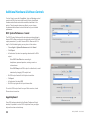
Additional Hardware & Software Controls
OS X System Preferences - Sound
Apple Keyboard
OS X Audio MIDI Setup
Selecting GiO for Mac Sound Input/Output
Controlling GiO’s Input/Output Parameters
Setting GiO’s Sample Rate
Working With GiO
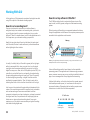
How do I set a recording level?
How do I set my software’s I/O buffer? I/O buffer continued What sample rate should I record at?
Can I record my session on the startup hard drive?
How do I set the input control of my powered speakers?
Using GiO Config
FAQs
Troubleshooting
12
12
12
13
13
14
15
15
15
16
16
17
17
17
18
18
18
18
19
19
19
20
20
20
20
21
22
23
Specifications
24
GiO by APOGEE – User’s Guide