1
Working With GiO
In this section you’ll find answers to questions that might arise while
using GiO as part of a Mac-based recording system.
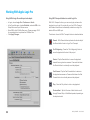
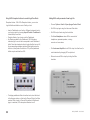
How do I set a recording level?
Once your instrument is connected, your audio software is
configured and you’ve created a new recording track, just how do
you set the input gain for a proper recording level in your audio
software? There’s no simple answer, but with a few guidelines and a
bit of experience, you can master setting a proper level.
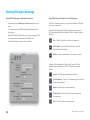
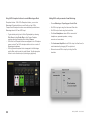
How do I set my software’s I/O buffer?
The I/O Buffer setting found in most audio software is one of the
most crucial, but often ignored, settings in a Mac-based recording
system.
When choosing a buffer setting, a compromise between the latency
through the application and the amount of computer processor power
accessible to the application must be made.
Latency
Ideally, the input gain should be set so that when the input signal
is at its loudest, the level in audio software is just below maximum
without lighting the Over indicator.
In reality, it’s unlikely that you’ll be able to guess just the right gain
setting to accomplish this - when your gain is too low, the signal
never gets close to maximum and when your gain is too high, a
digital Over may occur. Now, with a 24-bit system (such as GiO), the
noise floor is so low that there’s no real penalty for undershooting
the gain setting and recording at a lower level. There IS a penalty
for overshooting the gain setting - a digital Over that results in
significantly increased distortion. Thus, it’s better to work with a
recording level that’s a bit too low than a level that’s a bit too high.
Just how much to undershoot the gain setting is determined by the
nature of the sound being recorded. As a general rule, instruments
such as bass and organ have a more consistent level than
percussive instruments, such as a tambourine, and may be recorded
at a higher level. Also, the performer’s skill and playing style can
dictate more or less caution when setting levels. As you gain
experience, you’ll be able to more accurately set a good recording
level while avoiding digital overs.
Latency - the slight delay between the moment you play a note and hear it in your
headphones after conversion and processing.
A lower buffer setting results in lower latency but less available
processing power. If the application can’t access enough processor
power, processor overruns may occur, resulting in audible clicks and
pops or error messages that interrupt playback and recording.
A higher buffer setting, on the other hand, results in greater amount
of accessible processor power (i.e. less chance of overruns) but
increases the latency. Determining the best setting requires some
trial-and-error in order to find the best compromise.
I/O buffer size
32
64
128
Lower Latency
Fewer Plug-Ins
19
256
512
1024
Higher Latency
More Plug-Ins
GiO by APOGEE – User’s Guide