1
Network
Configuration
NetWare 3.x Network Configuration (Using
CrownAdmin 3)
Add a Print Server and Assign it to a Queue
»
Note: If you don’t have CrownAdmin 3 installed or if you’re using
CrownAdmin 3 with Windows NT, UNIX, OS/2, or Macintosh, use the
instructions in “NetWare 3.x Network Configuration (Using
PCONSOLE)” on page 49.
1
In the main CrownAdmin 3 window, select the printer you
want to configure.
Choose the Printers option button to display a list of printers.
2
Choose the NetWare NDS button.
3
In the list of options that appears, choose (NDS) PServer
Name-Bind, type the print server name in uppercase only,
and choose OK.
The print server name you enter must match the print server
name defined on a file server.
CrownAdmin 3 will ask you for the password.
4
If you're already logged in to a file server with supervisor
privileges, skip to step 5.
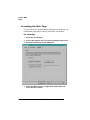
If not, you need to log in to a file server with supervisor privileges:
a
From the Server menu, choose Logins.
b
In the Login/Logout dialog box, select a NetWare file server
from the Available File Servers list.
c
Choose the Login button.
Note: You can't simply attach to a file server; you must log in.
»
d
In the Server Authentication dialog box that appears, type
your name in the Username text box, type your file server
password in the Password text box, and choose the OK
button.
QMS CrownNet Setup Guide
47