1
Network
Configuration
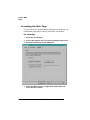
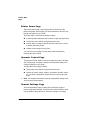
On all creation opening screens, you have the opportunity to
change context if needed.
6
Select Print Queue and click OK.
7
Type the name of the print queue.
8
Click the icon button next to the Print Queue Volume to
select the volume to store the queue. The context can be
changed if needed.
9
Click OK.
10 Choose Create.
11 Select Object - Create.
12 Select Printer and click OK.
13 Type the name of the printer.
14 Select Define Additional Properties.
15 Choose Create.
16 Click the Assignment tab.
17 Click the Add button.
18 Select the queue added in above to be serviced by this
printer and click OK.
19 Click the Configuration tab.
20 Select "Other/Unknown" for the printer type.
21 Click OK.
22 Select Object - Create.
23 Select Print Server and click OK.
24 Type the name of the print server. (This should match the
name entered on the interface card).
a
Choose Define Additional Properties.
b
Choose Create.
25 Click the Assignments tab.
QMS CrownNet Setup Guide
53