1
Popch8.fm5 Page 5 Tuesday, August 26, 1997 5:17 PM
3
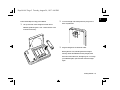
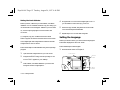
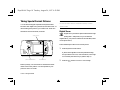
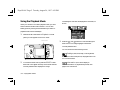
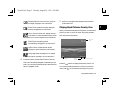
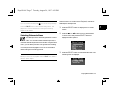
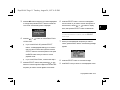
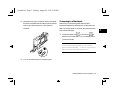
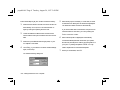
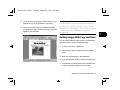
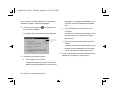
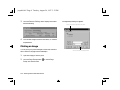
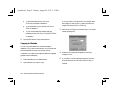
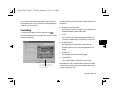
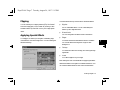
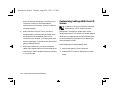
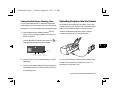
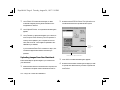
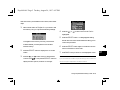
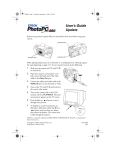
Click Start to display the live preview.
You can click the Mode, Flash, Self Timer, and
Macro buttons on the screen to adjust these settings just
as you would by using the buttons on the camera. For
more information, see Chapter 2.
4
5
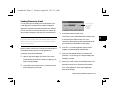
Adjusting Camera Settings From
Your Computer
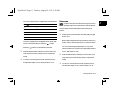
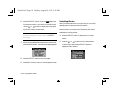
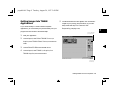
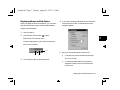
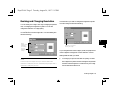
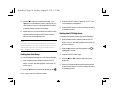
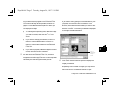
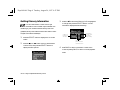
You can use either Image Expert or EPSON Photo!2 to
change the following camera settings:
◗
Time
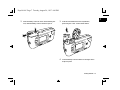
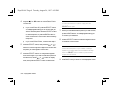
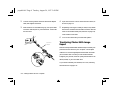
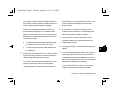
When your shot is ready, click Take a Picture. The
image is captured and processed.
◗
Date
◗
Power down time (Auto Shutoff)
Click Close when you’re finished taking pictures from
your computer.
◗
Camera ID
◗
Connection Port
◗
Connection Speed
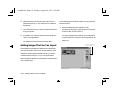
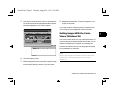
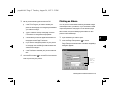
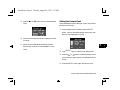
The AutoStop Timer shuts off live preview after one minute
to save battery power. You can set the timer from 30 seconds
to 5 minutes.
8
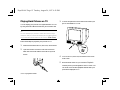
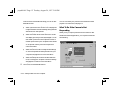
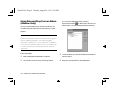
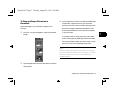
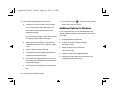
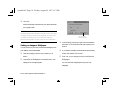
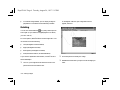
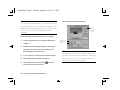
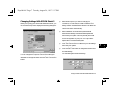
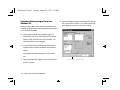
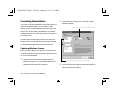
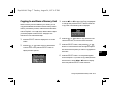
Changing Settings With Image Expert
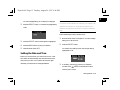
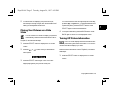
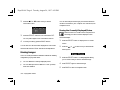
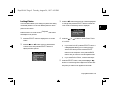
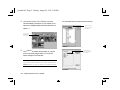
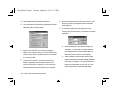
In Image Expert, you can change settings when you are
viewing pictures in the camera. Follow these steps:
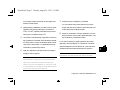
1
Connect the camera to your computer as described in
Chapter 4.
A
2
Turn on both your camera and your computer system.
B
Using Custom and Advanced Features 8-5