1
VNR 100 • Setup Guide (Continued)
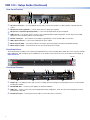
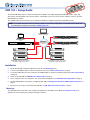
Rear Panel Features
b d
a
c d
e
f
g h
a
AC power connector — use a standard IEC power cord to connect the recorder to a 100 to 240 VAC, 50 or 60 Hz power
source.
b
c
d
PS/2 port for mouse (optional) — connect a PS/2 mouse to this port, if required.
e
f
g
h
RS-232 control port — use an Extron control cable (not provided) to connect the VNR 100 to a control PC.
PS/2 port for computer keyboard (optional) — connect a PS/2 keyboard to this port, if required.
USB ports (2) — may also be used to connect a mouse and keyboard for initial configuration. In total, there are four USB
inputs, two on the rear panel and two on the front panel.
VGA output connector — connect a local VGA monitor to this output.
Ethernet port 0 (eth0) — use an RJ-45 cable to connect this port to the primary network (the VN-Matrix network).
Ethernet port 1 (eth1) — is not functional. Do not connect this port to the network.
Front Panel Cover
The front panel has a lockable cover to prevent unauthorized access to the removable drives. When the cover is in place, the DVD
player, USB ports, and serial ports are not available for use. To install or remove the front cover, see the VNR 100 User Guide at
www.extron.com.
Handle
VN-Matrix
VNR 100
Recorder
Front Panel Features
a
b
h
2
i
c c
d
j
e fg
a
j
a
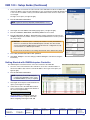
Handles (2) — for sliding the unit in and out of the mounting rack and securing the front panel bezel. Do not use the handles
for lifting the recorder.
b
c
CD and DVD drive — used for system updates or software installation.
d
RS-232 Comm port — Insert a 9-pin RS-232 cable to connect the unit to a control PC.
USB ports — used to connect a mouse and keyboard for initial configuration. There are a total of four USB ports: two front
panel and two rear panel.