1
Installing the Agilent 82357B
1
Step 5: Programming via the 82357B
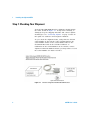
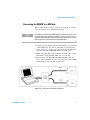
After you have connected your GPIB instrument(s) to the
82357B, the next step is to establish communication between
your PC and the instruments using Interactive IO. After
communication has been established, you can begin
programming the instruments using VISA, VISA COM, or
SICL.
Establishing instrument communication
When the Agilent IO Libraries Suite is installed on your PC,
an IO utility called Interactive IO is also installed. You can
use Interactive IO to verify communication between your PC
and the connected GPIB instrument(s). This section shows
you how to use Interactive IO to verify instrument
communication.
NOTE
Once your GPIB interface has been configured in Connection Expert, if you
can see the attached GPIB instrument(s) in the Connection Expert explorer
and see their IDN string information in the detail pane then
communication has been verified. Interactive IO allows you to manually
verify communication and send specific commands to your instruments.
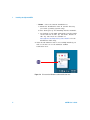
1 Click the IO icon on the Windows taskbar notification
area.
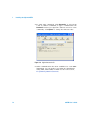
2 Right- click the instrument and click Send Commands To This
Instrument to display the Interactive IO window. For
information on Interactive IO, click Help.
3 *IDN? is the default command. Click Send & Read to send
the identification query to the instrument and display its
reply in the Interactive IO window.
82357B User’s Guide
11