1
Using the Policy Editor
17
5.
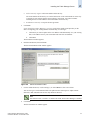
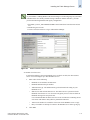
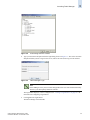
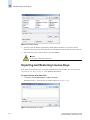
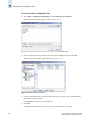
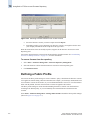
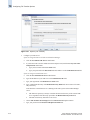
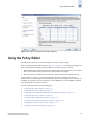
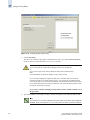
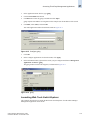
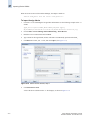
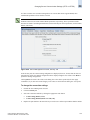
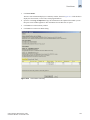
(Optional) Click Add FM Server IP to add the Fabric Manager server IP address, or click Add
this FM Client IP to add the Fabric Manager client IP address.
6.
Click Add IP. The IP address is placed in the Permitted Access Points list.
To remove a switch from the policy, select the IP address from the Permitted Access Points list,
then click Remove IP.
To delete the policy, click Delete Policy.
7.
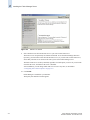
Click the Summary tab.
8.
Click Save to save your changes but not apply them, or click Activate to save and apply your
changes.
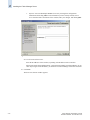
The Security Policy Review dialog displays.
9.
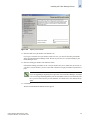
After reviewing the Security Policy, click one of the following:
•
•
•
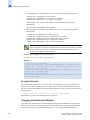
Continue (to continue applying your changes)
Cancel (to cancel your changes)
Copy to File (to copy the Security Policy to a file)
Configuring DCC Policy Options
You can configure DCC policies to bind device ports to specific switch ports. With Fabric Manager, you
can create and configure multiple DCC policies with unique names and populate DCC policies with
switch and device WWNs.
To create a DCC policy
1.
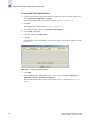
In the Information Panel, right-click the secure fabric for which you want to set policies and choose
Security > Security Policy Editor from the context menu.
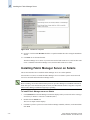
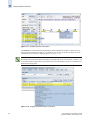
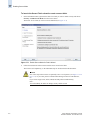
The Policy Editor appears (see Figure 17-3 on page 17-4).
2.
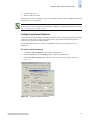
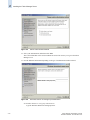
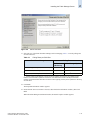
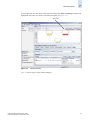
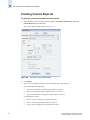
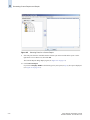
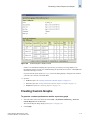
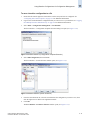
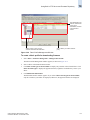
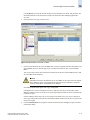
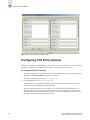
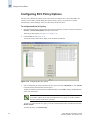
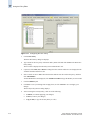
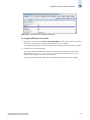
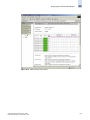
Click the DCC tab (see Figure 17-7 on page 17-10).
Fabric Manager Administrator’s Guide
Publication Number: 53-1000196-01-HP
17-9