1
Appendix A – Viewing on a Television Set B. Viewing the Image on a TV Set
In addition to being viewed on the DV camera’s LCD
screen, recorded video clips or still images can be
viewed on a TV screen. The TV screen can be used to
frame the subject during video recording.
To view images on a TV set, select the video output
system first.
1. Make sure that both TV set and DV camera are
turned off.
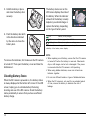
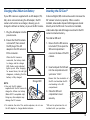
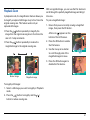
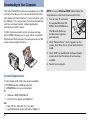
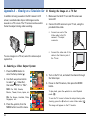
2. Connect the DV camera to your TV set, using the
provided Video cable.
•
Connect one end of the
Video cable to the DV
camera’s TV-output
connector.
•
Connect the other end of the
cable to the Video-In jack of
the TV set.
A. Selecting a Video Output System
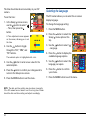
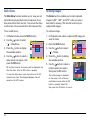
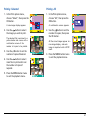
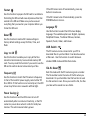
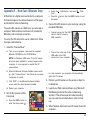
1. Press the MENU button to
enter the Setup mode ( ).
2. Use the 4-way arrow button
to select “ ” – Video Out,
then select “NTSC” or “PAL”.
NTSC: For USA, Canada,
Mexico, Taiwan, Korea, Japan, etc.
PAL: For Europe, Australia, China,
Singapore, etc.
3. Press the button, then the
MENU button to exit the menu.
54
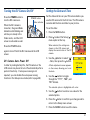
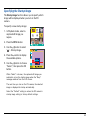
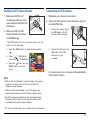
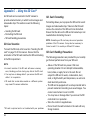
3. Turn on the TV set, and select the channel through
the Video Input.
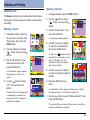
4. Power on the DV camera, then press the MODE
button.
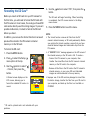
To play back, press the
mode ( ).
button to enter Playback
To use the TV screen to frame the subject during video
shooting, press the
button to enter Video mode ( ).
The image will appear on the TV monitor.