1
3 - 18
Operating Instructions
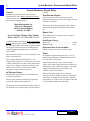
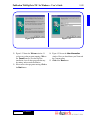
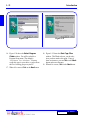
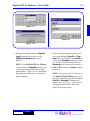
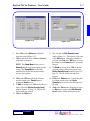
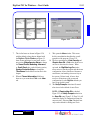
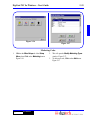
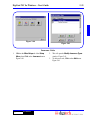
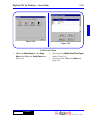
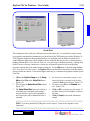
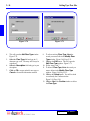
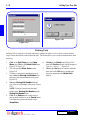
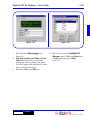
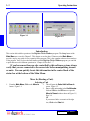
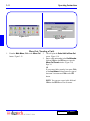
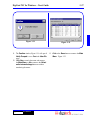
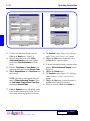
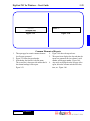
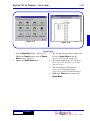
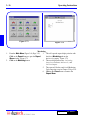
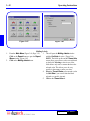
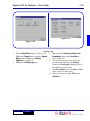
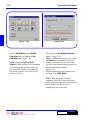
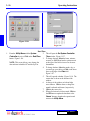
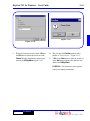
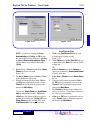
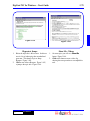
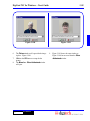
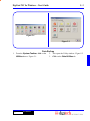
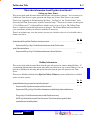
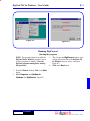
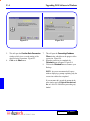
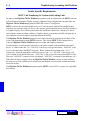
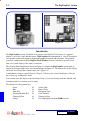
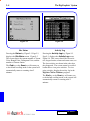
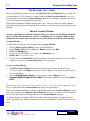
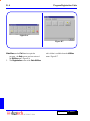
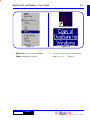
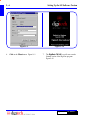
Figure 3-33
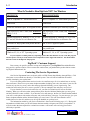
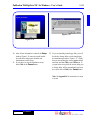
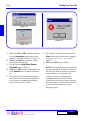
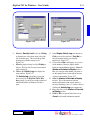
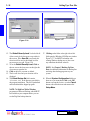
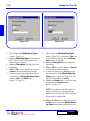
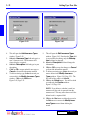
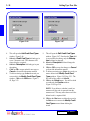
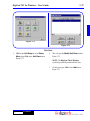
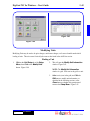
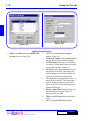
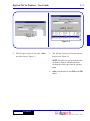
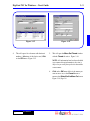
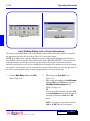
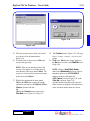
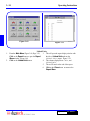
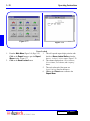
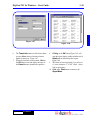
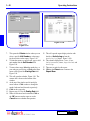
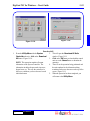
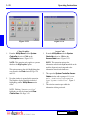
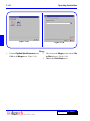
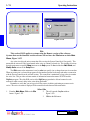
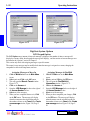
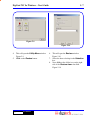
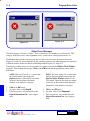
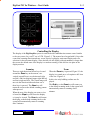
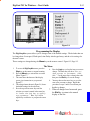
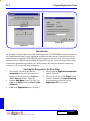
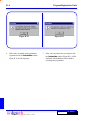
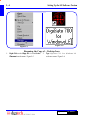
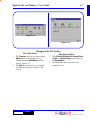
Figure 3-34
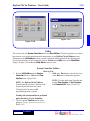
Find (Finding/Editing Unit or Tenant Information)
This selection on the Main Menu is used to find tenants or units and edit the tenant information. In general,
the instructions here will follow those in the “Move In” section of this chapter.
NOTE: If the fields on this screen are dimmed grey and you cannot edit any information, the fields have
been disabled. Check the title bar of the window for the phrase “RECORD LOCKED.” If you see this, the
information on the screen may be viewed but you may not edit. The normal reason for this is that the
database record being accessed is in use in another part of the program or by another user, if you are working
on a network. If your system is not on a network, close all open windows and try to access the data again. If
this fails, close the program entirely, restart the program and try to access the record again.
1.
From the Main Menu, Click on the Find
button. Figure 3-33.
2.
3.
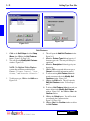
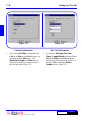
This will open the Find Unit screen.
Figure 3-34.
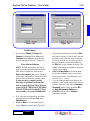
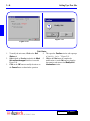
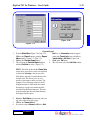
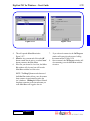
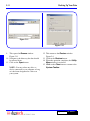
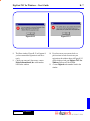
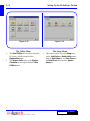
Enter a valid unit number in the Unit Number
field and Click on the OK button to open the
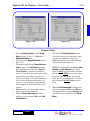
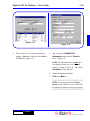
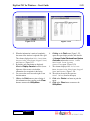
Find/Edit Unit Information window.
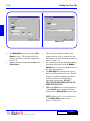
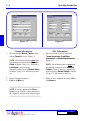
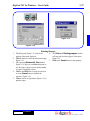
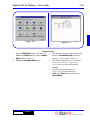
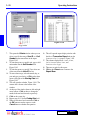
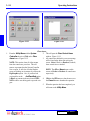
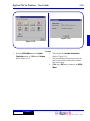
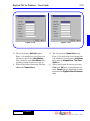
Figure 3-36, Page 3-19.
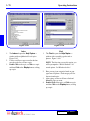
OR
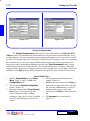
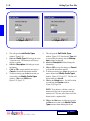
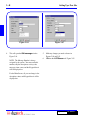
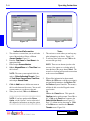
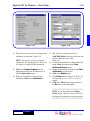
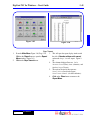
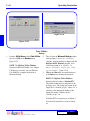
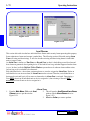
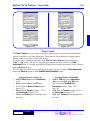
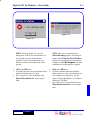
If you want to find a tenant by last name, click
on the Last Name field and enter all or part of
the tenant’s last name and click on the OK
button.
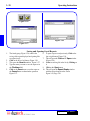
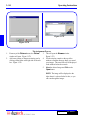
NOTE: You can type a space in this field and
click on the OK button to list all tenants.
DigiGate-700™ for Windows®