1
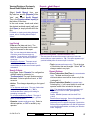
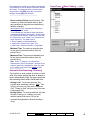
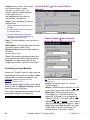
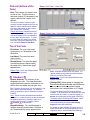
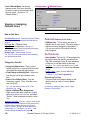
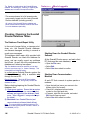
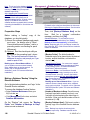
Any existing card layouts will still print in the original language (see notes). If you want operators of different languages to be able to print cards, you will need to: Upgrade to Director v4.62 (see notes); Update all card layouts (or create new ones) using ONLY the new-style field names. Notes: This feature is partially supported in Director v4.61. If using custom user fields, you'll need v4.62. To allow printing for any language, card layouts containing custom user fields with an underscore "_" in the field name must be updated using the new-style field names. Users Lost Cards How to Get Here MyTools Bar: Lost Cards In the Tree: YourAccount, Users, Lost Cards Cards that Have Been Lost Attention: Cards can also be set as lost in the screen for the specific user. That approach is typically preferred since the user data will be transferred to here automatically (incl. user name and ID), and a card number cannot be added here while still assigned to a user. Related: YourAccount, Users; Users (Entrants / Panel Users) Multi-Account Systems: First select [Account Folders] in the 'tree', and locate and double-click the desired account. Grid/Form View: This feature uses 'Form' view only. Things You Can Do Lost Cards Add/Identify a Lost Card: Enter the card number in the space provided (upper-right), and click [Add]. Cards that have been lost can be identified as such to ensure they cannot be used in the future, and to ensure that lost card numbers are not accidentally re-issued. Find an Existing One: Look for the desired card number in the list. Alternatively, you can try [Add]ing the card number, and watching to see if you get an error. Tips: The permission required to access this feature is the same as for the parent folder (Users); The "User Access" report can be used to view or print a list of lost cards. Related: [Reports], User Access Reporting on User Access Authorities ... Tip: Lost cards are sorted numerically from lowest to highest, although any leading zeros are dropped. Remove a Card from the List: Locate and select the desired card number in the list, and click [Card Found]. Lost cards: Will be denied access if presented at a reader; Cannot be added/identified here if presently assigned to a user (including shared users); Cannot be assigned to users if already [Add]ed here. 140 On This Form - Lost Card Numbers: The area on the left of the form shows a list of cards that have been identified as being 'lost'. Guardall Director V4.74 User's Guide 21-0381E v4.7.4