1
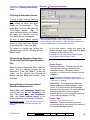
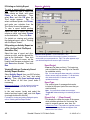
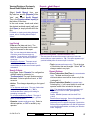
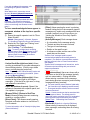
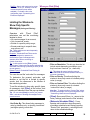
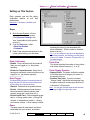
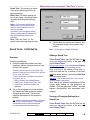
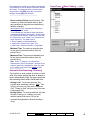
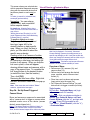
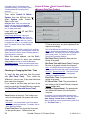
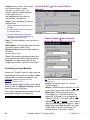
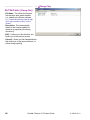
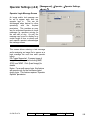
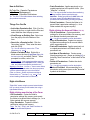
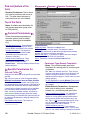
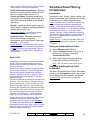
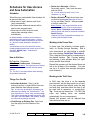
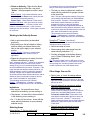
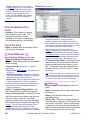
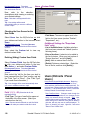
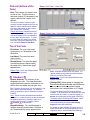
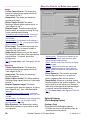
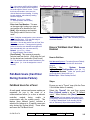
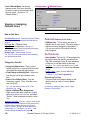
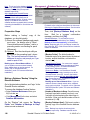
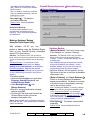
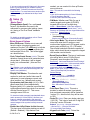
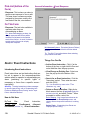
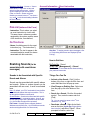
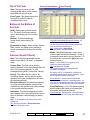
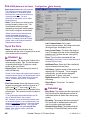
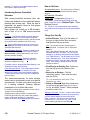
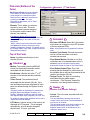
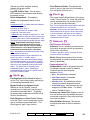
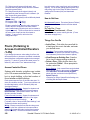
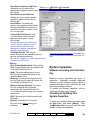
Reports User Access Report Type - Select the type of information to be included in your report. User Access to Area/Door/Floor: This lists users/cards that have access to a specific area, door, or floor during selected days and times. Expired Cards: This lists cards that are presently expired, or that will expire in the future (per your selections). Tip: You can change the date numerals manually, or click the arrows to access pop-up calendars. Inactive Cards: This lists cards that have note been used since a selected date. Tip: You can change the date numerals manually, or click the arrow to access a pop-up calendar. Lost Cards: This lists cards that have been identified as 'lost'. User names and IDs will be included in the report for cards set as 'Lost' through the "Users" screen. Related: Users, Lost Cards Cards that have been Lost Time Range - Select the time of day to be examined for cardholder access (i.e., the starting time and end time). (Multi-Account Systems: Account Selection 'Tree') - This area (near the centre of the screen) is where you select the account that your report pertains to. Tip: This option appears only if you didn't already have an account 'open' in the tree. Report Destination / Output To Tip: To set the times, click within the 'hours' or 'minutes', and use the up/down arrow keys. Note: The report will include everyone with access during any portion of your selected time range. Selected Days - Select the weekdays to be examined for cardholder access. Note: You must select at least one weekday. Note: The report will include everyone with access on any of the days you select. - Area is not scheduled, list users with access when area is off: This causes the report to disregard if the area is presently armed. - Process Authority Plus: Select this for users that may have a second authority assigned (authority plus). - Custom User Field x: This allows selecting one or two custom user fields to be included in the report. Note: These cannot be multi-line fields. - Screen: This has the report sent to the 'Report Viewer' window for viewing and/or printing desired pages; - Printer: This allows selecting a printer and page-range, etc., and printing the report (without viewing it first); - Text File: This has the report saved as a 'comma-delimited' text file for manipulation with another program. Allows you to change the location and/or filename if desired. - Report Emulation Text File: This has the report saved as a formatted text file for viewing, printing, or editing with a text editor or word processor. Allows you to change the location and/or filename if desired. - Archive: This has the report saved as a viewable archived report for viewing or printing at a later time. Allows you to change the location and/or filename if desired. (Remaining Buttons) - [File...]: This allows changing the location and file-name for a report being saved for future viewing, printing, etc. Tip: Use a different 21-0381E v4.7.4 Welcome Report Control Admin Sys Config Tech-Ref 23