1
4
M
SMART
AV
g
MOVIES
VIDEO
h
X
i
¬
0
U
C
CH
SURF
a
SMART
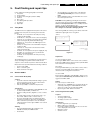
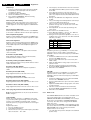
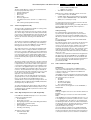
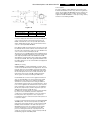
Installation
INSTALL
LANGUAGE
AUTO STORE
MANUAL STORE
SORT
CHANNEL EDIT
NAME
INSTALL
LANGUAGE
AUTO STORE
MANUAL STORE
SORT
CHANNEL EDIT
NAME
b
V
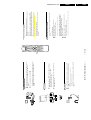
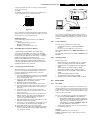
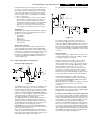
MENU
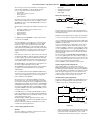
select menu
item
Note: If no action is executed, the menu automatically disappears after about 12
seconds.
PICTURE
SOUND
FEATURES
INSTALL
Press the i key to switch the menu off.
Press the menu key to return.
Use the cursor in the left/right directions to access the sub-menu and to
adjust the settings.
Use the cursor in the up/down directions to select a menu item.
Note: Sometimes not all the menu items are visible on the screen; press the cursor
down until all the items are displayed.
Press the MENU key to display/cancel the main menu.
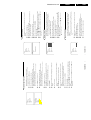
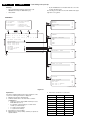
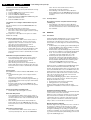
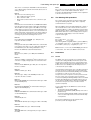
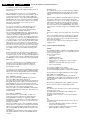
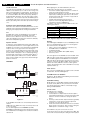
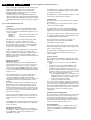
You can now search for and store the TV channels in two different ways: using
Auto store or Manual store (tuning in channel by channel).
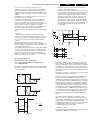
From now onwards, all on-screen displays will appear in the language that you
have chosen.
Press the MENU key to return to the main menu.
Select your language with the cursor up/down.
Press the cursor right again.
Press the cursor right to select LANGUAGE.
Select INSTALL with the cursor down.
Press the MENU key.
“
&
é
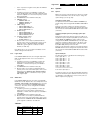
Note: Channel numbers will always be written in Latin characters, even when a
language has been selected which uses other characters.
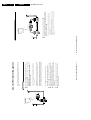
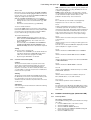
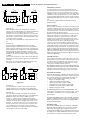
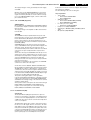
When the tuning is completed, press the MENU key to return to the
INSTALL menu or press the i key to switch the menu off.
Press the cursor right to start the searching.
All TV channels are searched for and stored automatically.
Select AUTO STORE in the INSTALL menu.
Automatic tuning of channels
&
é
“
‘
(
§
First, select your language.
Select the menu language
Store TV channels
‘
(
“
&
é
2
Sleep D
AV
◊
DOLBY V.
b
V
MENU
M
SMART
7
4
1
q
A/CH
D
f
¬
0
8
5
2
PI P
g
X
UP
ß
DN
S
ê
î
PROGRAM LIST
U
C
CH
SURF
a
SMART
9
6
3
PIP CH
DOLBY V ◊
h
ACTIVE CONTROL
h
i
©
æ
B
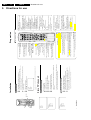
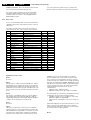
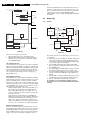
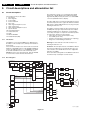
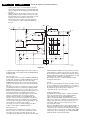
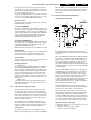
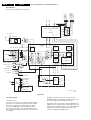
Allows you to navigate through a list of installed programmes for a quick overview
of the channels and activate the channel you have selected.
PROGRAM LIST î
ON: Sharpness and Noise Reduction are controlled automatically.The Picture
settings are being adapted continuously and automatically. The menu items cannot
be selected.
Measures and corrects all incoming signals in order to provide the best picture
quality settings. Press to select the Active Control values On or Off.
Active Control On/Off h
In Mono sound mode, this feature, when switched on, enables you to hear
a spatial effect of sound.
Incredible Surround
In Stereo sound mode, when Incredible Surround is selected, it seems as
though the loudspeakers are spread further apart from one another.
Dolby Virtual (Virtual Dolby Surround) enables you to experience the effect
of Dolby Pro Logic Surround, reproducing a rear sound effect.
Dolby Virtual (with Dolby Surround signals)
Allows you to select 5 types of picture settings.
Press the key repeatedly to select the different
settings.
Smart Picture a
Allows you to select your desired sound setting
from 4 types of sound settings.
Press the key repeatedly to select the different
settings.
Smart Sound M
Allows you to select a channel.
Note: For a 2-digit number, the second digit
must be entered before the “-” sign disappears.
Digit (0-9)
Press this key repeatedly to select another
screen format: Auto, 4:3, Expand 4:3 and
Compress 16:9. See also p. 11.
Screen format q
Allows you to freeze the main picture.
Freeze S
(if provided) See p. 12
ßê© PIP CH UP/DOWN
PIP (Picture in Picture)/Dual Window On/Off æ
Allows you to alternate between the last
viewed channel and the present channel.
(Alternate Channel) A/CH
• Switch set off temporarily to standby mode.
(The red light indicator lights up when set is
on standby mode).
• To switch on set from standby mode, press
button again.
Standby B
Allows you to select a time period after which
the set will switch to standby mode
automatically.
Allows you to select the AV channels.
g for future use
(if provided) See p. 13
Allows you to access teletext information.
Colour keys,bhUf Teletext
Allows you to set the clock to switch to
another channel at a specified time while you
are watching another channel or when the
set is on standby mode.
C Timer
Allows you to switch from Stereo to Mono
sound during stereo transmission or to choose
between Language Y or Language Z during
dual sound transmission.
X
• Displays the channel number, sound
transmission mode, the clock and the status
of the sleeptimer.
• Also allows you to exit menu from screen.
i On Screen Display
AV
descending order.
CH +/- Selects channels in ascending or
Mutes the sound.To restore the sound, press
the button again.
¬ Mute
Increases or decreases volume.
V Volume +/-
Up/Down: allows you to select the next or
previous item on the menu and to
select another picture format
Left/Right: allows you to access the sub-menus
and adjust the settings.
Cursor
Allows you to select up to a maximum of 10
favourite channels or sources and view quickly
the selected channels or sources.
To add a new channel or source:
• Select the channel number or source you
want to add to the surf list.
• Press the SURF key.
The request ADD? appears next to the
selected channel number or source.
• Press the cursor right to add.
To delete a channel or source:
• Select the channel number or source you
want to remove from the surf list.
• Press the SURF key.
The request DELETE? appears next to the
selected channel number or source.
• Press the cursor right to delete.
Press the SURF key repeatedly to scroll
through the selected channels or sources.
SURF
Also exits the menu from the screen or returns
to a higher menu level.
MENU Displays main menu.
EM1A
PICTURE
SOUND
FEATURES
INSTALL
i
switch
menu off
return
9
8
7
3
6
2
DN
S
ê
B
PIP CH
5
UP
ß
4
©
q
PI P
1
æ
D
Your remote control
Preparation
3.
A/CH
To use the menus
Installation
GB 6
Directions for use
3. Directions for use