1
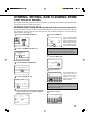
STORING, EDITING, AND CLEARING FROM THE TOUCH PANEL
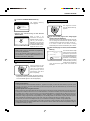
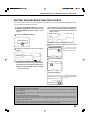
EDITING AND DELETING ONE-TOUCH KEYS
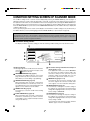
If you wish to delete a one-touch key or change the E-mail address, name, or other information programmed in a onetouch key, perform the following procedure.
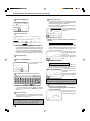
the CUSTOM SETTINGS key, touch the
1 Press
ADDRESS CONTROL key, and then touch the
the key corresponding to the information
4 Touch
you wish to change (change the information in
DIRECT ADDRESS key (refer to steps 1 to 3 on
page 17).
the same way as you stored the information on
pages 17 to 18).
DIRECT ADDRESS / AMEND/DELETE
2
DELETE
EXIT
Touch the AMEND/DELETE key.
E-MAIL
NAME
INDEX
AMEND/DELETE
KEY NAME
INTERNET-FAX
SHARP CORPORATION
USER 3
INITIAL
ADDRESS
SHRAP CORPORATION
S
[email protected]
FILE FORMAT
PDF / MMR (G4)
sure that your changes are correct, and
5 Make
then touch the EXIT key.
3
DELETE
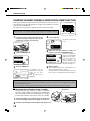
Touch the one-touch key you wish to edit or
delete.
EXIT
DIRECT ADDRESS / AMEND/DELETE
If you wish to change
another one-touch key,
repeat steps 3 through 5
EXIT
.
SELECT ADDRESS TO AMEND/DELETE.
SHARP CORPORATION
TPS
SHARP GROUP
FREQUENT USE
INITIAL
ABCD
EFGHI
JKLMN
OPQRST
UVWXYZ
ABC
GROUP
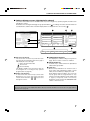
● To edit a one-touch key, follow steps 4 and 5.
S
6 Touch the DELETE key.
DELETE
EXIT
● To delete a one-touch key, follow steps 6 and 7.
● When you have finished editing or deleting,
touch the EXIT key.
INITIAL
S
7 Touch the YES key.
If you wish to delete another
one-touch key, repeat steps
3, 6, and 7.
DELETE THE ADDRESS?
SHARP CORPORATION
NO
SHARP CORPORATION
YES
FILE FORMAT
PDF
NOTES
• If you cannot edit or delete a one-touch key
If you attempt to edit or delete a one-touch key in the following situations, a warning message will appear and editing/deletion
will not be possible.
● The one-touch key you wish to edit or delete is currently being used for transmission or is used in a currently stored
transmission job.
● The one-touch key is included in a group key.
If the key is being used for a current transmission or currently stored transmission, cancel the transmission or wait until it is
completed and then change or delete the key. If the key is included in one of the above groups, delete the key from the group
and then change or delete the key.
• Destinations for Scan to FTP and Scan to Desktop that are stored in one-touch keys cannot be edited or cleared from the
touch panel of the machine. Use the Web page to edit or clear these destinations. (Page 2)
19