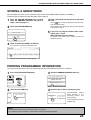
1
STORING, EDITING, AND CLEARING FROM THE TOUCH PANEL
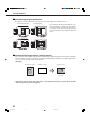
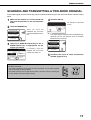
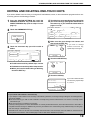
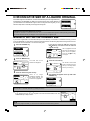
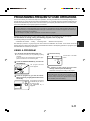
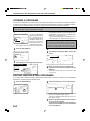
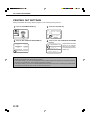
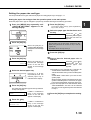
STORING SENDER INFORMATION
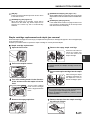
Use this procedure to store the sender information (sender name and e-mail address) that is displayed when the
recipient receives your e-mail. Information for up to 20 different senders can be stored. Select a sender from the
stored senders using the touch panel of the digital copying machine when you send an image (page 8). The selected
sender appears in the sender column of the recipient's e-mail software program. If you prefer to store sender information
from the Web page, refer to page 5.
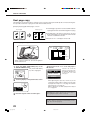
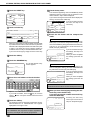
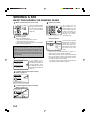
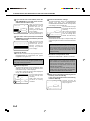
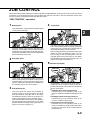
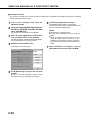
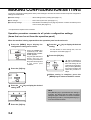
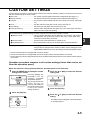
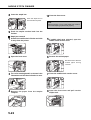
the CUSTOM SETTINGS key, and then
1 Press
touch the ADDRESS CONTROL key (refer to
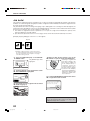
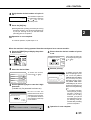
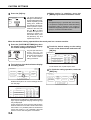
4 Touch the SENDER NAME key.
The "No." that automatically
appears is the lowest number
from 01 to 20 that has not yet
been programmed. When
SENDER NAME is touched,
the letter-entry screen
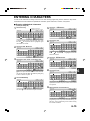
appears. Enter up to 20
characters for the name.
steps 1 and 2 on page 17).
2 Touch the E-MAIL SENDER key.
SENDER NAME
RE.ADDRESS
E-MAIL SENDER
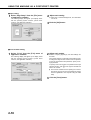
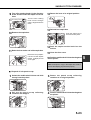
5 Touch the RE.ADDRESS key.
SENDER NAME
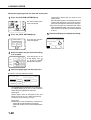
3 Touch the STORE key.
1 GROUP
RE.ADDRESS
SENDER
STORE
The display changes to the
address entry screen when
you touch the RE.ADDRESS
key. Up to 64 characters can
be entered for the sender's
e-mail address. When
finished, press the OK key to
return to the original screen.
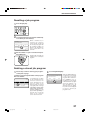
you have finished storing senders, touch the
6 IfEXIT
key. If you wish to store another sender,
touch the NEXT key.
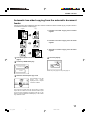
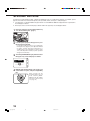
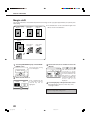
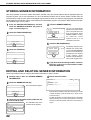
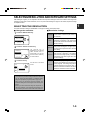
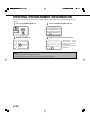
EDITING AND DELETING SENDER INFORMATION
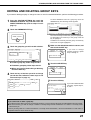
Use this procedure when you need to edit sender information or clear a sender.
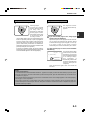
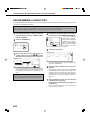
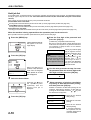
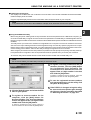
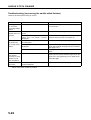
steps 1 and 2 of "STORING SENDER
1 Perform
INFORMATION".
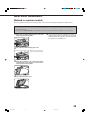
4 Edit or clear the sender.
E-MAIL SENDER
2 Touch the AMEND/DELETE key.
DELETE
SENDER NAME
1 GROUP
RE.ADDRESS
[email protected]
EXIT
The stored senders appear.
AMEND/DELETE
the one-touch key of the sender that you
3 Touch
wish to edit or clear.
IST
1 GROUP
2 GROUP
22
The edit/clear screen of the
touched sender appears.
Edit sender information in the same way that you stored
it. When finished, touch the EXIT key to return to the
screen of step 3.
To clear the sender, touch the DELETE key. A message
appears asking you to confirm your selection. Touch the
YES key to clear the sender and return to the screen of
step 3.