1
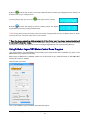
When
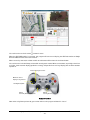
is clicked, it will display laser scanner data in polar view as shown below.
Yellow: Driving Direction
(Modified by sensor map)
Blue: Gamepad Driving Direction
Polar Sensor Map
Enable Collision Avoidance
* When the "CA" checkbox is
checked, the program will
limit the maximum output
PWM to 65% full power.
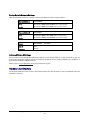
Battery information and motor information is displayed here. If the robot uses
the included Li-Po battery, you need to stop the robot when voltage is below
marked voltage (22.2V) in order to prevent battery damage. Motor
temperatures are also displayed here. “Encoder Pos” boxes show the encoder
position values received in motor driver board from motion control board.
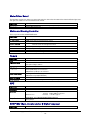
When selected, the motors will be disabled when measured motor temperature is higher than
the safety threshold (we recommend this feature is enabled for normal operation); When de-selected, this motor
over-heat protection feature is disabled.
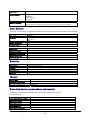
The two horizontal track bars show the Gamepad controller’s left and right stick control value.
You could record raw GPS-IMU/Encoder sensor data using
saved to "c:\DrRoboAppFile" folder with file name GPSIMURec*.txt.
button. The raw sensor data file will be
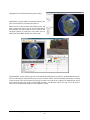
All traces are displayed on Google Earth by KML data. Since the current version of Google Earth does not provide
programming method to clear these KML data, there is risk of memory leak. You could manually clear these KML
Copyright © 2014, Dr Robot Inc. All Rights Reserved. www.DrRobot.com
- 13 -
V20.12.14