1
Getting Sound In and Out of Mbox 2
To hear audio recorded into a Pro Tools session,
you will need to connect headphones or an external sound system (such as powered monitors
or a home stereo) to Mbox 2. Sound from
Mbox 2 cannot be played through your computer’s speakers or your computer’s sound output.
Connecting Headphones
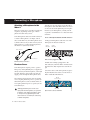
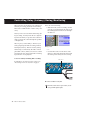
On the front panel of the Mbox 2 is a 1/4-inch
jack to connect headphones, and a headphone
level control to adjust headphone volume.
Headphone level
Connecting a Sound System
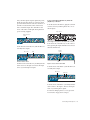
The monitor outputs on the back of the Mbox 2
support 1/4-inch plugs. These connections can
be balanced, TRS (Tip, Ring, Sleeve) style connectors, or unbalanced connectors. To listen to
your Pro Tools session, these outputs can be
connected to any amplification system: powered speakers, home stereo system, or an audio
mixer.
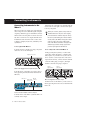
When connecting to a stereo system, connect
the left channel (often the white plug) to
Mon Out Left, and right channel (often the red
plug) to Mon Out Right.
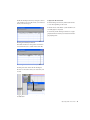
Home stereo systems often use RCA connectors. You can use an adaptor or a special cable to convert from the TRS or TS connectors
used by Mbox 2 to the RCA connectors on
your home stereo.
1/4-inch
Headphone jack
Monitor Out Left
Headphone jack on front of Mbox 2
To connect headphones:
■ Connect headphones with a 1/4-inch stereo
connector (or adapter) to the Headphone jack.
Monitor Out Right
Stereo output from the Mbox 2 (back panel)
Mon Outs Left and Right play the audio that is
routed to analog outputs 1 and 2 within
Pro Tools.
2
Mbox 2 Basics Guide