1
Deep Security 9.5 Installation Guide (VMware vShield)
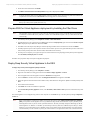
Quick Start: Protecting a Computer
2.
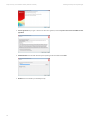
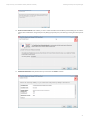
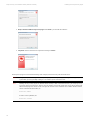
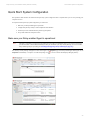
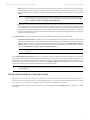
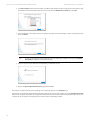
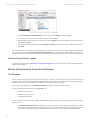
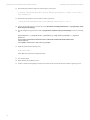
In the New Computer wizard, enter the hostname or IP address of the computer and select an appropriate security Policy to apply
from the Policy tree in the drop-down menu. (In this case we will select the Windows Server 2008 Policy.) Click Next.
3.
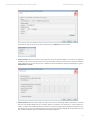
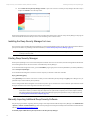
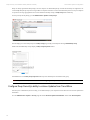
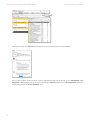
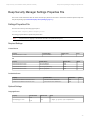
The wizard will contact the computer, add it to the Computers page, detect the unactivated Agent, activate it, and apply the selected
Policy. Click Finish.
Note:
An Agent can be configured to automatically initiate its own activation upon installation. For details, see CommandLine Utilities in the Reference section of the online help.
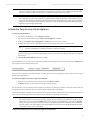
4.
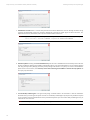
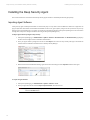
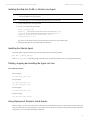
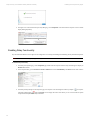
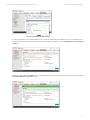
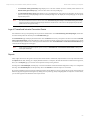
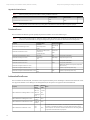
When the computer has been added the wizard will display a confirmation message:
5.
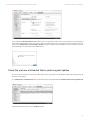
Deselect the Open Computer Details on 'Close' option and click Close.
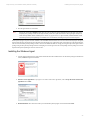
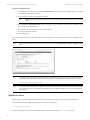
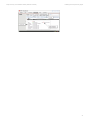
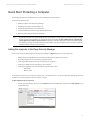
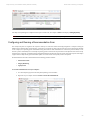
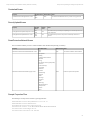
The computer now appears in the Deep Security Manager's list of managed computers on the Computers page.
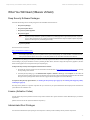
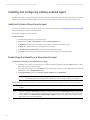
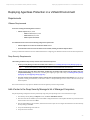
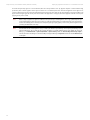
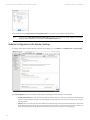
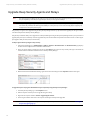
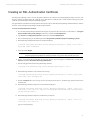
Deep Security will automatically download the latest Security Updates to the computer after activation. As well, the Windows Server 2008
Policy that was assigned to the computer has Integrity Monitoring enabled and so it will start to Build an Integrity Monitoring baseline for the
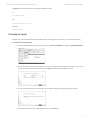
computer. You can see activities currently being carried out in the status bar of the Manager window:
58