1
Updating HP-UX
Updating HP-UX Software
Updating HP-UX Software
If you are updating software on an existing HP-UX 10.20 system you
should begin the update procedure at this point.
Otherwise, you should have installed the new SW-DIST product first, as
given in the previous sections in this chapter. Then do the following to
start swinstall:
On Series 700, you will see a Graphical User Interface (GUI), by default.
On Series 800, you will see a character display Terminal User Interface
(TUI) on a console. You will have a GUI if you are working from an
Xterminal.
Updating a Single System or Series 800
Server-Cluster
1. For a Series 800 serving Series 700 clients, or for a non-clustered
system, enter the Software Management area of SAM and select
Install Software to Cluster/Local Host. Or enter the following:
/usr/sbin/swinstall
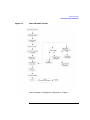
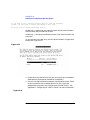
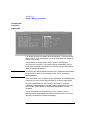
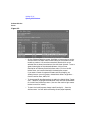
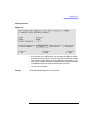
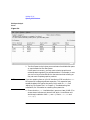
2. You will see the swinstall Specify Source screen in Figure 3-1. Skip
to the section "Specify Source Screen".
Updating a Cluster
If you are updating Series 700 cluster clients or a Series 700 serving
Series 700 clients, enter the Software Management area of SAM and
select Install Software to Cluster. Or you can use swcluster, as follows:
1. Enter the swcluster command for interactive mode:
/usr/sbin/swcluster -i
(swcluster will shut down the cluster clients if you are updating
kernel software):
You will see the swinstall interface. The screens are similar to
those used for the non-clustered procedure below.
2. Select the default shared root (/export/shared_roots/OS_700) in
the interactive window.
Chapter 3
69