1
Personalizing Your Phone
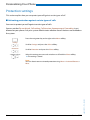
Configuring keys
This section explains how to assign phone numbers and functions to a configurable key.
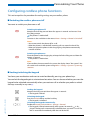
■ Available keys
You can store phone numbers and functions[a] directly on a softkey that are only retrievable in
the idle position.
You can assign each key with a specific type so you can trigger a particular action by simply
pressing that key. Choice available:
• Number key: Storing the phone number;
• Function key: Activating/deactivating a function.
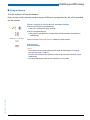
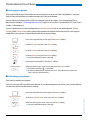
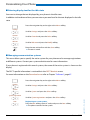
■ Storing a phone number on a key - Number key
You want to retrieve a frequently used phone number with a single keystroke rather than enter
it digit by digit.
On each softkey you can store one call number and the associated name. The key automatically
becomes a number key.
The system administrator can disable any possibility of modifying the configuration of a key
that has already been configured.
<long>
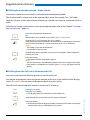
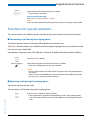
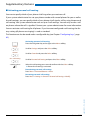
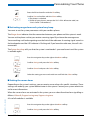
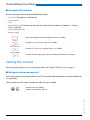
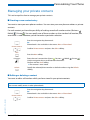
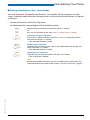
Keep the key you want pressed down for approx. 2 seconds.
Or:
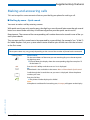
Keys are also available via the menu: Menu > Settings > Keys > Softkeys.
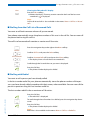
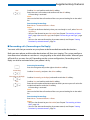
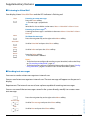
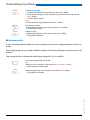
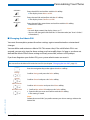
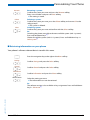
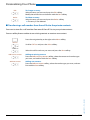
Creating a new key assignment:
Press the New softkey or directly select the Number key, enter the name and
number, and confirm with the Save softkey.
➔ The allocated function is stored.
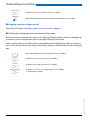
Modify
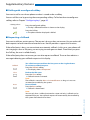
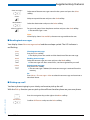
Modify a key assignment:
Select the key you want and press the Modify softkey. Make the changes and
confirm with the Save softkey.
➔ The allocated function is stored.
Delete
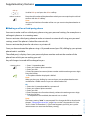
Deleting a key assignment:
Select the key you want and confirm with the Delete softkey.
➔ The assignment is deleted.
eud-1093/1.1 – I7.9 – 09.2009
New
62
Aastra 610d