1
PRINT TASKS WINDOWS
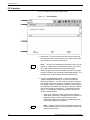
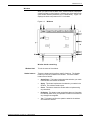
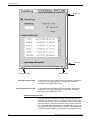
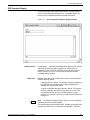
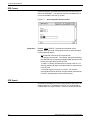
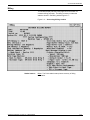
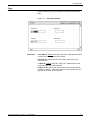
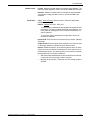
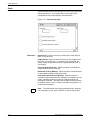
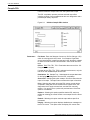
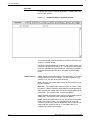
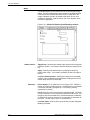
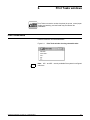
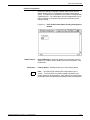
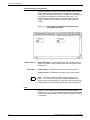
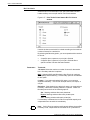
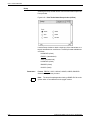
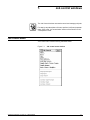
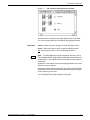
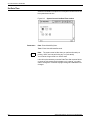
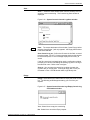
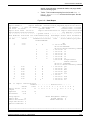
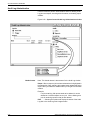
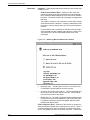
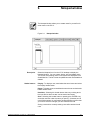
Figure 6-11. Print Tasks Printer Status>Units
Parameters
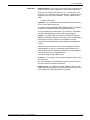
Inches - Select this button to display in inches.
Millimeters - Select this button to display in millimeters.
Transparencies
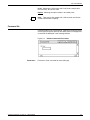
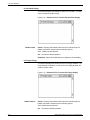
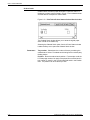
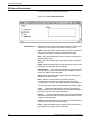
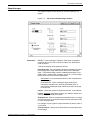
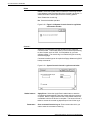
Selecting the Transparencies option from the Print Status window’s
header auxiliary menu opens the Transparencies window. The
Transparencies window allows you to cancel or request the use of
transparencies for a particular print job. Once the job has printed, the
transparency control returns to the coding in the job stream.
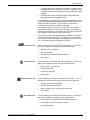
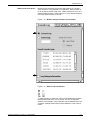
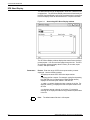
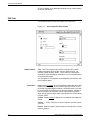
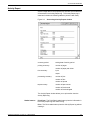
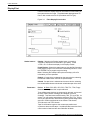
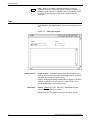
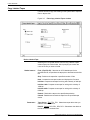
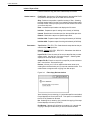
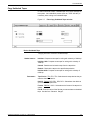
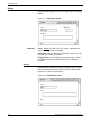
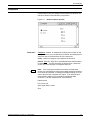
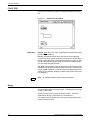
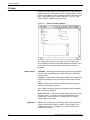
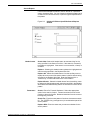
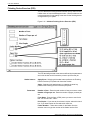
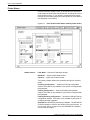
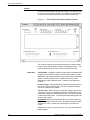
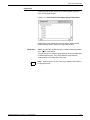
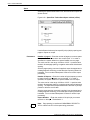
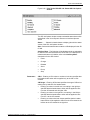
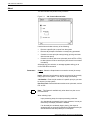
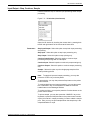
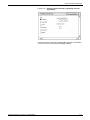
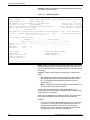
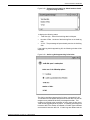
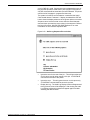
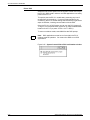
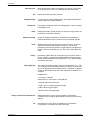
Figure 6-12. Print Tasks>Printer Status>Ordered Stock window
Parameters
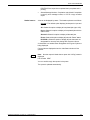
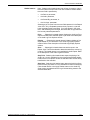
JDE/JDL Statement: This is the default selection for the window and
means that transparency use is controlled by the coding in the job
stream.
Yes: Selecting the Yes button causes the job to print on
transparencies.
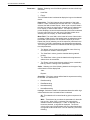
No: Selecting the No button temporarily overrides any transparency
coding in the job stream and prints the job on regular stock.
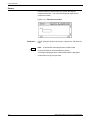
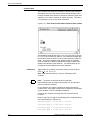
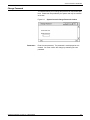
Note: You must be sure that either transparency or regular stock is
loaded in the appropriate feeder trays.
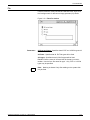
Transparencies can feed only from the processor feeder trays (trays
1 and 2) and must be delivered to the sample tray.
XEROX DOCUPRINT 180 LPS PC UI REFERENCE
6-15