1
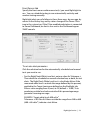
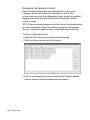
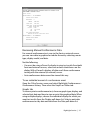
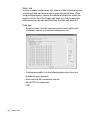
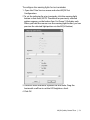
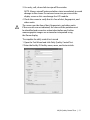
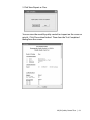
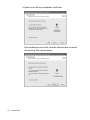
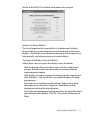
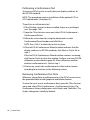
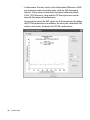
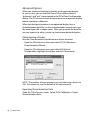
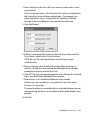
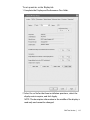
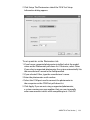
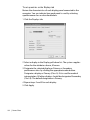
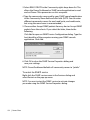
4 To start Dome CXtra in the privileged user mode when the
computer starts and without entering a password, click the
“Start as privileged user” box. To start Dome CXtra in the
non-privileged user mode when the computer starts, leave
the box unchecked.
5 To allow non-privileged users to exit from the Dome CXtra
application, click the “Allow non-privileged users to exit” box.
6 Click OK to close the dialog.
Logging Out of Privileged Mode
To prevent unauthorized users from changing Dome CXtra settings,
log out when leaving the system unattended.
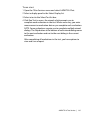
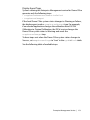
To log out
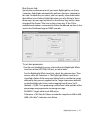
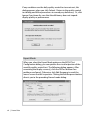
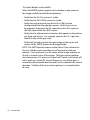
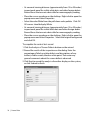
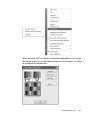
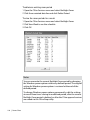
Open the CXtra Services menu and select Non-Privileged User.
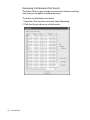
Changing Your Password
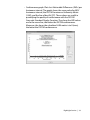
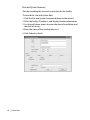
To change your privileged user password
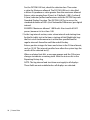
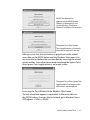
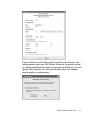
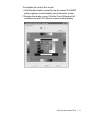
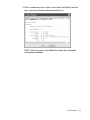
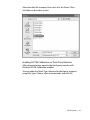
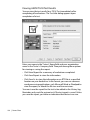
1 Open the CXtra Services menu and select Privileged User to
open the Privileged Logon dialog.
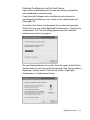
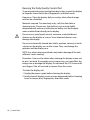
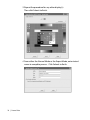
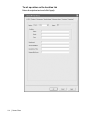
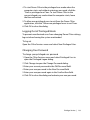
2 Click Change to open the Change Password dialog.
3 Enter your current password in the Old Password field.
4 Enter your new password in the New Password field
5 Enter your new password again in the Confirm New field.
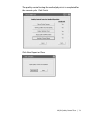
6 Click OK to close the dialog and activate your new password.
Privilege Service | 139