1
After Checking In a Sequence to
Interplay for Pro Tools
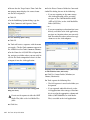
The system exports the sequence from the Avid
application, and then checks in the sequence to
Interplay.
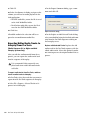
If the Interplay folder containing the exported
sequence has been configured with video and
audio settings defined in the Editor Export Settings for Pro Tools plug-in, those settings are applied to the sequence. (These settings can apply
to either the entire database or to one or more
folders, depending on how they are configured.)
When you use an Avid application to check in a
sequence to Interplay for Pro Tools, the system
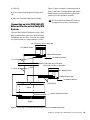
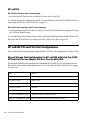
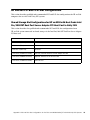
chooses a destination folder in the Interplay database based on the current Interplay view settings, with the default destination folder as follows:
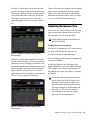
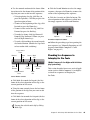
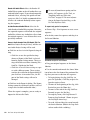
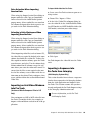
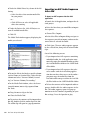
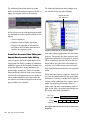
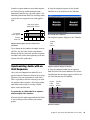
Exported Files in Interplay
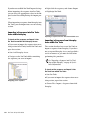
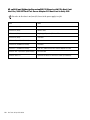
If this is the first time the you have checked in a
sequence to Interplay for Pro Tools for this
project, the system performs the following operations:
• Checks in the Avid sequence to the bin_name
folder.
• Creates a Pro Tools folder within the bin_name
folder.
• Checks in the files for the Pro Tools editor to
the Pro Tools folder.
• Checks in a Pro Tools sequence to the
Pro Tools folder.
Projects\project_name\bin_name
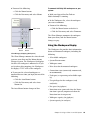
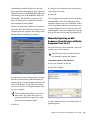
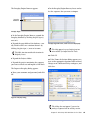
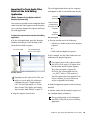
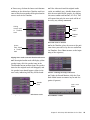
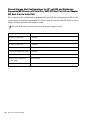
If your check-in destination folder is a folder for
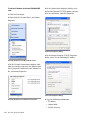
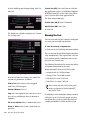
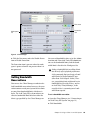
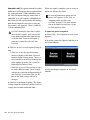
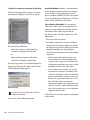
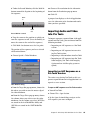
which settings have not been defined, the system displays the Pro Tools Export Settings dialog so you can specify the settings.
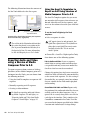
The name matches the name in the
Avid application bin
Location of the Avid sequence and its associated
Pro Tools folder
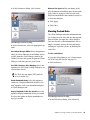
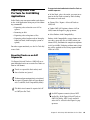
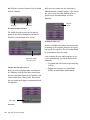
The first time the sequence is exported, the system appends the text “_v1_forPT” to the sequence name in the Pro Tools folder. Each subsequent time the sequence is exported, it uses
the text “_v2_forPT,” “_v3_forPT,” and so on.
Pro Tools Export Settings dialog
Chapter 4: Avid Unity ISIS Workflows for Pro Tools
47