1
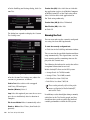
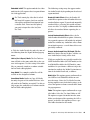
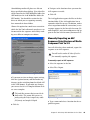
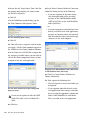
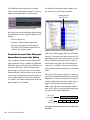
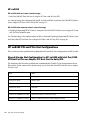
Render All Audio Effects Select the Render All
Audio Effects option so that all audio effects are
rendered before export. If you already manually
rendered effects, selecting this option will not
create new files. It is highly recommended that
all effects be rendered manually before exporting the sequence.
Include Rendered Audio Effects Select the Include Rendered Audio Effects option. Otherwise,
the exported sequence will include the original
audio files without any AudioSuite effects from
the original sequence—even if those effects were
previously rendered.
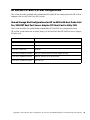
For more information on opening and importing AAF sequences in Pro Tools, see
“Importing Audio and Video into
Pro Tools” on page 55. For more information on the Import Session dialog, see the
Pro Tools Reference Guide.
To export only part of a sequence:
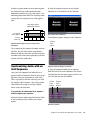
1 Choose Clip > New Sequence to create a new
sequence.
2 In the bin, name the sequence and drag it to
the Record Monitor.
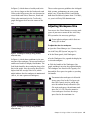
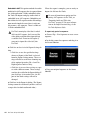
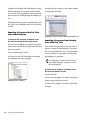
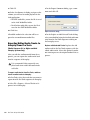
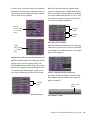
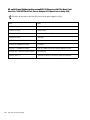
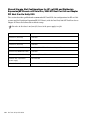
Convert Audio Sample Rate/Bit Depth/File Format Select Project for any of these, and the current Audio Project Setting will be used.
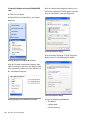
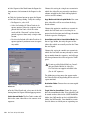
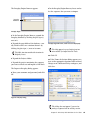
8 Click Save or Save As in the Export Settings di-
alog:
• Click Save to use the specified settings
whenever Export to Pro Tools is selected
from the Export Settings menu. These settings will also be used when choosing File >
Send To > Digidesign Pro Tools.
• Click Save As to save these settings as a preset with a different name. These settings
can then be recalled in the Export dialog. If
you click Save As instead of Save, the Export to Pro Tools settings will not be
changed.
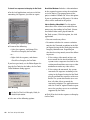
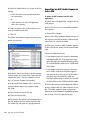
9 Click Save in the Export As dialog. (The Export
Settings cannot be saved until you have selected
a target drive for both audio and video.)
When the export is complete, you are ready to
import the file into Pro Tools.
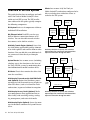
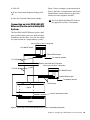
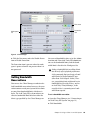
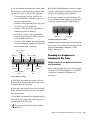
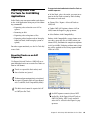
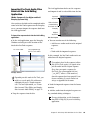
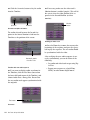
Avid Media Composer main window
3 Drag your original sequence to the Source
Monitor.
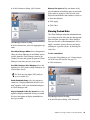
4 Use the controls underneath the Source Monitor to locate the first frame of the portion of the
clip that you want to edit into the sequence:
• To begin playing the clip, click Play (or
press the Spacebar). Click Play or press the
Spacebar again to Pause.
• To move to the beginning of the clip, click
Rewind (or press the Home key).
• To move to the end of the clip, click FastForward (or press the End key).
• To nudge by frame, click Step Forward 1
Frame or Step Backward 1 Frame (or press
the Left/Right Arrow keys).
• To scrub, click and drag the cursor beneath
the Source Monitor. (Enable the Caps Lock
to hear audio while scrubbing.)
52
Pro Tools Unity ISIS Guide