1
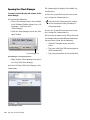
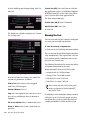
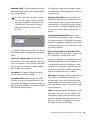
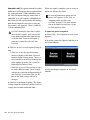
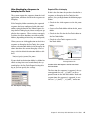
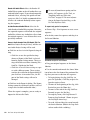
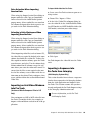
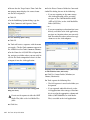
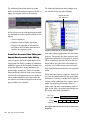
14 Click the Overwrite button to lay the audio
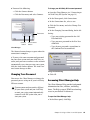
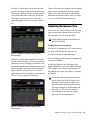
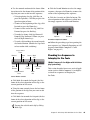
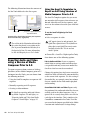
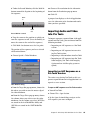
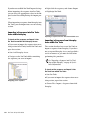
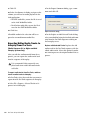
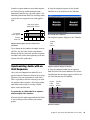
16 If necessary, make sure the video track’s
into the Timeline.
Monitor button is enabled (purple). This will allow you to view the video portion of the sequence in the Record Monitor (or client
monitor).
Splice-In
Monitor
button
Overwrite
Overwrite and Splice-In buttons
The audio selected between the In and Out
points in the Source Monitor is laid into the
Timeline at the position of the cursor.
Enabling the Video track
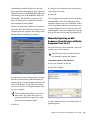
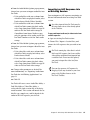
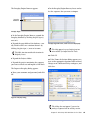
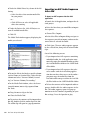
17 Press the Home key to move the cursor to the
beginning of the sequence and press the Spacebar to play the sequence. The new audio should
be synchronized with the video.
New audio tracks
from Pro Tools
Timeline with new audio sequence
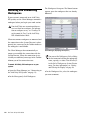
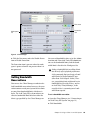
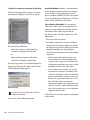
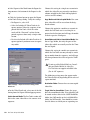
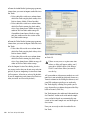
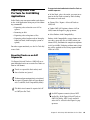
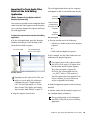
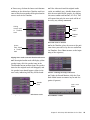
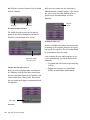
15 If you want to display audio waveforms in
the Timeline, click the Fast Menu (located on
the lower left hand corner of the Timeline), and
choose Audio Data > Energy Plot. Ensure that
the new audio tracks appear synchronized with
the originals.
Fast menu
Fast menu
74
Pro Tools Unity ISIS Guide
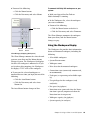
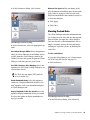
After verifying the new audio sequence is correctly synchronized, you can do either of the
following:
• Lay audio and video back to tape using Digital Cut
• Export your sequence as a QuickTime,
MPEG, or other format digital movie.